Use Cases


Want your Convai characters to run on your LLM (for control, compliance, or cost reasons)? With Custom LLM integration on the Enterprise plan, you can register private, OpenAI-compatible endpoints and use them across your characters—right from the Core AI Settings dropdown in the Playground.
This guide shows you how to:
Watch the tutorial below to get a head start:

Convai expects your endpoint to speak the OpenAI API dialect—same style of REST paths and JSON payloads (e.g., base_url like https://…/v1, a model name, and chat/completions semantics).
Good news: many hosted providers and open-source stacks (e.g., vLLM, SGLang) expose OpenAI-compatible endpoints. Check your provider’s docs for “OpenAI-compatible API” or a compatibility mode.
Tip: If your endpoint isn’t OpenAI-compatible yet, deploy it behind a compatible gateway (many inference hosts offer this) before registering in Convai.
Prerequisites
All requests are POST with JSON and must include the header:
CONVAI-API-KEY: YOUR_API_KEY
Each response includes:
If you’re stuck at any point, please refer to the API Documentation.
Path: /llm-models/register
Required body: model_group_name, model_name, api_key, is_uncensored
Optional: display_name, base_url (defaults to https://api.openai.com/v1)
cURL (macOS/Linux):
curl -X POST https://api.convai.com/llm-models/register \
-H "Content-Type: application/json" \
-H "CONVAI-API-KEY: YOUR_API_KEY" \
-d '{
	     "model_group_name": "my-turbo",
             "model_name": "gpt-4o-mini",
             "api_key": "sk-proxy-123",
             "is_uncensored": false,
             "display_name": "Turbo (Private)",
             "base_url": "https://api.openai.com/v1"
    }'
Windows CMD:
curl -X POST "https://api.convai.com/llm-models/register" ^
-H "Content-Type: application/json" ^
-H "CONVAI-API-KEY: YOUR_API_KEY" ^
-d "{\"model_group_name\":\"my-turbo\",\"model_name\":\"gpt-4o-mini\",\"api_key\":\"sk-proxy-123\",\"is_uncensored\":false,\"display_name\":\"Turbo (Private)\",\"base_url\":\"https://api.openai.com/v1\"}"
Success (200):
{
"status": "success",
"model_group_name": "my-turbo",
"model_name": "gpt-4o-mini",
"display_name": "Turbo (Private)",
"message": "Model 'my-turbo' registered successfully",
"transactionID": "14b0cf96-5230-4b0f-a971-2f4f4f6d5e6a"
}
Common errors:
Path: /llm-models/update
Required: model_group_name
Optional (≥1 required): display_name, base_url, api_key, is_uncensored
cURL:
curl -X POST https://api.convai.com/llm-models/update \
-H "Content-Type: application/json" \
-H "CONVAI-API-KEY: YOUR_API_KEY" \
-d '{        "model_group_name": "my-turbo",
	     "display_name": "Turbo v2",
	     "api_key": "sk-proxy-456"
}'
Windows CMD:
curl -X POST "https://api.convai.com/llm-models/update" ^
-H "Content-Type: application/json" ^
-H "CONVAI-API-KEY: YOUR_API_KEY" ^
-d "{\"model_group_name\":\"my-turbo\",\"display_name\":\"Turbo v2\",\"api_key\":\"sk-proxy-456\"}"
Success (200):
{
"status": "success",
"message": "Model 'my-turbo' updated successfully",
"updated_fields": ["display_name", "api_key"],
"transactionID": "5c0b6c67-97e4-4d78-9d5c-2a3de9d9c8ee"
}
Common errors:
Path: /llm-models/deregister
Required: model_group_name
cURL:
curl -X POST https://api.convai.com/llm-models/deregister \
-H "Content-Type: application/json" \
-H "CONVAI-API-KEY: YOUR_API_KEY" \
-d '{ "model_group_name": "my-turbo" }'
Windows CMD:
curl -X POST "https://api.convai.com/llm-models/deregister" ^
-H "Content-Type: application/json" ^
-H "CONVAI-API-KEY: YOUR_API_KEY" ^
-d "{\"model_group_name\":\"my-turbo\"}"
Success (200):
{
"status": "success",
"message": "Model 'my-turbo' deregistered successfully",
"transactionID": "b11ac4f7-4cd3-4f43-8a79-3c942a14a8c9"
}
Important: Before deregistering, switch all characters using this model to another model—or those characters will stop working.
Path: /llm-models/list
Body: (none)
cURL:
curl -X POST https://api.convai.com/llm-models/list \
-H "Content-Type: application/json" \
-H "CONVAI-API-KEY: YOUR_API_KEY"
Windows CMD:
curl -X POST "https://api.convai.com/llm-models/list" ^
-H "Content-Type: application/json" ^
-H "CONVAI-API-KEY: YOUR_API_KEY"
Success (200):
{
"status": "success",
"models": [
    		{
        	     "model_group_name": "my-turbo",
                     "model_name": "gpt-4o-mini",
                     "display_name": "Turbo (Private)",
                     "base_url": "https://api.openai.com/v1",
                     "is_uncensored": false,
                     "category": "Private",
                     "created_at": "2025-07-08T09:41:38.123Z"
                 }
           ],
		"count": 1,
                "transactionID": "2caa4b99-eda9-46e2-a9ee-b4f251afcb1f"
}All errors follow:
{ "status": "error", "message": "Explanation", "transactionID": "…" }
Start Building: Sign up at Convai.com and explore our Official Web SDK Documentation.
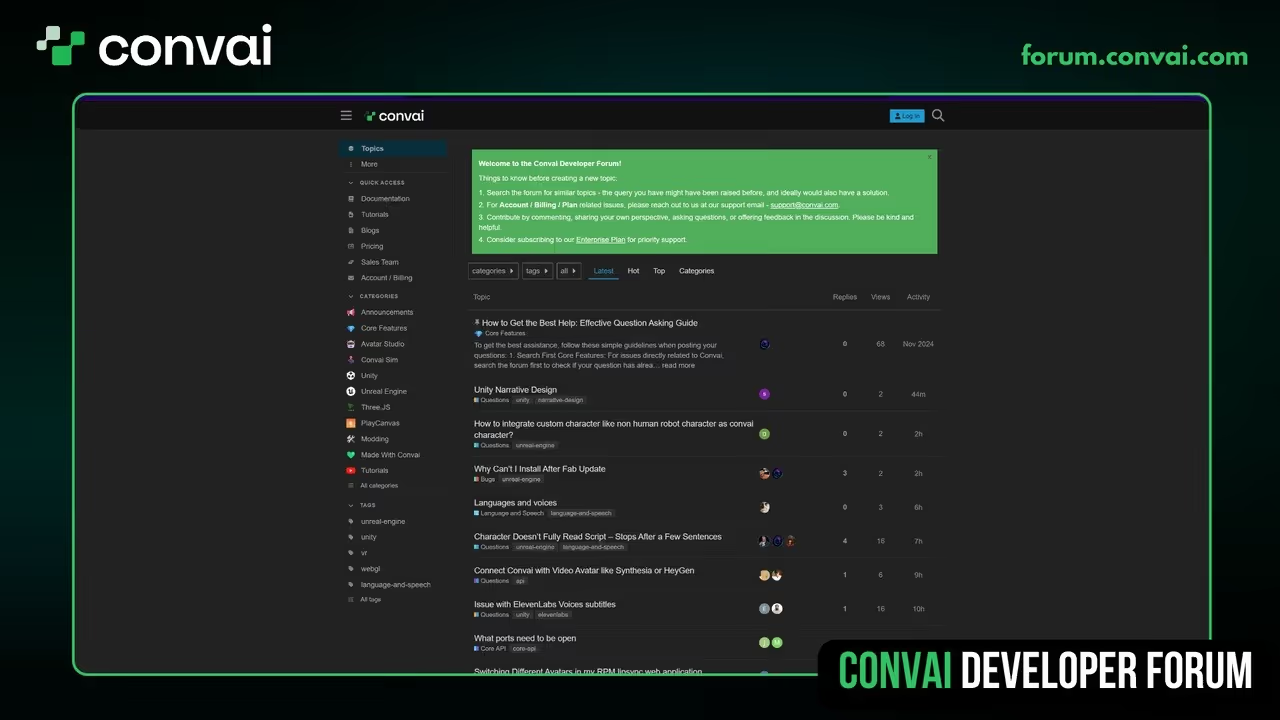
Technical Support: Visit the Convai Developer Forum to share your 3.js projects and get help from our engineers.
Don't forget to subscribe to our YouTube channel for more deep dives into browser-based AI and digital human technology.
What is the "Bring Your Own LLM" feature in Convai?
The "Bring Your Own LLM" feature lets developers connect their own OpenAI-compatible large language models (LLMs) to Convai’s platform. This allows customization of NPC dialogues by integrating private or third-party LLM endpoints directly within Convai’s Playground environment.
How does Convai integrate custom LLM models into its pipeline?
Convai integrates custom LLMs by requiring endpoints that adhere to the OpenAI API specification. Once registered via Convai’s API, these models become selectable in the Playground’s Core AI Settings, where they work seamlessly alongside Convai’s STT, TTS, and NeuroSync technologies for a full conversational AI pipeline.
What makes Convai’s LLM integration unique compared to other platforms?
Convai stands out by combining OpenAI-compatible LLM integration with proprietary NeuroSync technology that synchronizes lip movements with generated speech. This holistic approach enhances lifelike NPC interactions beyond standard chatbot text, delivering engaging and immersive character experiences.
What are common use cases for integrating custom LLMs with Convai?
Custom LLM integration is ideal for creating branded or domain-specific conversational NPCs in games, virtual assistants, training simulations, and immersive storytelling. It allows developers to tailor language models and maintain control over data privacy and response behavior within Convai’s unified framework.
Are there any limitations or requirements for using custom LLMs on Convai?
Yes, your LLM endpoint must be OpenAI-compatible, supporting the same REST API paths and JSON payloads as OpenAI’s /v1/chat/completions. Additionally, you need to securely provide API keys to Convai and ensure endpoint availability, as outages can cause NPCs to stop responding until fallback models are used.
Does this work with any LLM?
It works with endpoints that are OpenAI-compatible. Many hosted providers and OSS stacks support this. Confirm compatibility in your provider’s docs.
Can I have multiple private models?
Yes. Register as many as you need; use /llm-models/list to see them and pick the right one in Core AI Settings.
Will my private model appear in the UI?
Yes—after a successful register, refresh the Playground and check Core AI Settings → Model.
What happens if my remote endpoint is down?
Your characters using that model will fail to respond. Monitor your host and keep a fallback model ready.


