Use Cases
.png)
Object in Attention is a Convai feature for Unreal Engine that lets a user look at any object in a virtual world and ask about it naturally, without ever naming the object. Powered by Gaze Attention, your Convai-powered AI player understands what the user is focused on and responds with the right object context. It is the difference between an AI character that shrugs at "How much is that?" and one that answers, "That SMG2 is 80 coins."
If you build AI characters, AI players, AI Metahumans, virtual guides, retail simulations, training simulations, digital twins, or interactive game worlds in Unreal Engine, reference grounding is one of the hardest problems to solve. Players don't speak in object IDs. They say "this one," "that one," and "the one I'm looking at." This guide shows you exactly how to enable Gaze Attention, define objects with the Convai Object component, and ship an AI player that understands those phrases — start to finish!
▶ Watch the full walkthrough below:
Also make sure to grab the Convai Unreal Engine plugin on Fab!
Object in Attention is the Unreal Engine feature that connects a player's gaze to an AI character's understanding. When a user looks at a tagged object, Convai promotes that object to the AI player's "attention slot". A single focus object the model uses to resolve ambiguous references such as "this," "that," "it," and "there." Instead of guessing, your AI Metahuman knows precisely which weapon, artifact, machine, or product the user means.
The mechanism behind it is Gaze Attention, a subsystem inside the Convai Player Component that traces where the player is looking, highlights the object under the crosshair, and after a short dwell time, writes that object into the chatbot's context. The result is conversational reference grounding that feels natural in any 3D environment.
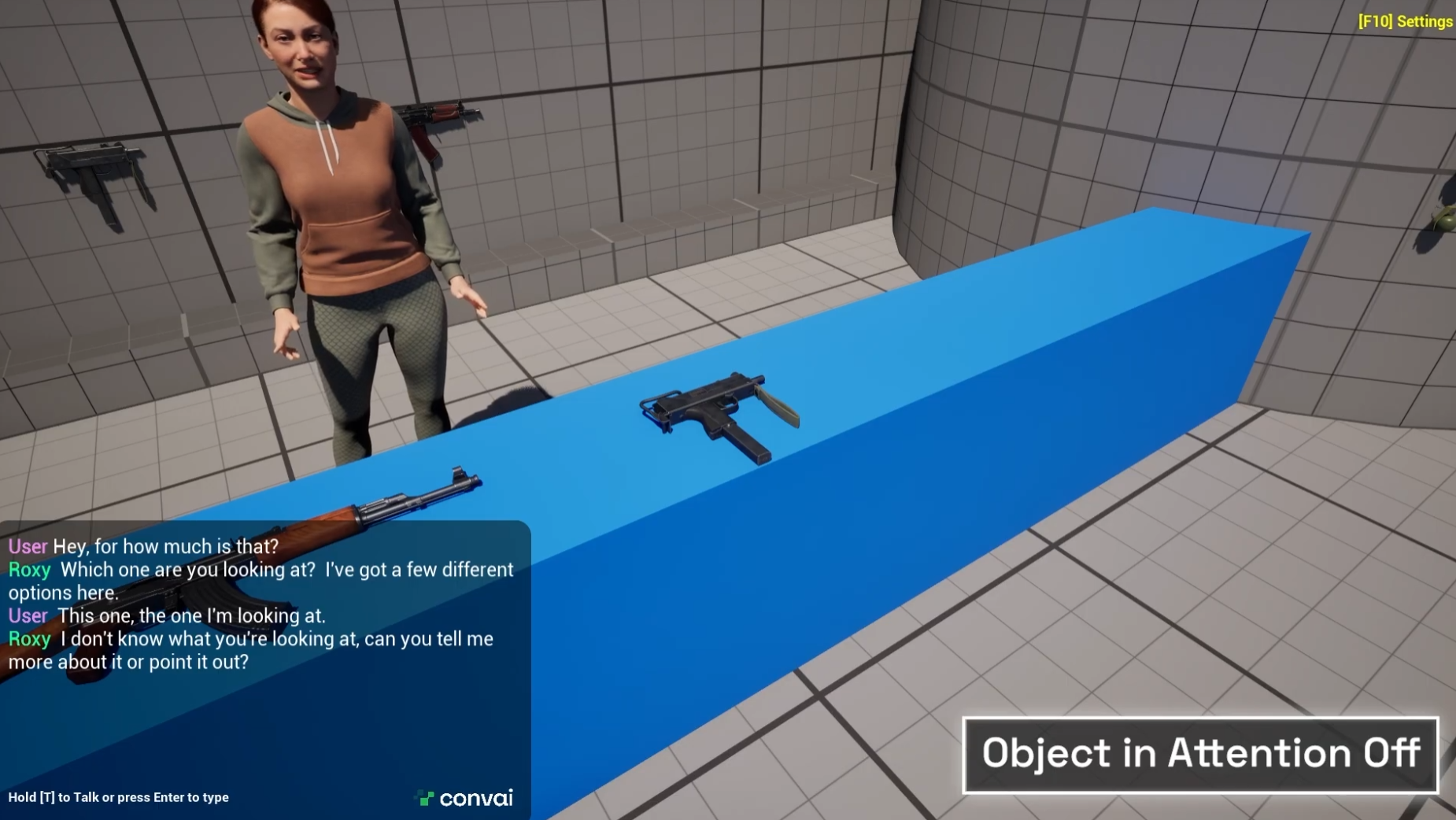
In the tutorial, a Convai-powered AI Metahuman runs a weapon shop. Without Object in Attention, the interaction breaks down immediately:
Player: "Hey, for how much is that?" AI player: "Which one are you looking at? I've got a few different options here." Player: "This one, the one I'm looking at?" AI player: "I don't know what you're looking at. Can you tell me more about it?"
With Gaze Attention enabled and the objects defined, the exact same questions resolve perfectly:
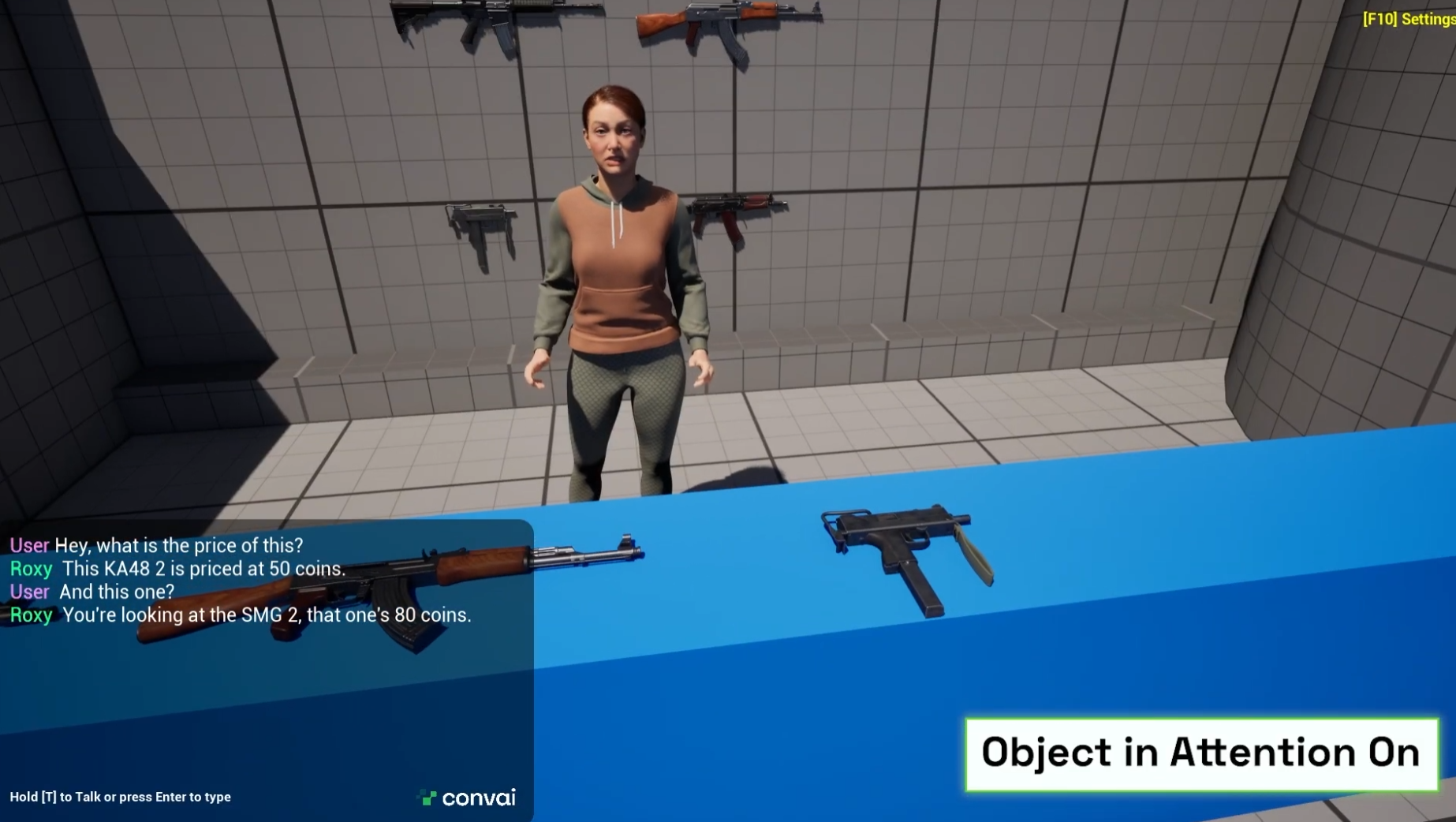
Player: "Hey, what is the price of this?" AI player: "This KA482 is priced at 50 coins." Player: "And this one?" AI player: "You're looking at the SMG2? That one's 80 coins."
Natural reference is the gap between a demo and a believable AI character. The voice AI market is projected to grow at a 17.2% CAGR (MarketsandMarkets), and the experiences driving that growth share one trait: users expect to talk to virtual humans the way they talk to real people: pointing, glancing, and gesturing instead of reciting names.
Object in Attention closes that gap for Unreal Engine developers. It makes AI Metahumans and AI characters feel context-aware in product demos, retail simulations, hard-skills training, digital twins, museum guides, and immersive game worlds. Combined with Convai's streaming vision and hands-free voice, your AI player can both see the scene and know exactly which object the user is asking about.
Gaze Attention runs every frame inside the Convai Player Component and moves through three stages:
Because gaze writes to the chatbot's attention slot, Enable Actions must be checked on the Convai Chatbot Component — the attention system only resolves objects when Actions are active at session connect. For the full pipeline, see the How Gaze Attention works documentation.
Start with a scene that already has a Convai-powered AI Metahuman. If you haven't integrated one yet, follow the Convai Unreal Engine setup tutorial first. Then complete the five steps below.
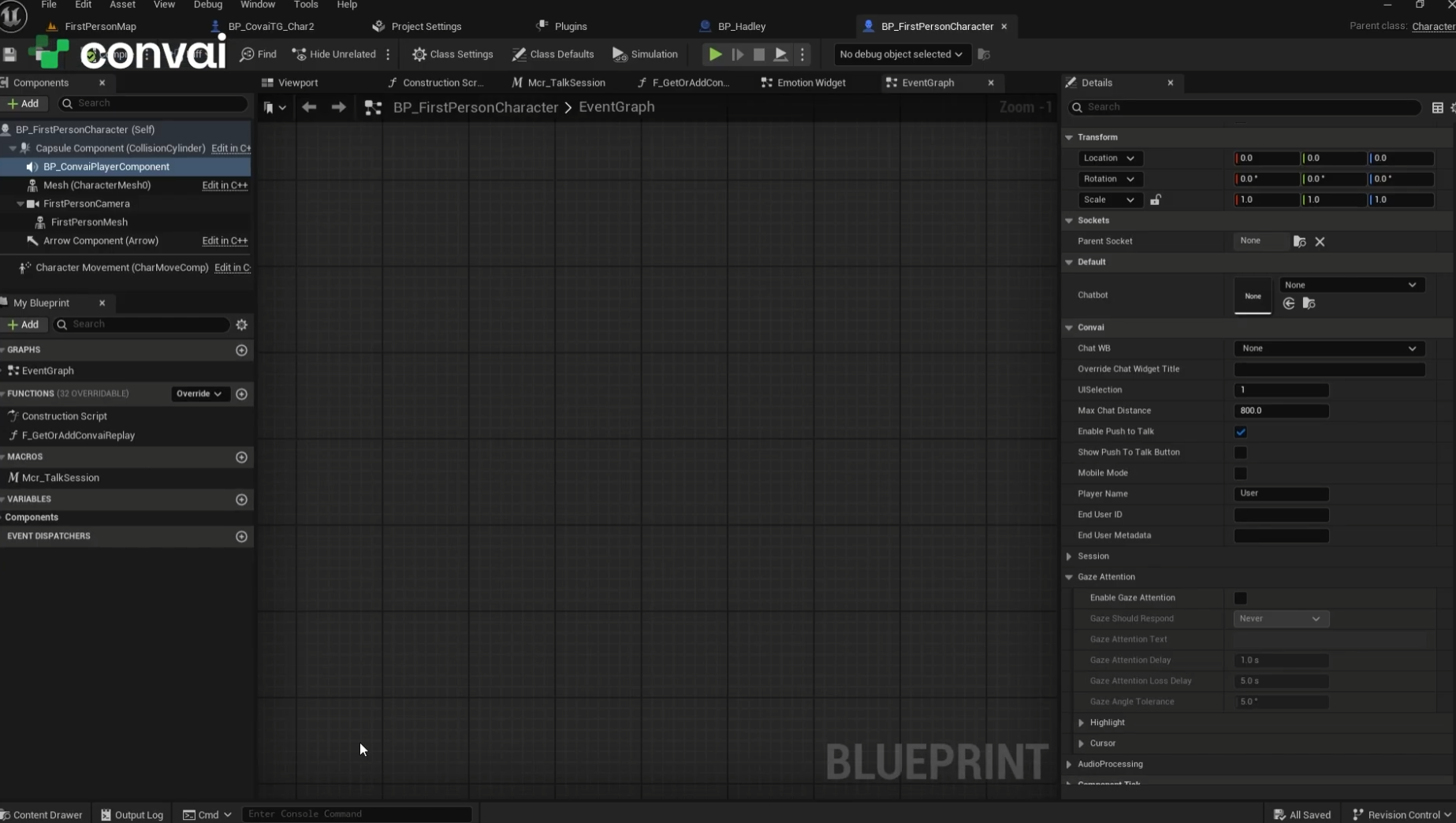
Go to World Settings, and under Game Mode click to browse to your Player Blueprint. Double-click to open it.
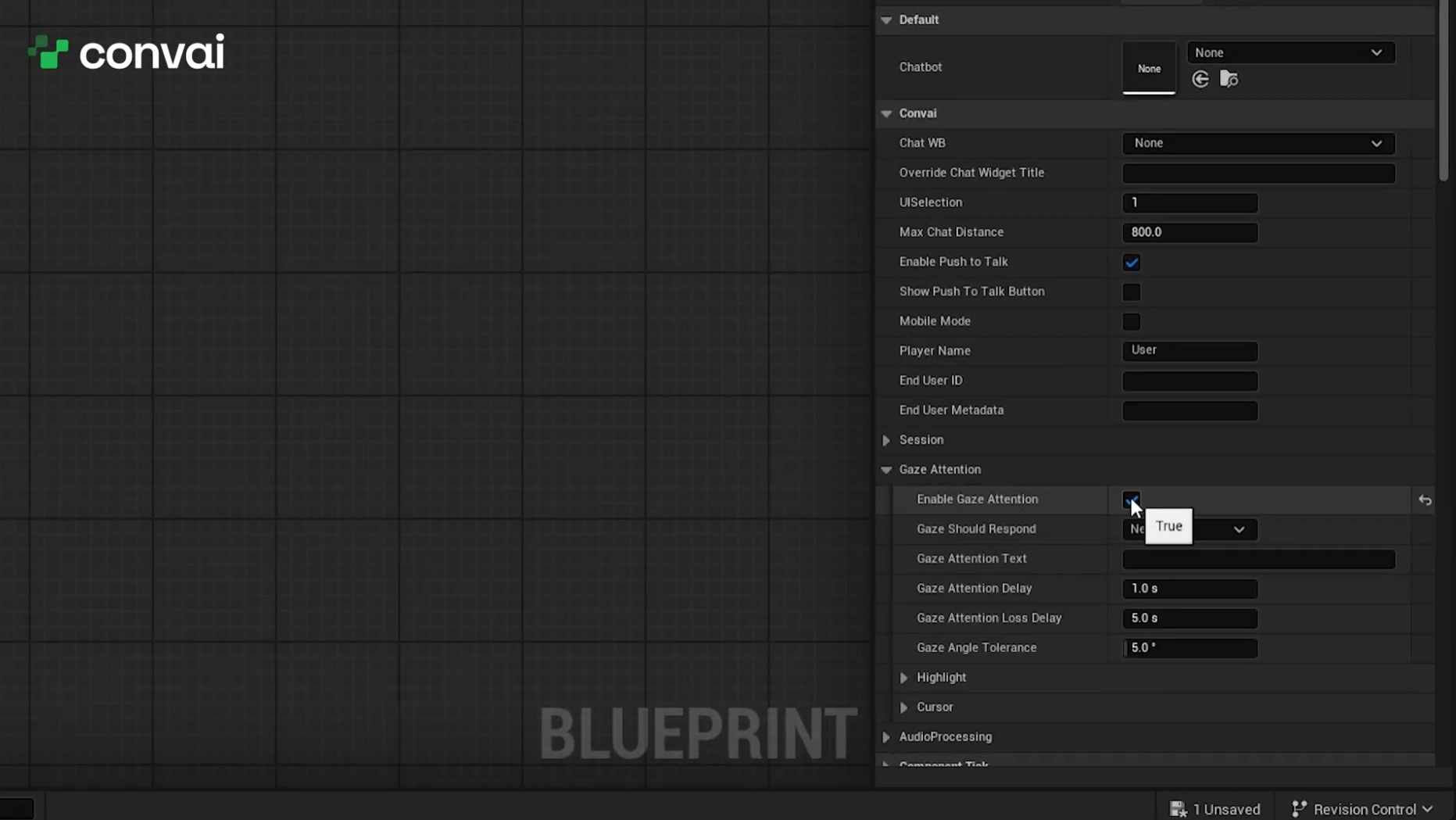
Select the Convai Player Component. In the Details panel, navigate to Gaze Attention and check Enable Gaze Attention. Compile and play. You'll now see a crosshair that highlights objects as you look at them.
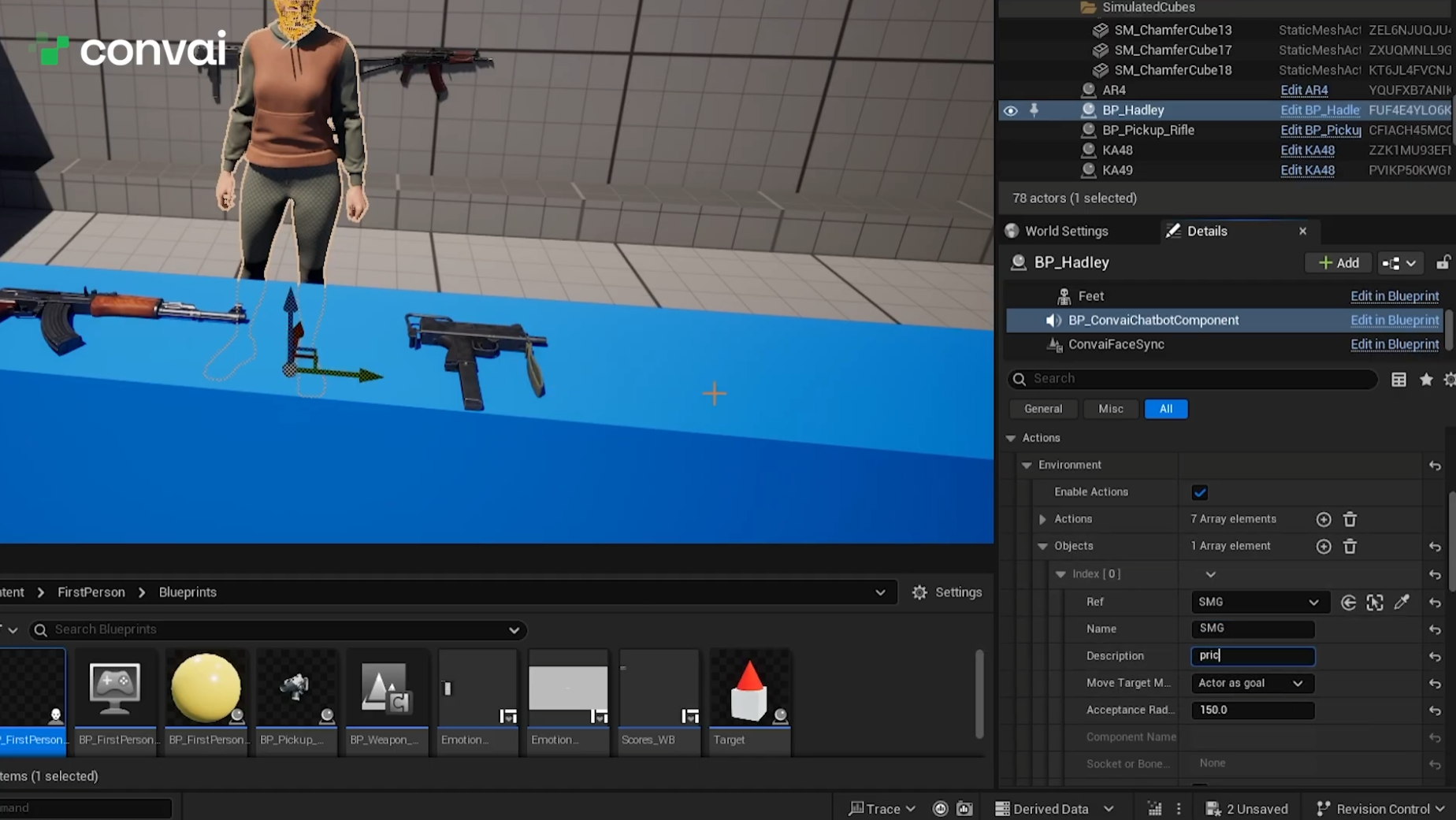
Your AI player needs to know what each object is. There are two ways to define objects, and the second is the one we recommend:
Method
Each object needs a short Name (for example, SMG2) and a one-line Description. This is the metadata your AI player uses to answer accurately. See the Convai Object component reference for every property.
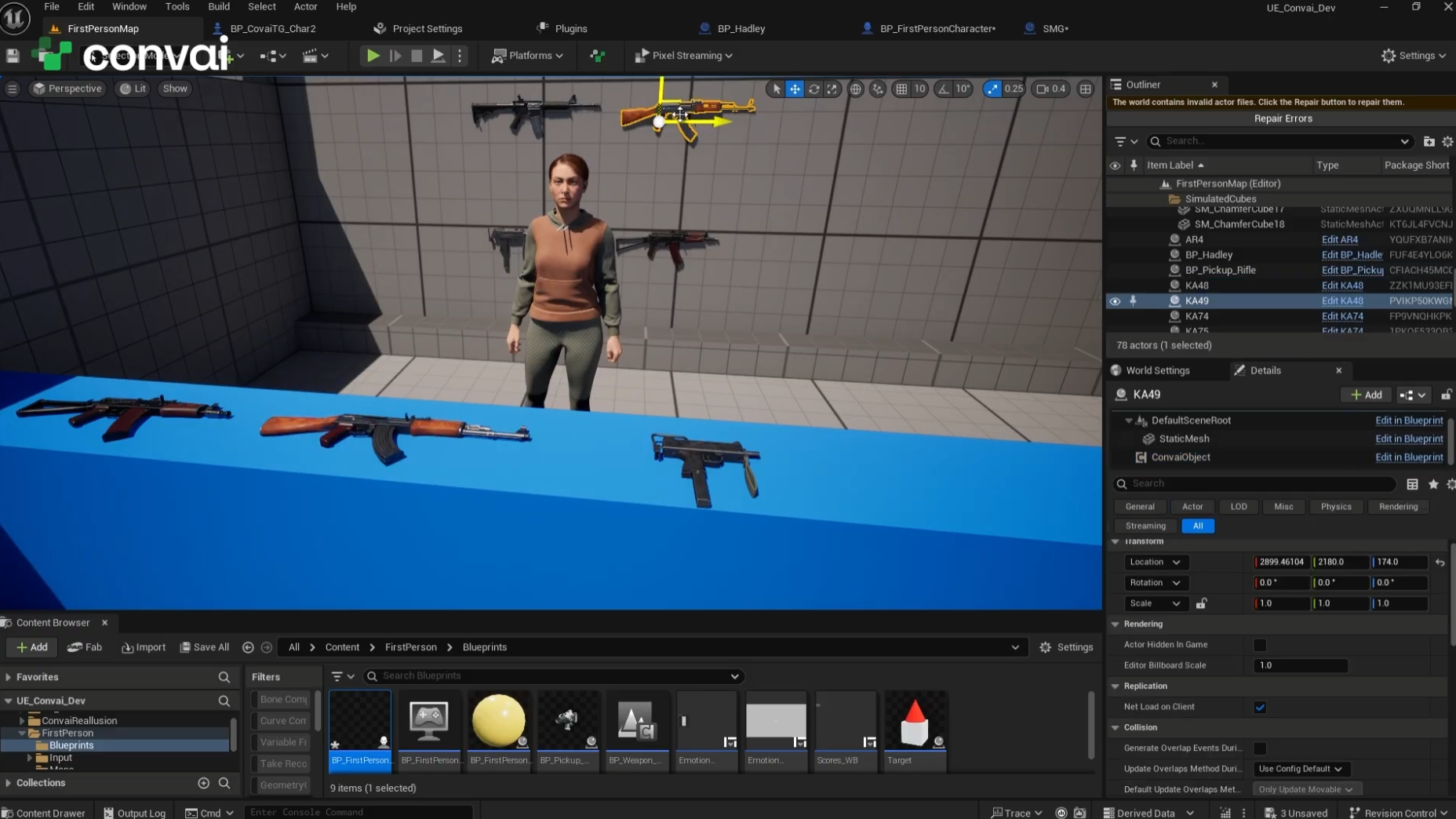
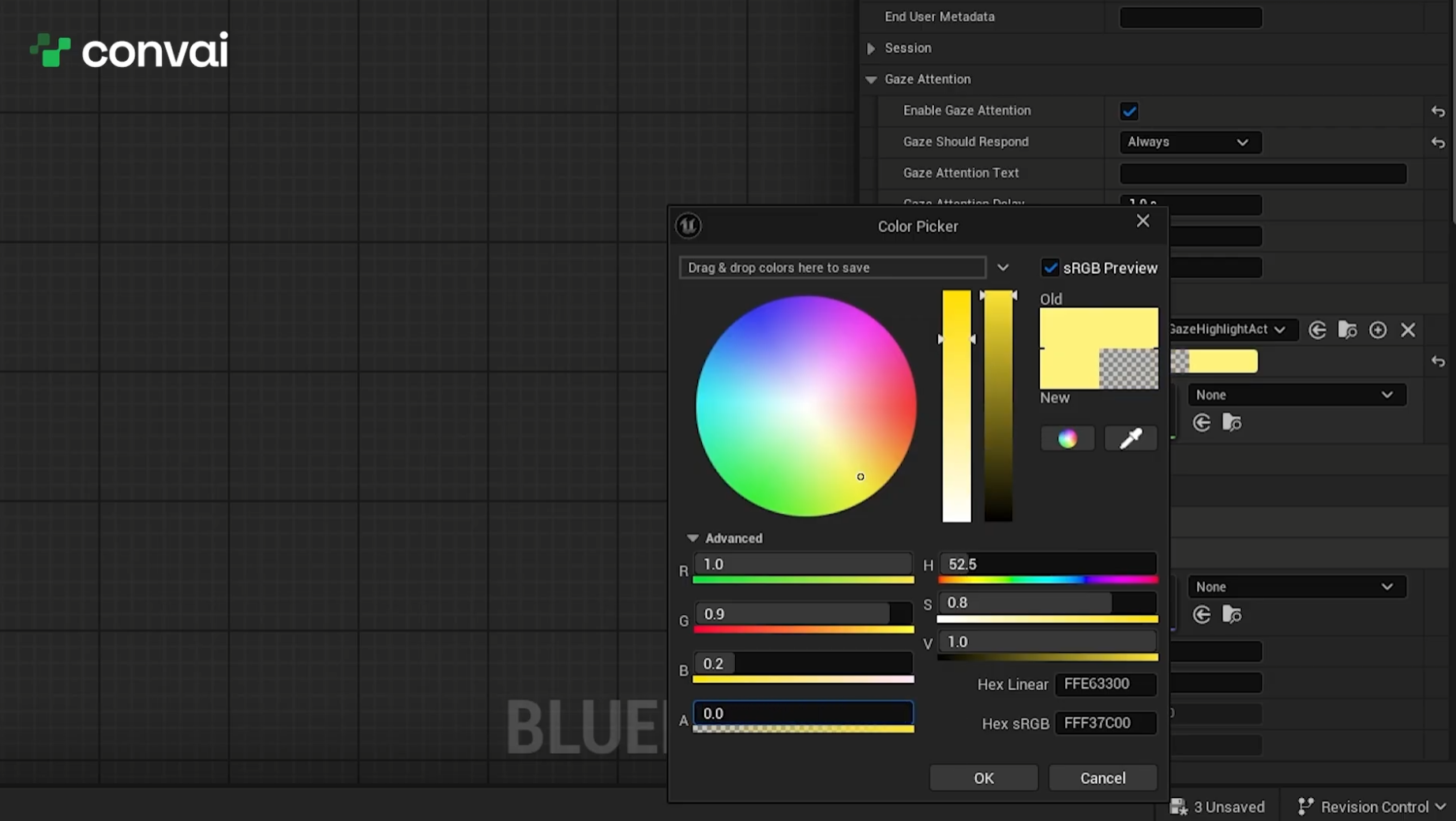
Gaze Attention ships with several settings worth exploring:
If the highlight isn't working, it is almost always a Nanite issue. Navigate to the object's static mesh and make sure Enable Nanite Support is unchecked. On Unreal Engine 5.3 and later, highlights use an overlay material; on UE 5.0–5.2 they fall back to a wireframe box. For more, see Troubleshoot Gaze Attention.
Once natural object reference works, you can reuse the pattern across almost any Unreal Engine project with AI players:
What is Object in Attention in Convai? Object in Attention is a Convai feature for Unreal Engine that lets a user look at any object in a scene and ask about it naturally, without naming it. Powered by Gaze Attention, the AI player receives the focused object as context and resolves vague references like "this one" or "that one" into the correct object.
How do I enable Gaze Attention in Unreal Engine? Open your Player Blueprint from World Settings → Game Mode, select the Convai Player Component, find Gaze Attention in the Details panel, and check Enable Gaze Attention. Compile and play. A crosshair then highlights objects as you look at them.
What are the two ways to define objects? Add objects under the Convai Chatbot Component's Actions → Objects list using the picker, or add a Convai Object component directly to each object's Blueprint with a Name and Description. The Convai Object component is preferred because new or replaced AI players automatically identify the object without redoing setup.
Why is my gaze highlight not showing? A missing highlight is most often a Nanite issue. Open the object's static mesh and make sure Enable Nanite Support is unchecked. Highlights use an overlay material on UE 5.3+ and a wireframe box on UE 5.0–5.2.
Can the AI player start talking about an object on its own? Yes. Enable Gaze Should Respond so that when the player looks at an object long enough, the AI player proactively talks about it. You can also tune the response delay, highlight color, and crosshair color.
Does Object in Attention require Convai Actions? Yes. Gaze Attention writes to the chatbot's attention slot, which requires the Actions system to be active at session connect. Confirm Enable Actions is checked on the Convai Chatbot Component first.
Object in Attention turns a one-sided Q&A into a natural conversation: the user looks, asks "How much is that?", and the AI player answers with the right object every time. Enable Gaze Attention, define your objects with the Convai Object component, and your AI Metahuman becomes genuinely context-aware in any Unreal Engine scene.
Ready to build? Sign up at convai.com · Read the Unreal Engine documentation · Get the plugin on Fab · Ask questions on the Developer Forum.
Follow Convai: LinkedIn · Reddit · X/Twitter · Instagram · YouTube


