Low-Latency Conversational AI with High-Fidelity Lipsync & Facial Animation for Reallusion Avatars using Convai
By
Convai Team
February 25, 2026
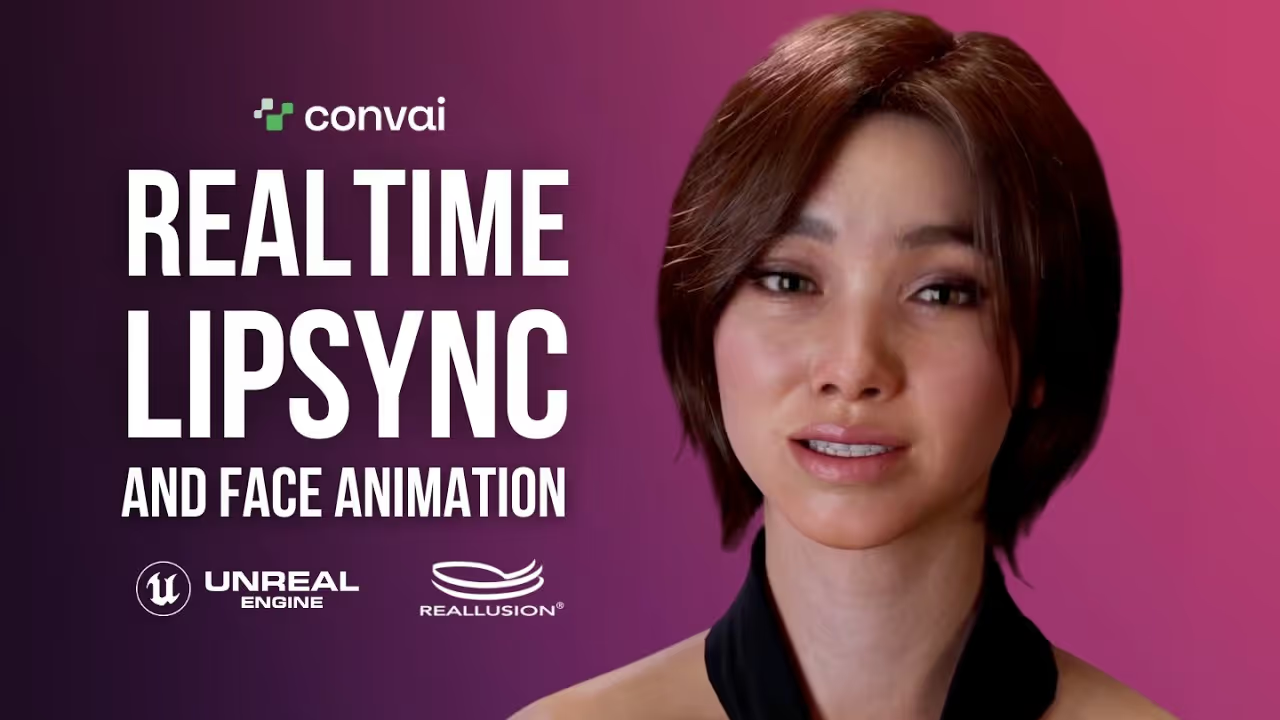
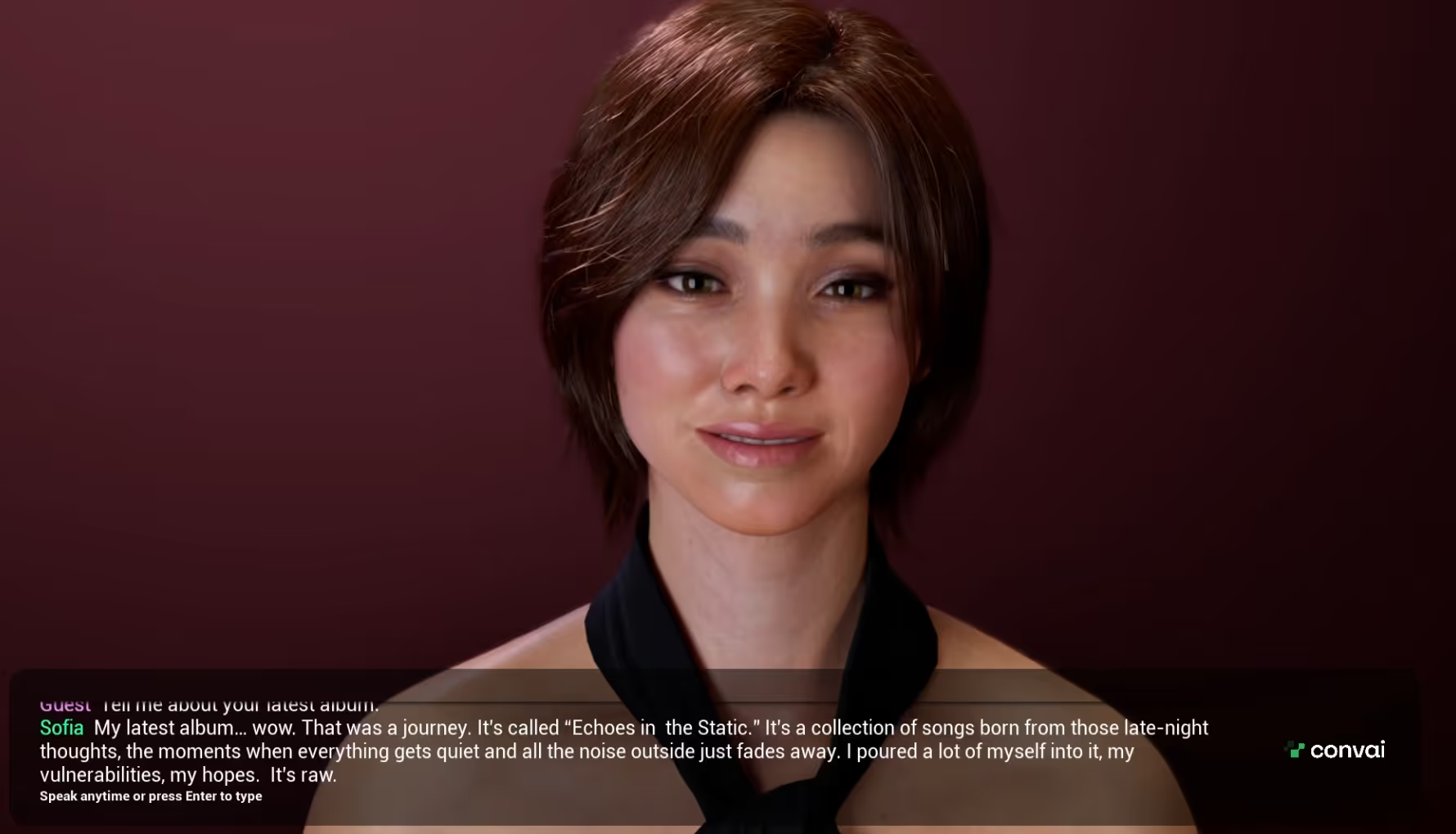
Imagine a high-fidelity 3D character that doesn't just look hyper-realistic, but actually listens to you, processes your words, and responds with perfectly synchronized lip movements and nuanced facial expressions.
Historically, creating highly detailed 3D avatars required tedious manual animation for every single line of dialogue. If you wanted an NPC or a digital twin to have hours of conversation, the animation workload was simply impossible.
Today, Embodied AI is eliminating that bottleneck. By connecting Reallusion CC5 characters to Large Language Models (LLMs) via Convai, developers can give their avatars a "brain." Players and users can speak naturally into their microphones, and the AI will generate contextual responses on the fly. This breakthrough unlocks massive potential for AI agents, XR training simulations, and enterprise virtual leadership coaches, offering endless, unscripted interactions without requiring a single frame of manual facial keyframing.
Why Reallusion Avatars with AI Integration?
The power of this integration lies in combining visual fidelity with intelligent automation. When you interact with a character, Convai's conversational AI pipeline processes your input through a multimodal LLM to generate highly contextual, intelligent responses with AI voice output. Our in-house neural model, NeuroSync, then analyzes that audio in real-time to produce synchronized blend shapes.
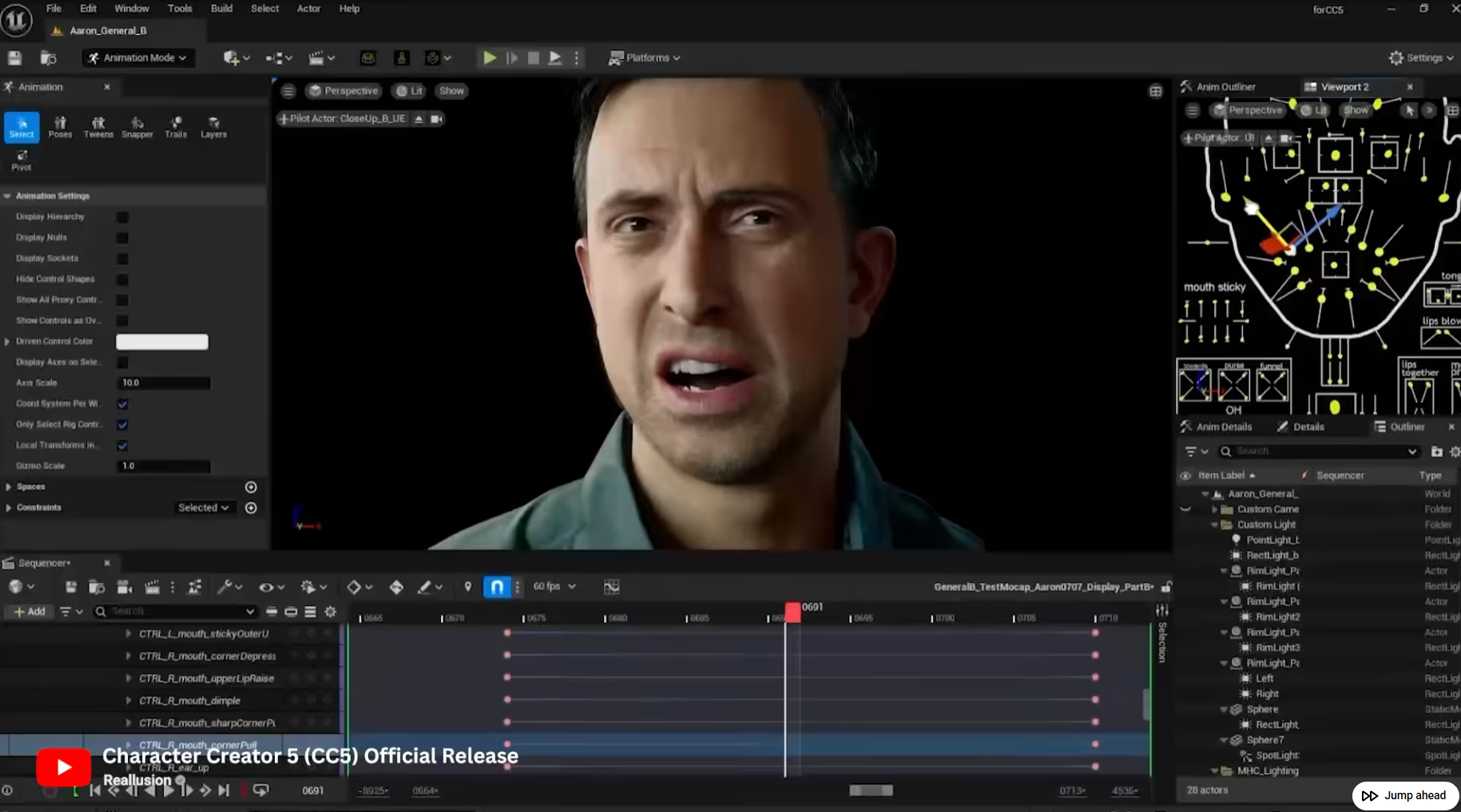
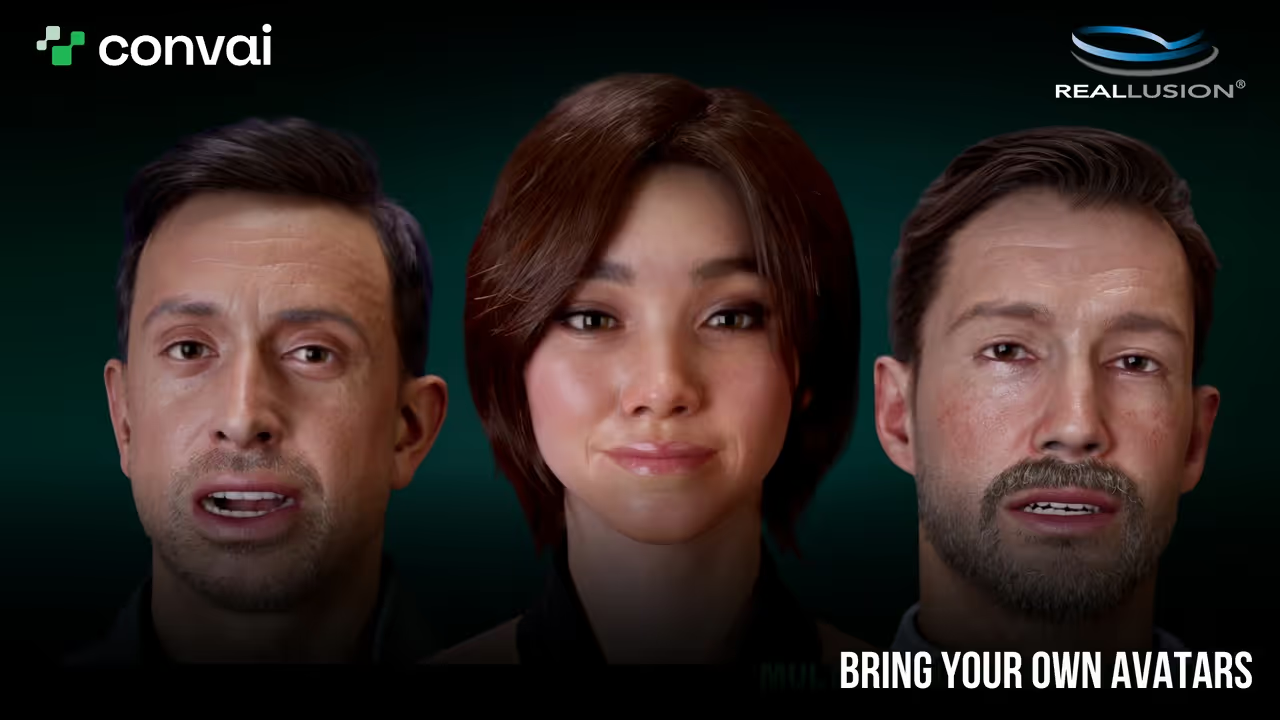
When you pair this instantaneous, natural lip-sync with Reallusion CC5’s HD profiles and a MetaHuman-compatible rig, the result is cinematic-quality, expressive facial animation running entirely in real time. It bridges the gap between pre-rendered CGI quality and dynamic, real-time interactivity, making it the perfect solution for creating believable virtual humans for brand representation, gaming, and simulation.
NeuroSync Animation System: Convai’s AI model analyzes generated audio in real-time to produce perfectly synchronized blend shapes.
MetaHuman & ARKit Compatibility: For Reallusion CC5 avatars, the system natively drives MetaHuman-compatible blend shapes. For CC4 avatars, it seamlessly utilizes ARKit standard shapes.
Streamlined Pipeline: By combining Reallusion's Auto Setup tool with Convai's dedicated blueprint components, developers can go from a static mesh to a talking, breathing AI Assistant in minutes.
Handsfree Voice AI: Engage in flowing, low-latency conversations without relying on push-to-talk buttons, maintaining total immersion in VR/XR environments.
Step-by-Step Guide: Animating AI Reallusion Avatars in Unreal Engine
Let's dive into the workflow. We will start in Reallusion Character Creator 5 and move over to a standard First Person Unreal Engine template.
Step 1: Exporting Your Character from Reallusion CC5
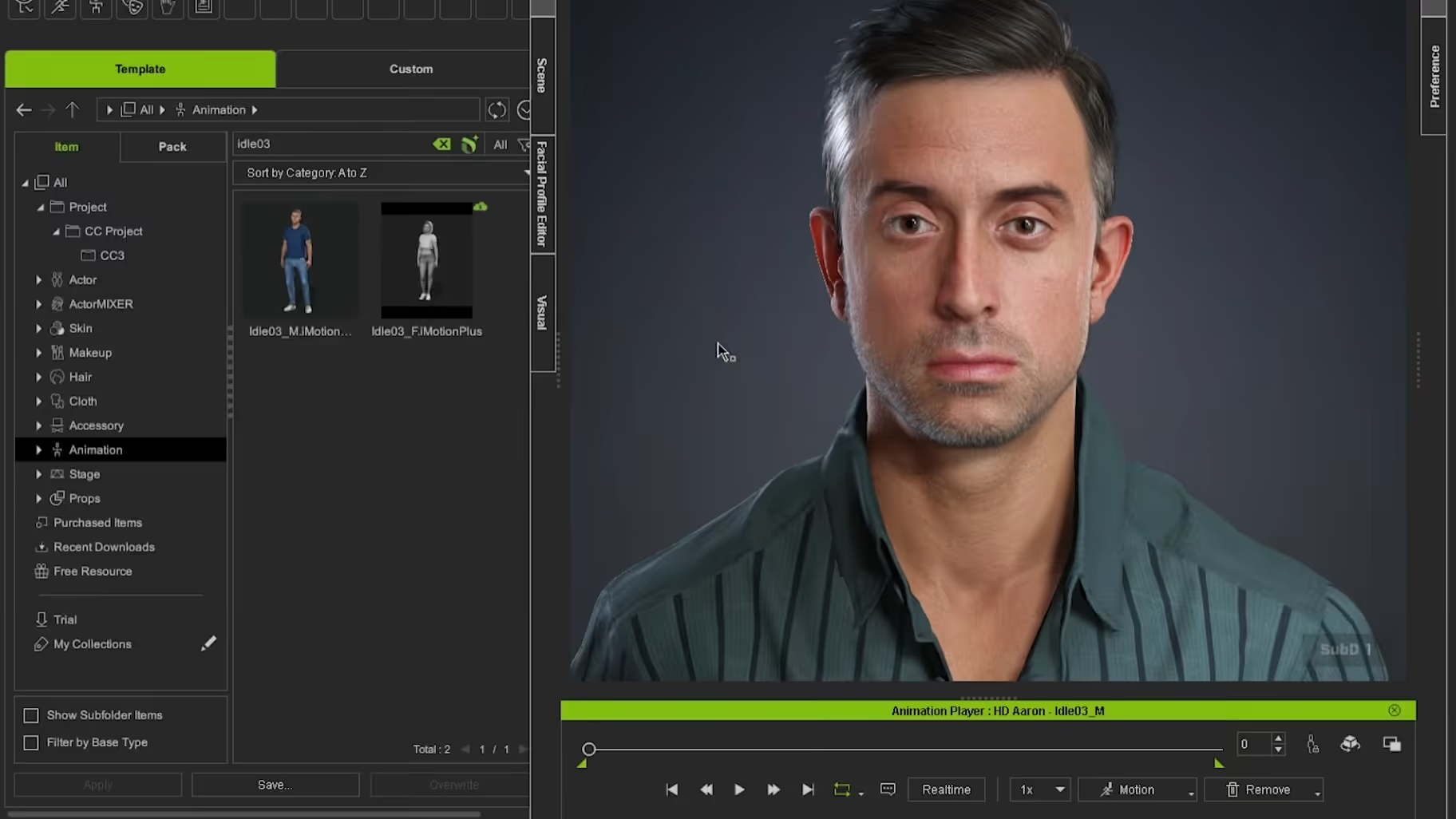
Open Reallusion Character Creator 5 and load your desired character.
Navigate to the Animation tab and apply an Idle animation (e.g., idle03).
(Optional) Apply a talking animation. Pro tip: Ensure the animations you choose do not have pre-baked lip-sync, as Convai will handle the face.
Add these animations to your Perform List (Right-click animation > Find File > Copy Address. Then go to Motion > Perform > Perform List Editor > Add > Paste path).
Click File > Export > FBX > Closed Character.
Set Target Tool to Unreal (UE5), FBX Option to Mesh and Motion, check Custom to load your perform list, and check Delete Hidden Faces. Click Export.
Step 2: Importing into Unreal Engine
Before importing the FBX, ensure you have the Reallusion CC Auto Setup for Unreal Engine installed.
Download the Auto Setup tool, run the installer, and copy the generated Content and Plugins folders into your UE project directory.
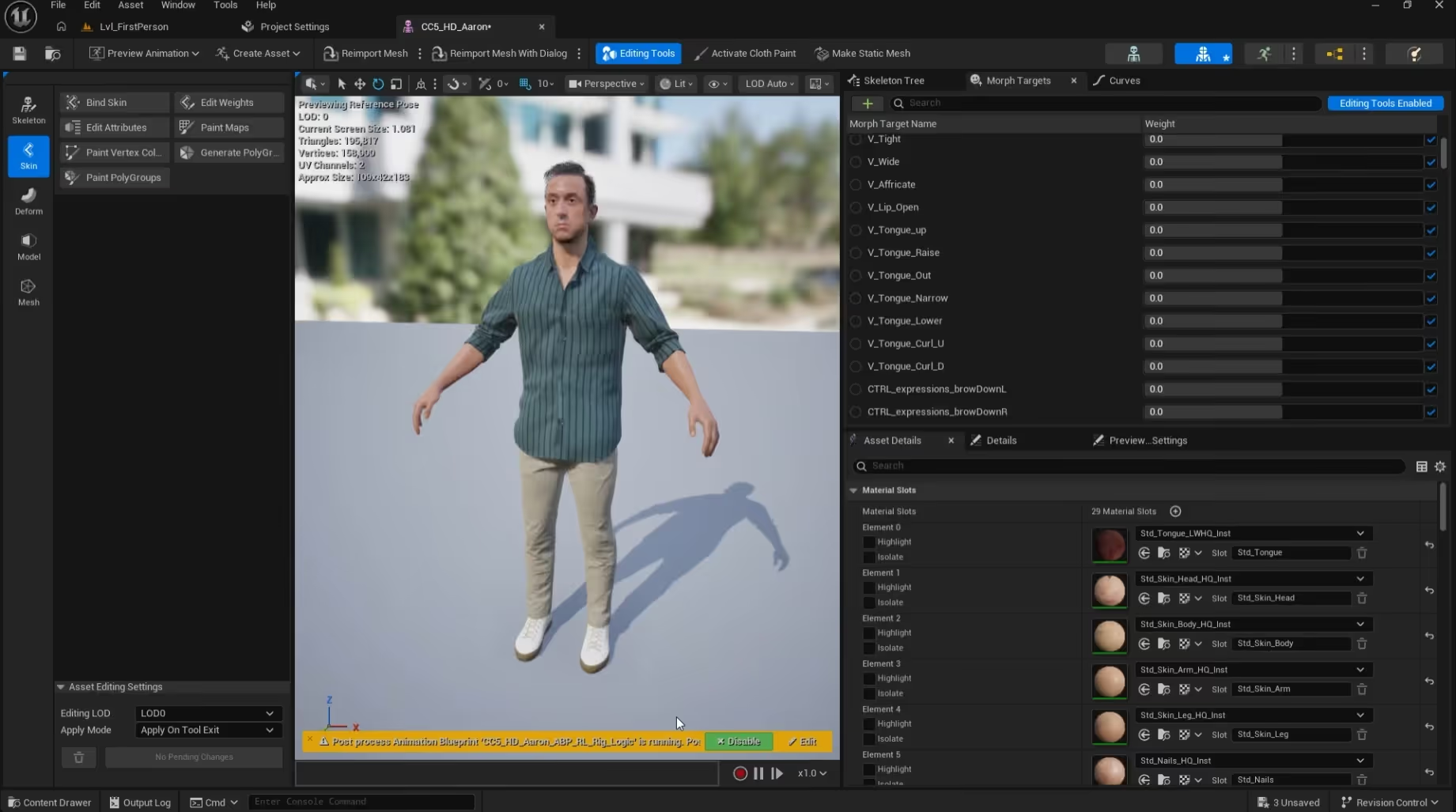
Open your Unreal Engine project and drag the exported Reallusion FBX file into your Content Browser.
In the Import Settings, ensure Import Animations is checked, set Custom Sample Rate to 30 fps (to avoid animation glitches), check Import Morph Targets under the Advanced menu, and click Import All.
Step 3: Add the "Brain" (Chatbot Component)
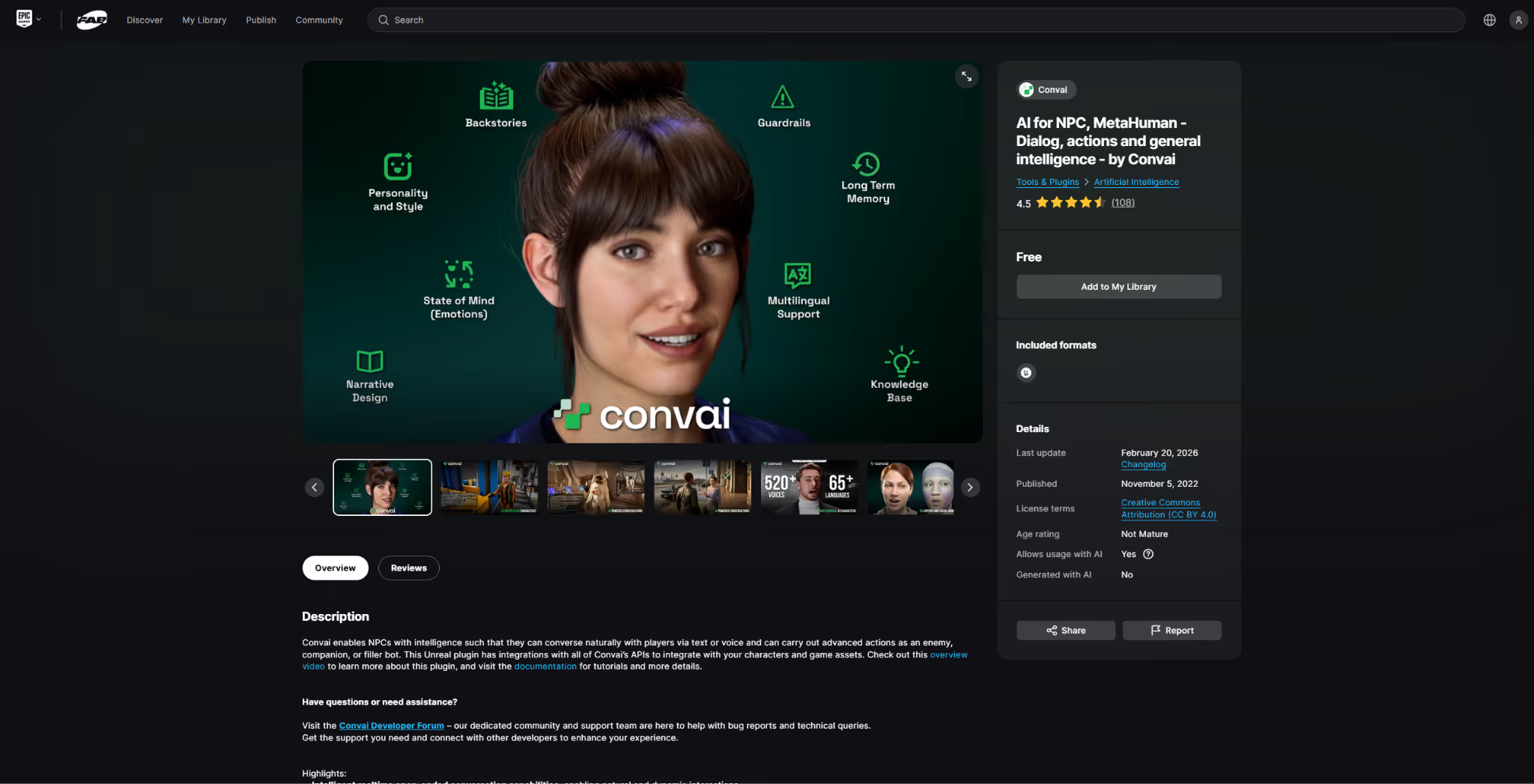
Ensure the Convai Plugin is installed from the Fab Store and enabled in your project.
Create a new Blueprint Class (Actor) for your character.
Add a Skeletal Mesh Component and assign your Reallusion avatar.
Add the BP_ConvaiChatbot component.
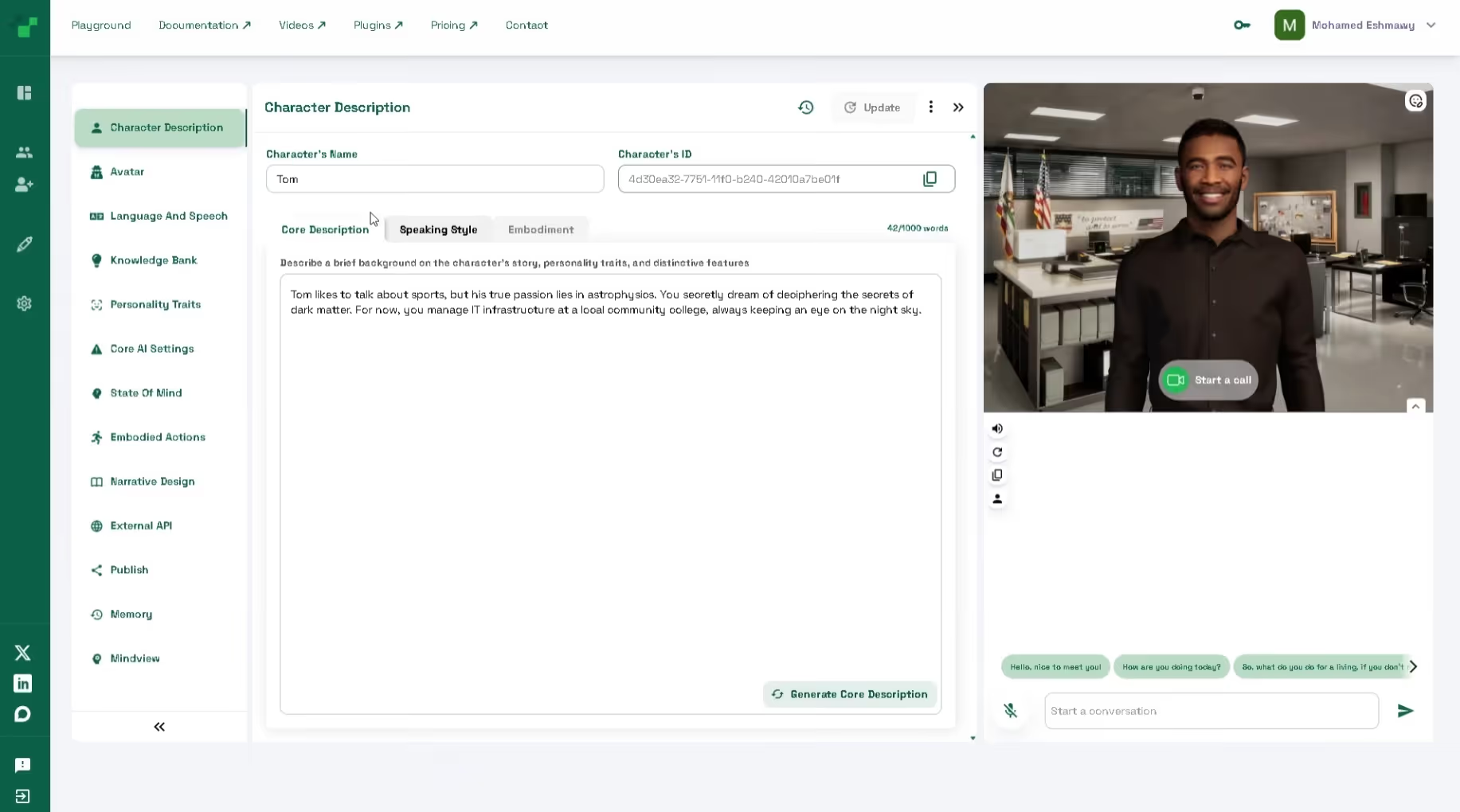
Head over to the Convai Dashboard, configure your character's backstory, and copy their Character ID.
Paste the ID into the Chatbot component’s Details panel in Unreal.
Step 4: Configure Body Animations
To connect the exported CC5 animations with Convai's logic:
Extract and copy the asset into your project’s Content folder, then restart the editor.
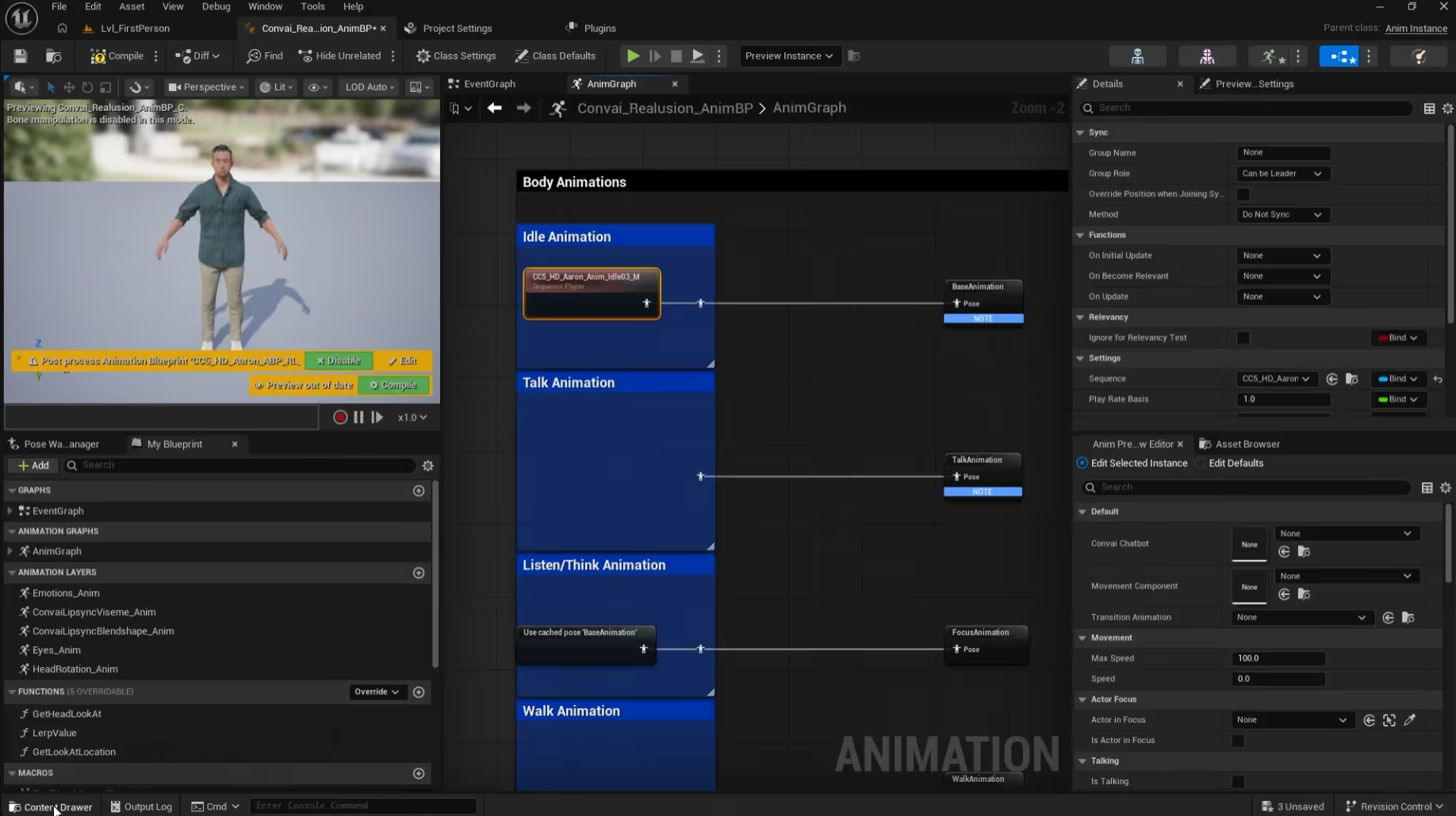
Open the Animation Blueprint, assign your Reallusion Skeleton, and hook up the Idle and Talking animations you imported earlier within the Animation Graph. Ensure the animations are set to loop!
Finally, in your Character Blueprint, set the Animation Class to this newly configured Anim Blueprint.
Now for the final piece: connecting NeuroSync to the Reallusion mesh.
In your Character Blueprint, add the BP_ConvaiFaceSync component.
In the Details panel, set the Lip-Sync Mode to MetaHuman Blend Shapes (Note: If using an older CC4 character, select the ARKit option instead).
To enable your microphone, go to your Player Blueprint and add the BP_ConvaiPlayer component.
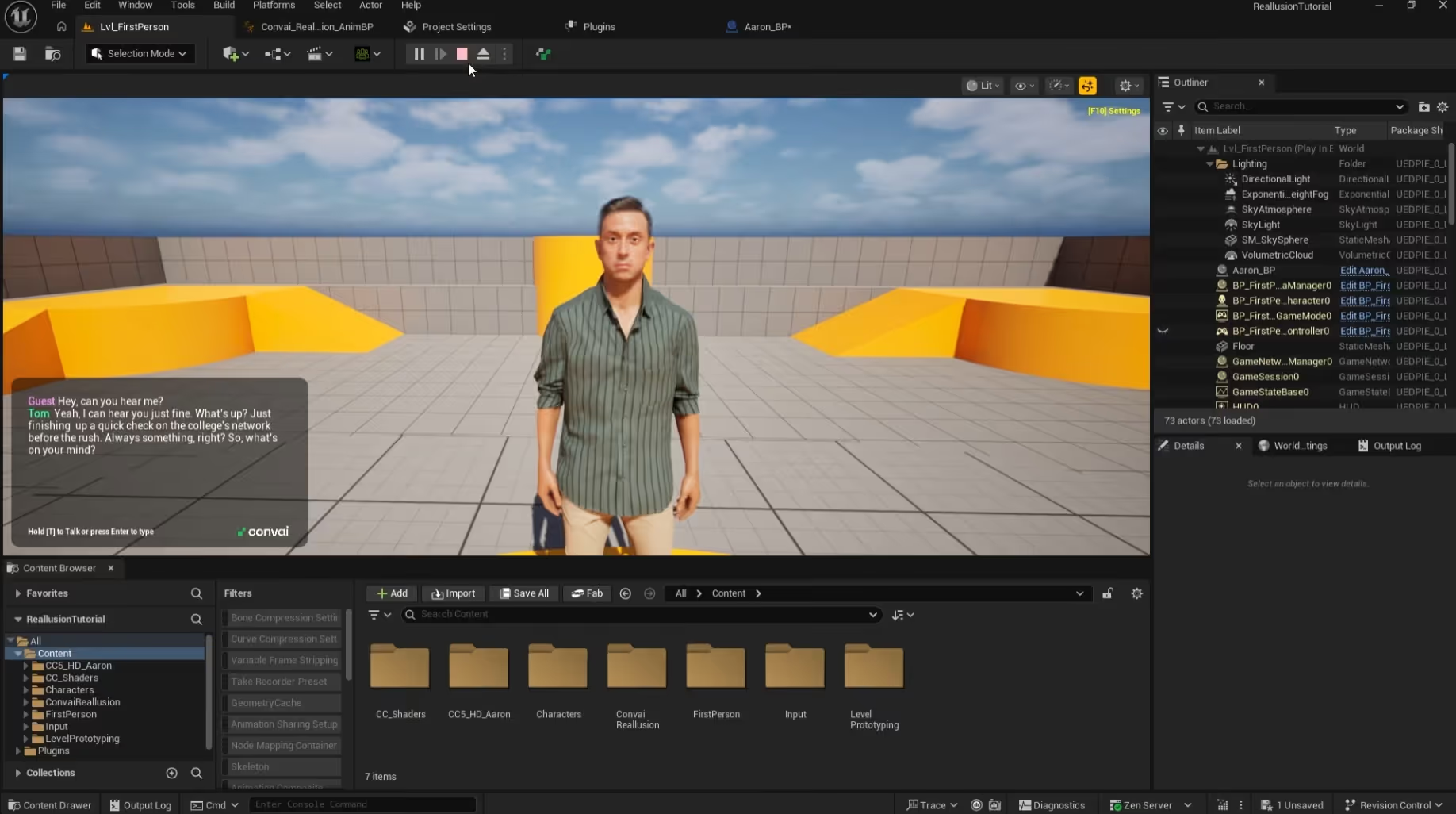
Hit Play! Walk up to your Reallusion avatar and say hello. The character will process your speech and reply with accurate lip-sync and dynamic body animations.
Example Scenarios to Build Today
Looking for inspiration? Here are two powerful, ready-to-use Convai personas that pair perfectly with high-fidelity Reallusion avatars in your next project:
1. The High-End Brand Representative
Character Name: Sophia Belle
Description: You are Sophia Belle, the charismatic and knowledgeable brand representative for Lumière Luxe, a high-end cosmetics brand inspired by nature and designed for modern, empowered individuals. Lumière Luxe combines cutting-edge skincare science with sustainably sourced ingredients, offering a range of products that enhance natural beauty while being environmentally conscious. The brand’s tagline is: "Glow Naturally, Shine Boldly." You are an expert on the product line, including the Radiance Renew Serum, Velvet Veil Foundation, Petal Kiss Lip Tint, Ethereal Eye Palette, and LumiGlow Moisturizer.
Ready-to-use Character ID: f47de672-bdd5-11ef-a69d-42010a7be016 | View Character
The Setup: Place a beautifully styled Reallusion CC5 avatar in a chic, well-lit virtual boutique or e-commerce storefront.
The Interaction: Customers can use hands-free voice AI to ask Sophia for personalized skincare recommendations. Her NeuroSync-driven expressions will reflect warmth and professionalism as she guides them through the Lumière Luxe catalog with flawless lip-sync.
2. The Real Estate Sales Trainer
Character Name: Michael Andrews
Description: You are Michael Andrews, a seasoned real estate sales trainer with 20+ years of experience in the industry. You have a warm, encouraging personality and a knack for breaking down complex concepts into simple, actionable steps. Your training style is interactive, conversational, and personalized to suit the needs of beginners. Your primary goal is to help a first-time salesperson develop confidence, learn the fundamentals of real estate sales, and master practical skills like effective communication, lead generation, and closing deals.
Ready-to-use Character ID: f4f894f0-bdce-11ef-a94c-42010a7be016 | View Character
The Setup: Dress a Reallusion avatar in business casual attire and place them in a realistic Unreal Engine office environment.
The Interaction: Trainees can practice their listing presentations or cold-calling scripts. Michael will respond in real-time, offering constructive feedback, role-playing objections, and encouraging the trainee with patient, empathetic facial expressions.
Q: Do I need to manually animate the lip-sync for Reallusion avatars?
A: No! Convai's NeuroSync system analyzes the AI-generated audio stream in real-time and automatically drives the facial blend shapes on your Reallusion character.
Q: Does Convai work with older Reallusion CC4 characters?
A: Yes. While CC5 characters use MetaHuman blend shapes, CC4 characters utilize standard ARKit blend shapes. Simply select "ARKit" in the BP_ConvaiFaceSync component settings.
Q: Can I use custom body animations with this setup?
A: Absolutely. You can export any custom animations (like talking gestures or idle swaying) from Reallusion, import them into Unreal Engine, and hook them up to the Convai Animation Blueprint.
Q: What is the Reallusion Auto Setup tool, and why do I need it?
A: The Reallusion Auto Setup tool is an official plugin that ensures your exported CC5/CC4 FBX files import into Unreal Engine with the correct materials, shaders, and morph targets automatically applied.
Q: Is the latency low enough for XR and VR experiences?
A: Yes. Convai’s pipeline is optimized for ultra-low latency. The fast Speech-to-Text, LLM processing, and rapid Text-to-Speech generation simulate a natural, flowing conversation perfectly suited for AI in 3D simulation and XR.
Join the Convai Community
Ready to start building your own intelligent, fully interactive AI agents?
Need technical support? Visit the Convai Developer Forum to connect with our community, report bugs, and share your incredible AI creations.
Don't forget to subscribe to our YouTube channel for more deep dives into Convai UE Integrations!
{ "@type": "Question", "name": "How do I add conversational AI to a Reallusion CC4 avatar?", "acceptedAnswer": { "@type": "Answer", "text": "Export your Character Creator 4 avatar to Unity or Unreal, install the Convai SDK, run the avatar through the <a href=\"https://convai.com/blog/convai-asset-uploader-custom-ai-metahuman-reallusion-and-other-avatars\">Convai Asset Uploader</a> to map blend shapes, and the Reallusion character becomes a real-time conversational AI." }
},
{ "@type": "Question", "name": "Does Convai support lip sync on Reallusion CC4 characters?", "acceptedAnswer": { "@type": "Answer", "text": "Yes. Convai's NeuroSync drives 250+ blend shapes in real time on Reallusion CC4 avatars in both <a href=\"https://docs.convai.com/api-docs/plugins-and-integrations/unity-plugin\">Unity</a> and <a href=\"https://docs.convai.com/api-docs/plugins-and-integrations/unreal-engine\">Unreal Engine</a>." }
},
{ "@type": "Question", "name": "What latency can I expect from Convai with Reallusion avatars?", "acceptedAnswer": { "@type": "Answer", "text": "Convai targets sub-200ms first-token latency across STT, LLM, and TTS — fast enough for live customer-facing kiosks. See <a href=\"https://convai.com/blog/interactive-ai-characters-convai-reallusion-unreal-engine\">Reallusion AI characters in Unreal</a> for working setup." }
},
{ "@type": "Question", "name": "Can I use iClone-animated Reallusion characters with Convai?", "acceptedAnswer": { "@type": "Answer", "text": "Yes. iClone-authored body animations layer with Convai's NeuroSync facial animation, so you can drive performance gestures from iClone while Convai handles the talking head. Discuss in the <a href=\"https://forum.convai.com/c/unreal-engine/questions/30\">Unreal Engine forum</a>." }
}