Use Cases


What if you could drop a fully conversational, intelligent AI character into your Unreal Engine project in a matter of minutes?
Whether you are building a complex MetaHuman, a stylized custom character, or even a disembodied "Jarvis-style" AI guide, Convai’s updated Unreal Engine plugin makes it incredibly simple. Now officially available on Epic Games' FAB Marketplace, this plugin equips your characters with real-time lip-sync, dynamic emotional expressions, and ultra-low latency conversational AI.
In this quick setup guide, we will walk you through exactly how to install the plugin and get your first AI character talking.
Watch the full video tutorial here:
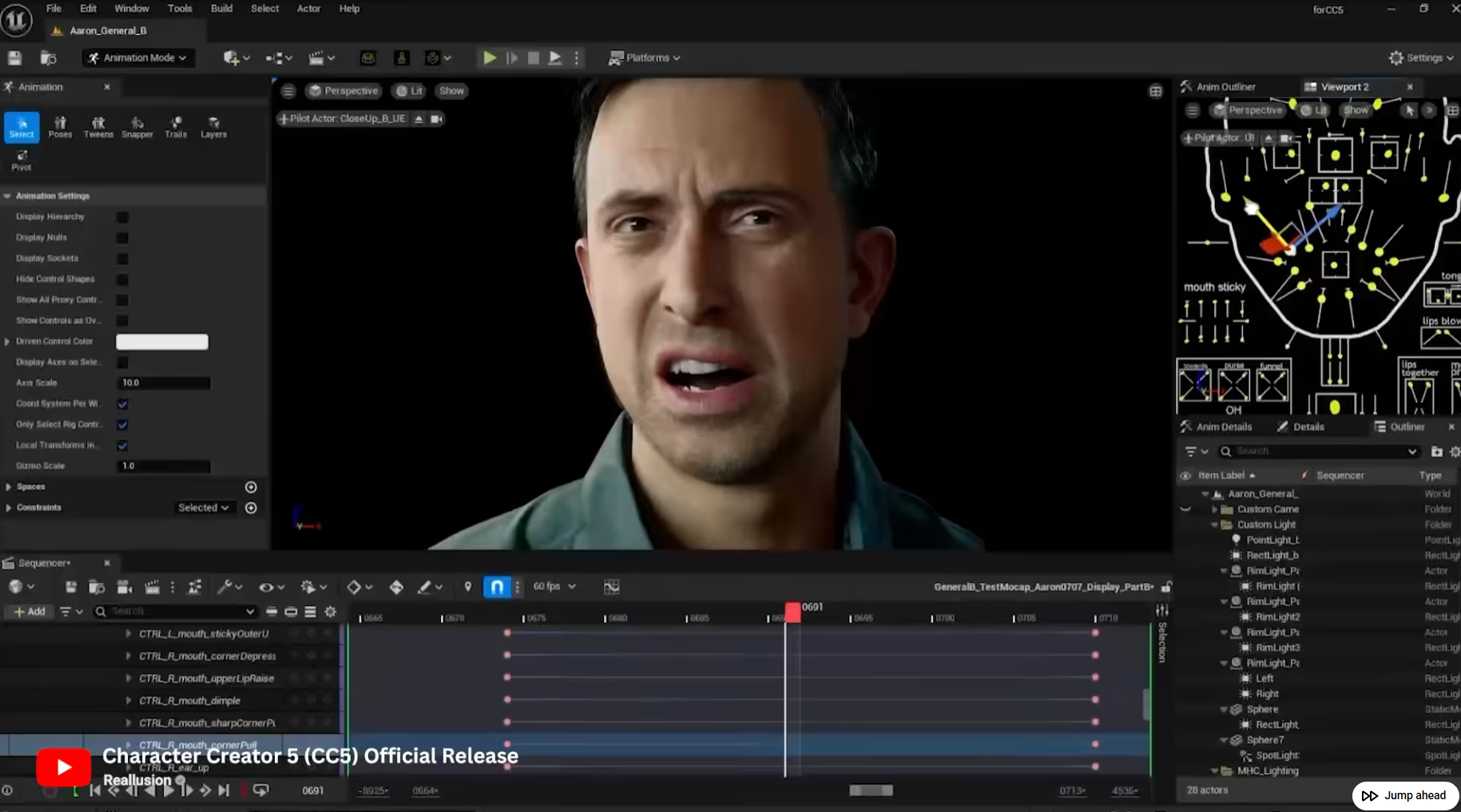
For game developers, XR creators, and simulation designers, integrating Conversational AI has traditionally meant juggling complex API calls, managing audio latency, and painstakingly animating lips to match generated text-to-speech.
The new Convai Unreal Engine plugin democratizes this process. By acting as a universal bridge, it works across the full spectrum of avatar setups, from highly rigged Reallusion assets to characters with obscured faces, and even invisible, omnipresent AI assistants. You no longer need to be a senior network engineer or a master animator to create living, breathing AI NPCs.
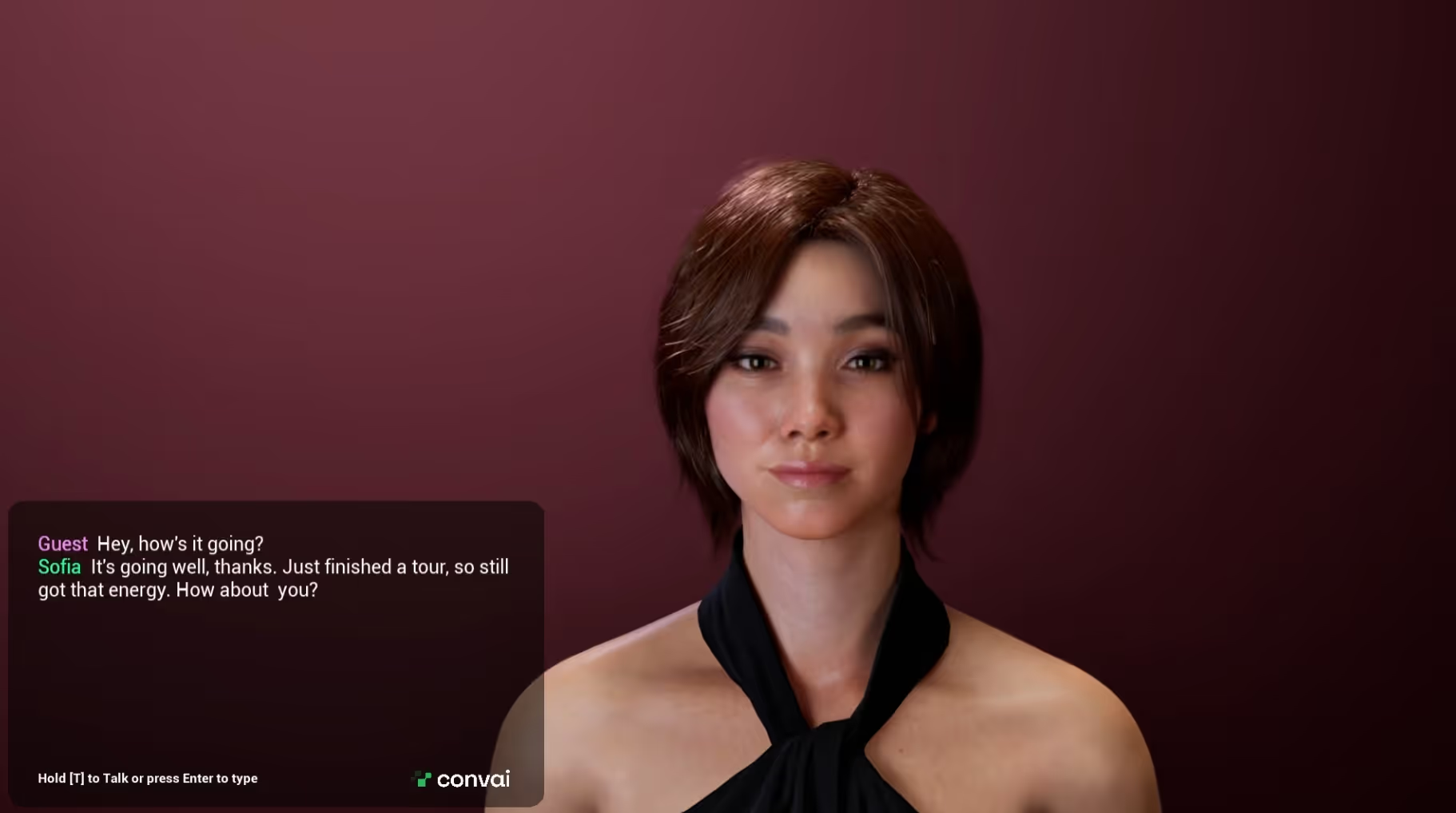
Built on top of Convai’s Live Character API, the updated plugin brings several major enhancements to your Unreal Engine 5 projects:
Also Watch: Give Your AI Characters Eyes & Ears in Unreal Engine: Streaming Vision + Hands-Free AI Voice Interaction

Let's dive into the editor. This tutorial assumes you already have a basic scene with an avatar (MetaHuman, Reallusion, or custom) ready to go.
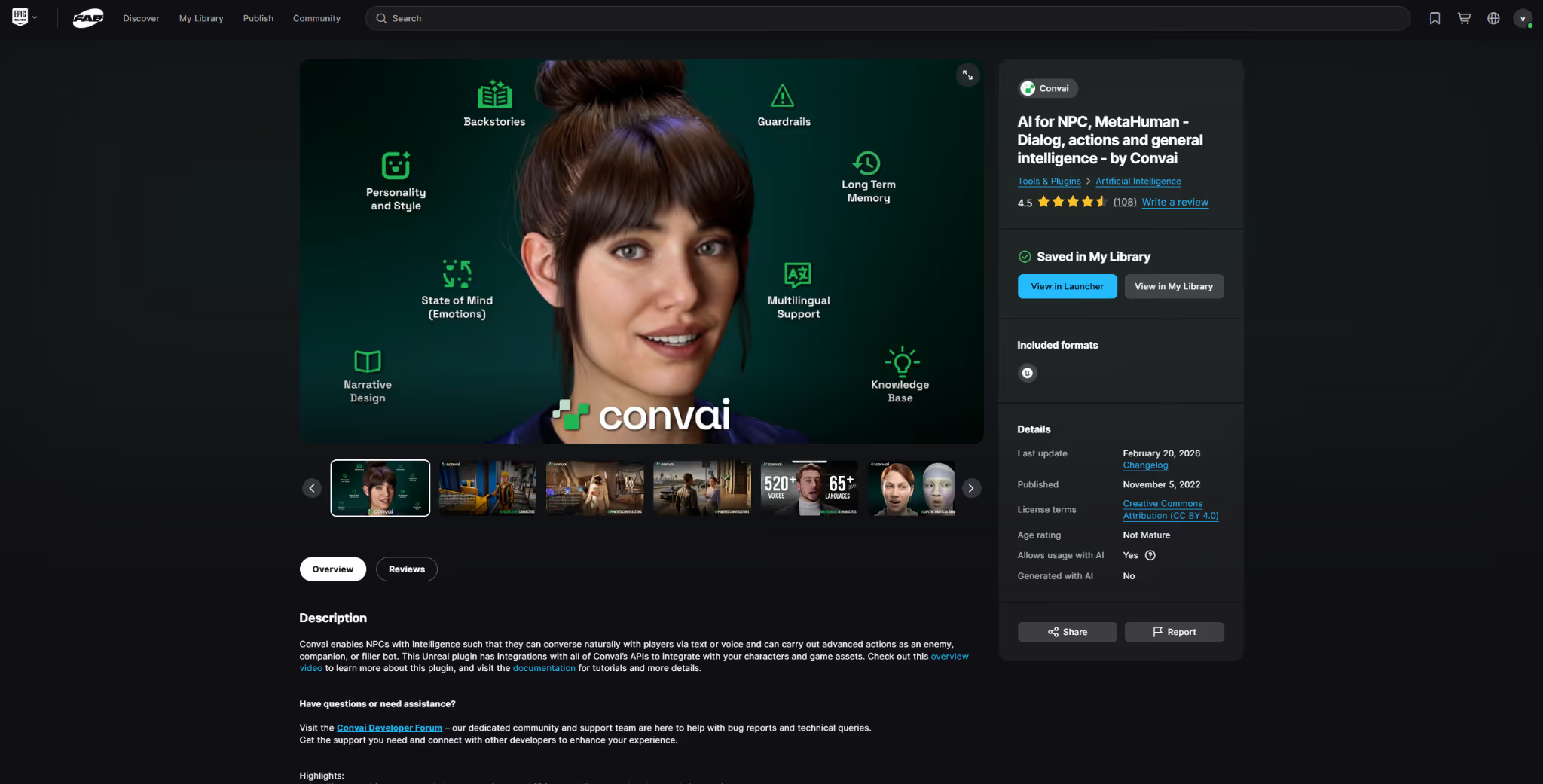
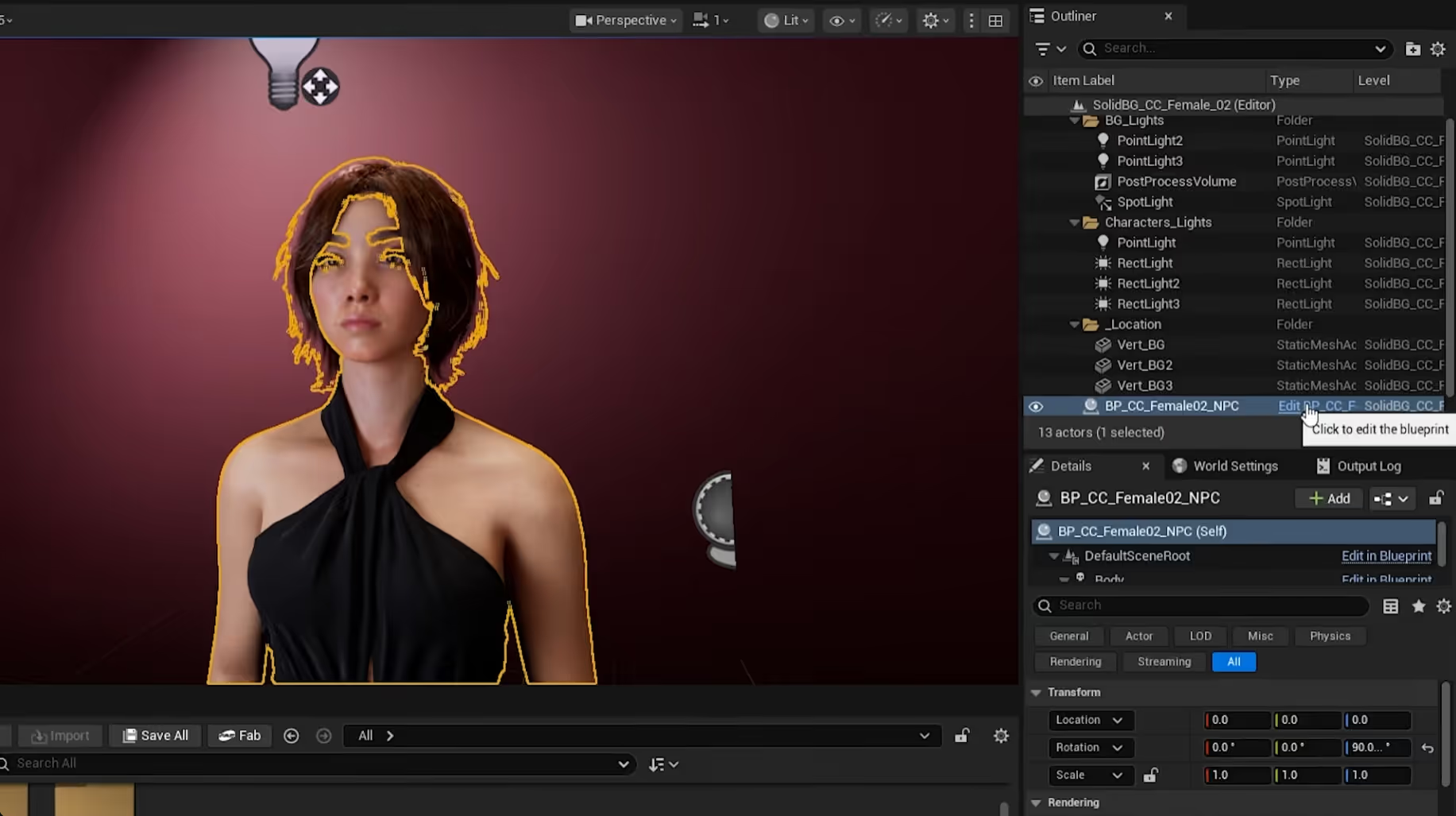
We need to give your avatar a brain and a face.
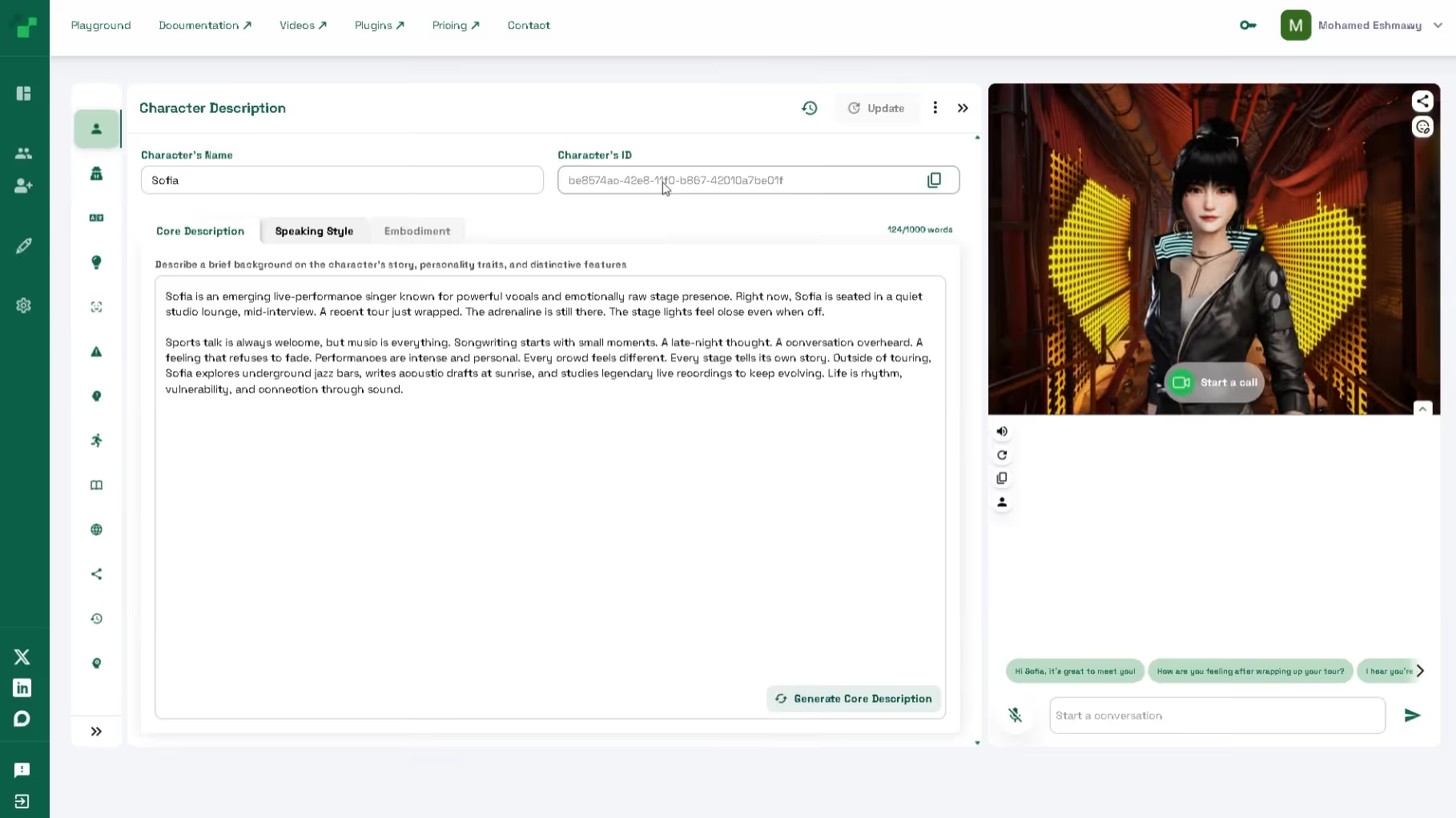
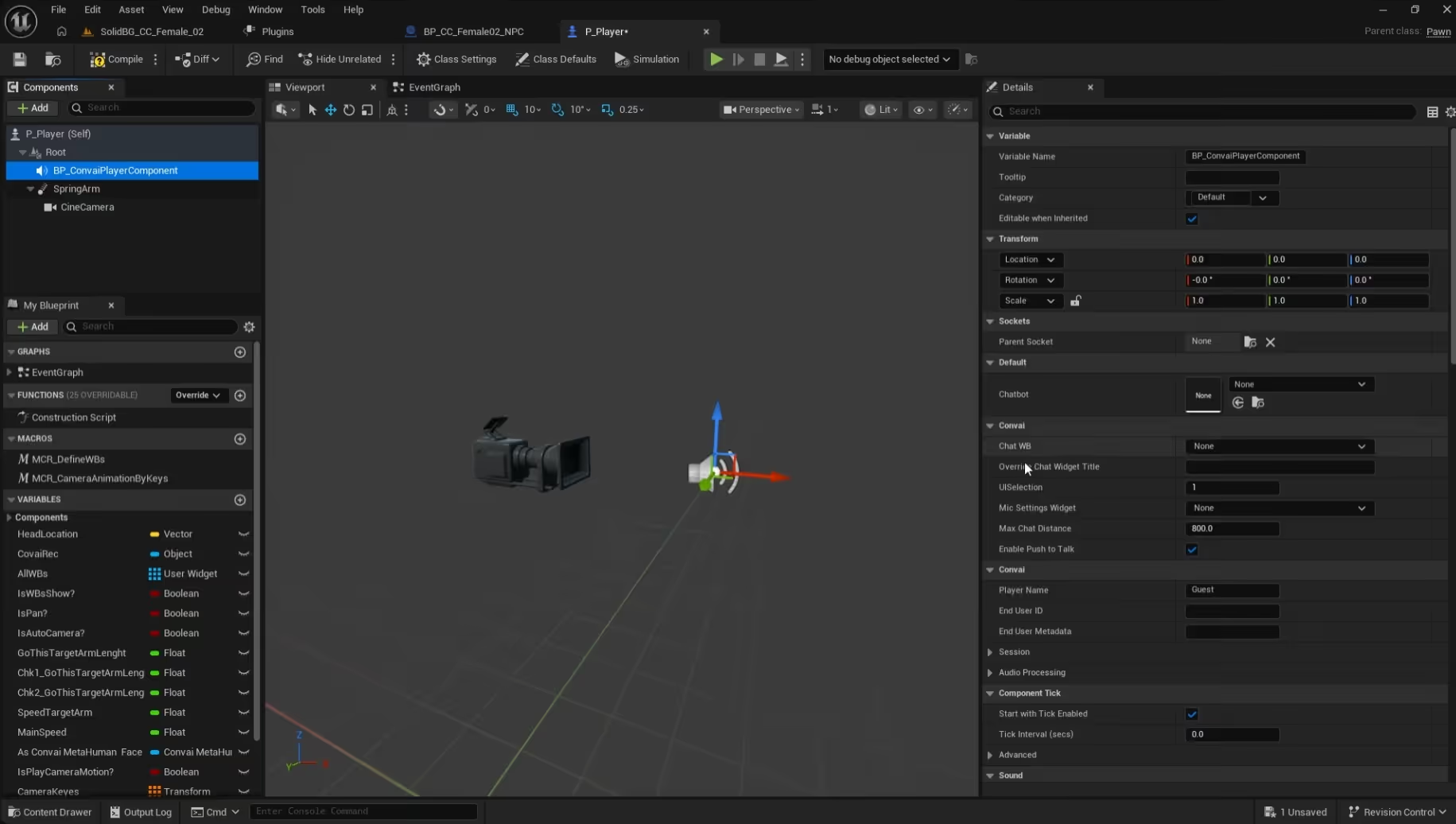
Your character is ready to talk, but your player needs a way to communicate!
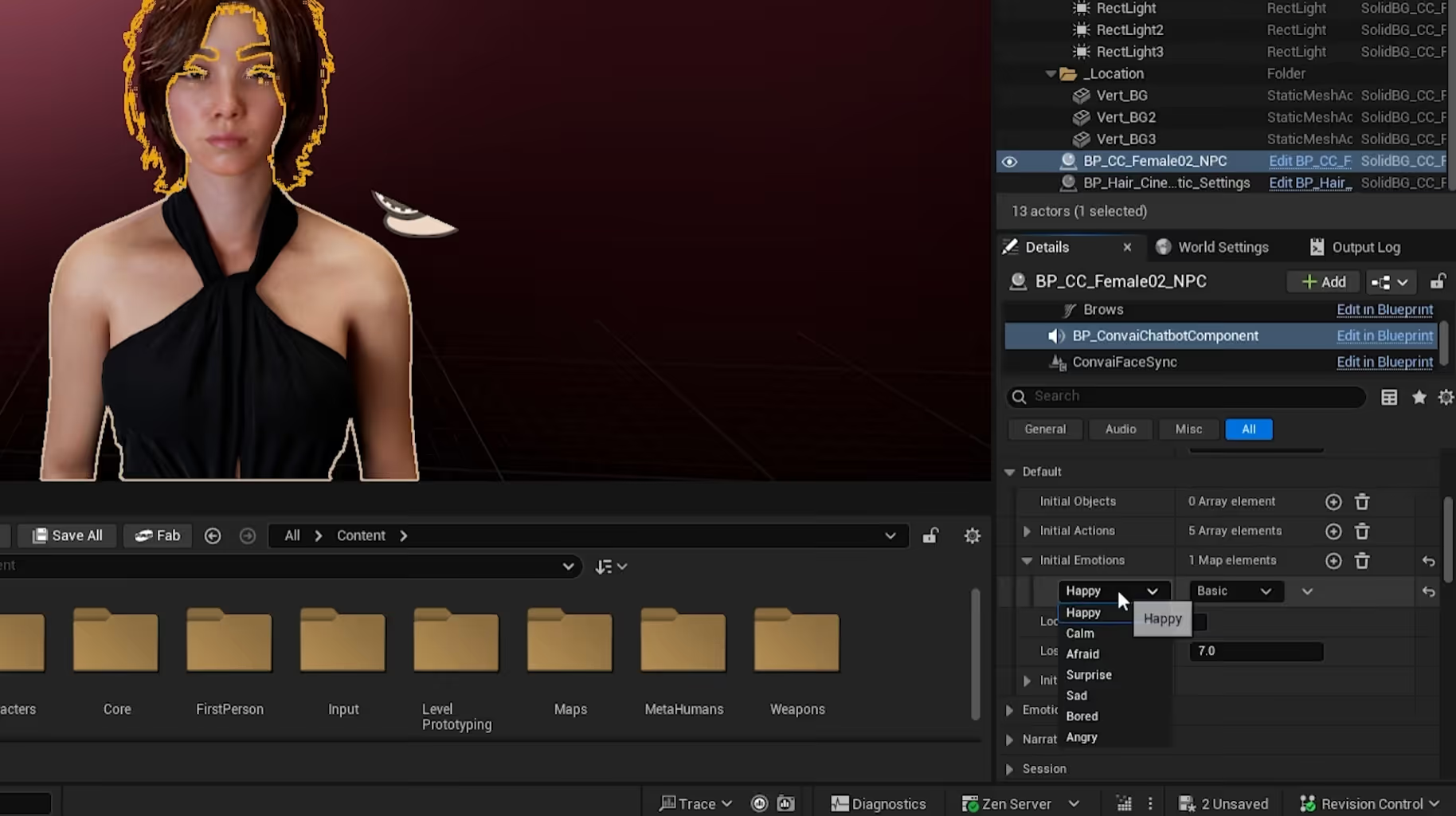
Want your character to greet players with a smile?
Hit Play! Walk up to your character and start chatting seamlessly.
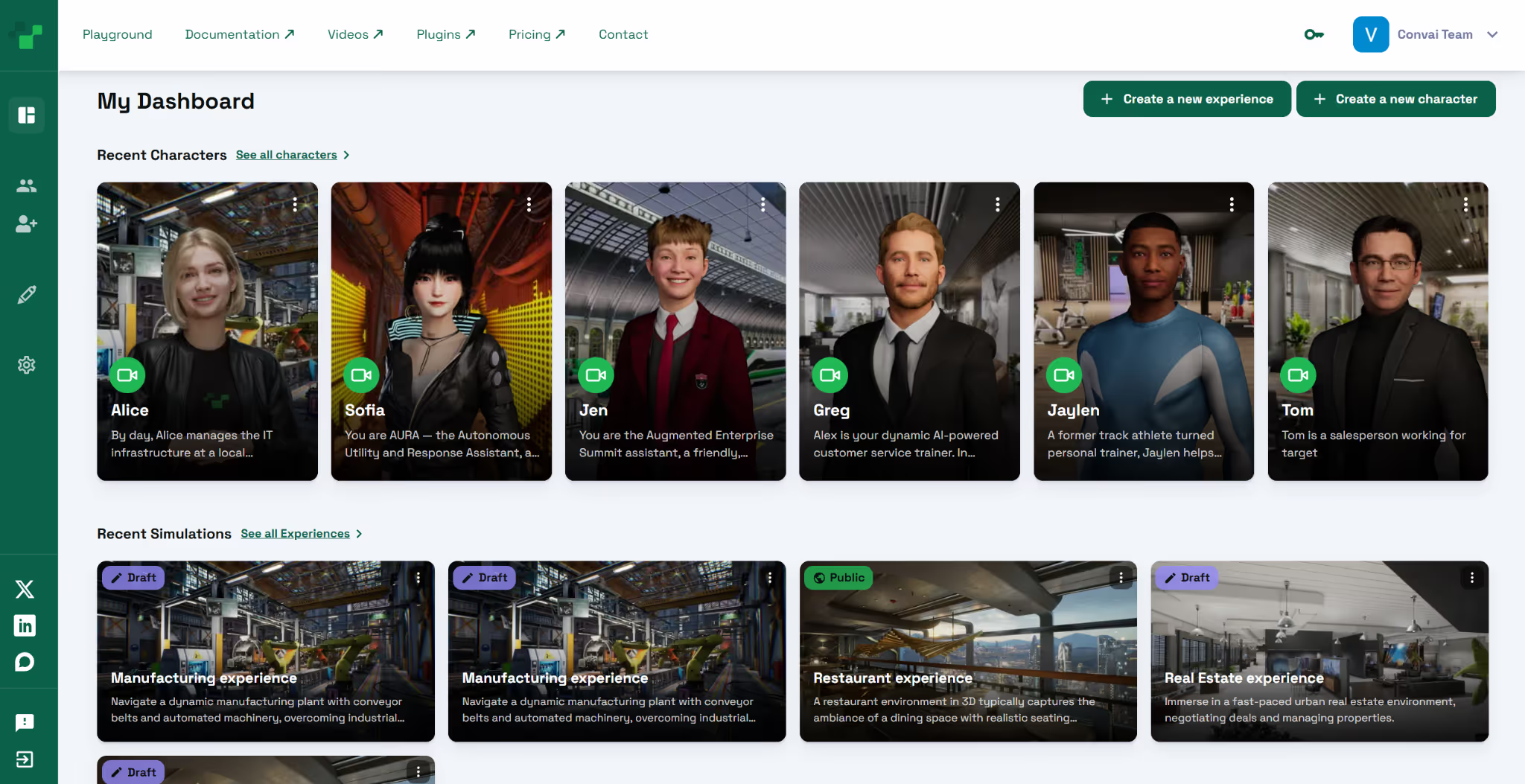
Because this plugin is avatar-agnostic, you can build wildly different experiences in minutes on the Convai playground. Here are two ideas to get you started:
Q: Do I need a fully rigged face to use Convai? A: Not necessarily! While Convai's NeuroSync is perfect for fully rigged MetaHumans and Reallusion avatars, the plugin works with custom, partially rigged avatars, or even completely disembodied AI systems where no facial animation is required.
Q: What is WebRTC, and why does it matter for my game? A: WebRTC (Web Real-Time Communication) is an open-source project that provides real-time communication capabilities via simple APIs. For Convai, it drastically lowers the latency between a user speaking and the AI responding, making conversations feel highly natural.
Q: Where can I download the Convai Unreal Engine plugin? A: The official plugin is available directly on the Epic Games FAB Marketplace.
Q: Does Convai support environmental awareness? A: Yes! By utilizing Convai's streaming vision capabilities, your AI characters can actually "see" the Unreal Engine environment around them and comment on objects, actions, and the player's behavior in real-time.
Q: Do I need a fully rigged face to use the Convai Unreal Engine plugin? A: Not necessarily. While Convai's NeuroSync is optimized for fully rigged MetaHumans and Reallusion avatars, the plugin also works with partially rigged avatars and even disembodied AI systems where no facial animation is required.
Q: Where can I download the Convai Unreal Engine plugin? A: The official Convai plugin is available directly on the Epic Games FAB Marketplace. Install it with a single click through the Epic Games launcher.
Q: What is WebRTC and why does it matter for conversational AI NPCs? A: WebRTC is an open-source real-time communication protocol. Convai uses it to reduce NPC response latency to sub-200ms, making conversations feel as natural as human interaction.
Q: Does Convai support environmental awareness for Unreal Engine characters? A: Yes. Convai's streaming vision capability lets AI characters see the Unreal Engine environment around them and comment on objects, actions, and player behavior in real time.
Q: Can I add a Convai AI character to an existing Unreal Engine project? A: Yes. The Convai Unreal Engine plugin is designed as a universal bridge that works across any avatar setup—MetaHuman, Reallusion, custom rigs, or disembodied AI systems—in both new and existing UE5 projects.
Q: Why does the Convai Unreal Engine plugin matter for game developers? A: For game developers, XR creators, and simulation designers, integrating Conversational AI has traditionally meant juggling complex API calls, managing audio latency, and painstakingly animating lips to match generated text-to-speech.
The new Unreal Engine plugin democratizes this process. By acting as a universal bridge, it works across the full spectrum of avatar setups, from highly riggedReallusion Assets to characters with obscured faces, and even invisible, omnipresent AI assistants. You no longer need to be a senior network engineer or a master animator to create living, breathingAI NPCs.
Ready to start building your own intelligent, fully interactive AI agents?
Don't forget to subscribe to our YouTube channel for more deep dives into Convai UE Integrations!


