Use Cases


Imagine walking up to an NPC in your game, or a virtual brand avatar in your training simulation and having a natural, unscripted conversation about anything, stargazing, your company’s information and more, complete with perfectly synchronized lip movements and nuanced facial expressions.
With Convai’s updated Unreal Engine plugin, creating highly expressive, low-latency Conversational AI characters is easier than ever.
Watch the full tutorial below:

Interactive storytelling and virtual simulations have been bottlenecked by static dialogue trees and pre-baked animations. If a player or trainee asked a question outside the script, the immersion broke.
Today, AI-powered characters are changing the landscape of game development, virtual training, and enterprise simulations. By integrating Large Language Models (LLMs) with high-fidelity 3D avatars, developers can offer users unprecedented agency. Players can speak into their microphones naturally, and the AI agent will understand context, recall backstory, and reply dynamically. This doesn't just save hundreds of hours in manual animation and voice acting—it creates a deeply personalized, immersive experience that was previously impossible.
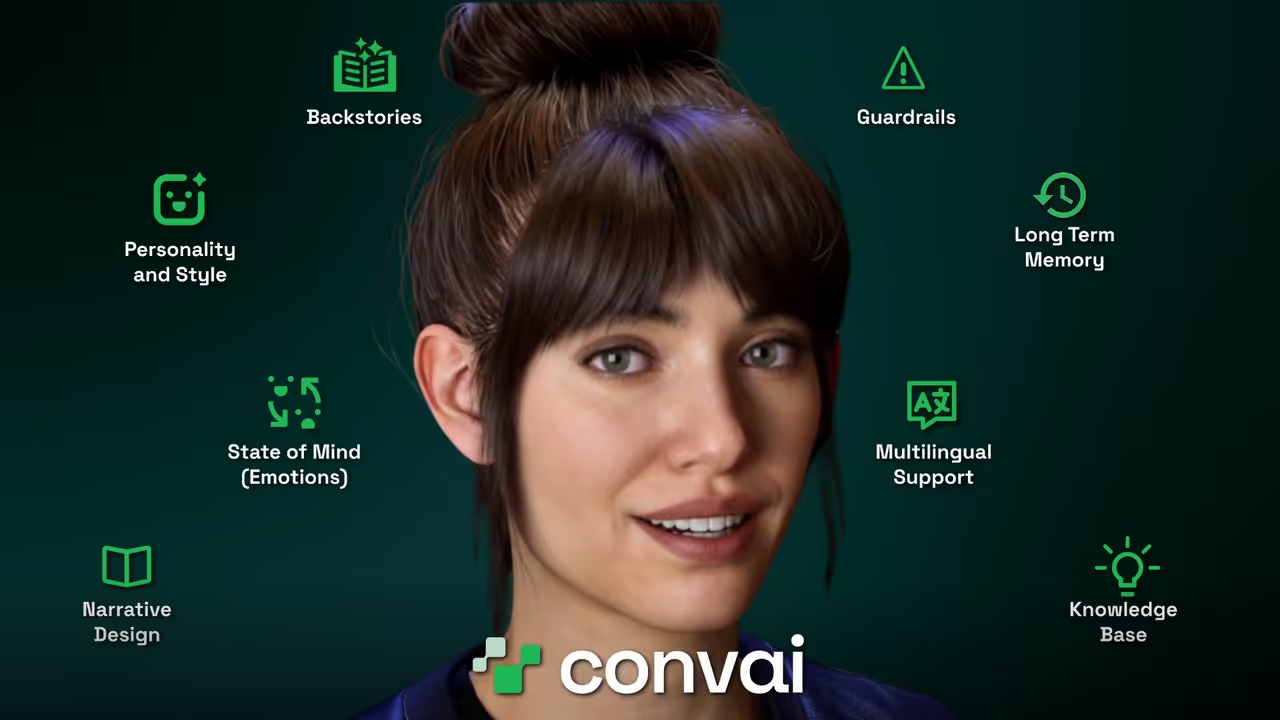
Convai’s latest Unreal Engine integration is a massive leap forward for Embodied AI, focusing heavily on speed, realism, and ease of use. Here is what the latest upgrade brings to your Unreal Engine 5 projects:

When your character responds to a user's voice, NeuroSync goes to work. Instead of relying on rigid, pre-programmed facial movements, NeuroSync generates perfectly synchronized lip movements on the fly based on the generated text-to-speech audio.
Whether you are building interactive NPCs, virtual instructors for AI in XR, or enterprise sales roleplay simulations, this pipeline guarantees a deeply immersive user experience without bogging down your development timeline.

Let's get into the editor. For this tutorial, we are starting with a newly created Unreal Engine project using the First Person template.

If you haven't installed the Convai plugin yet, grab it from the Fab Store and check out our documentation for Unreal Engine.
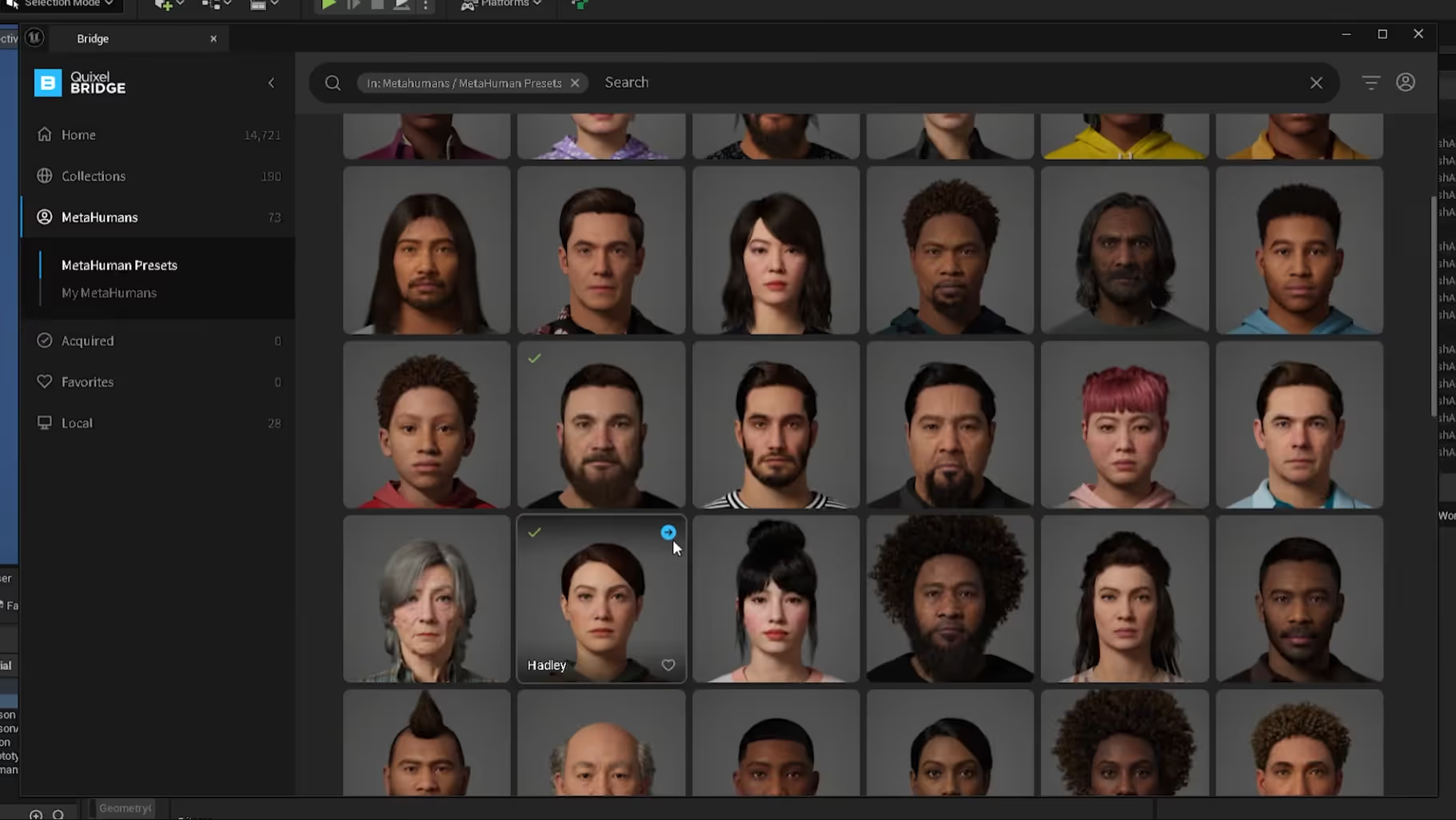

Now, we need to connect our MetaHuman to Convai's LLM so it can think and speak.

To ensure the AI's voice perfectly matches the facial movements, we need to interpret the audio data into animation.
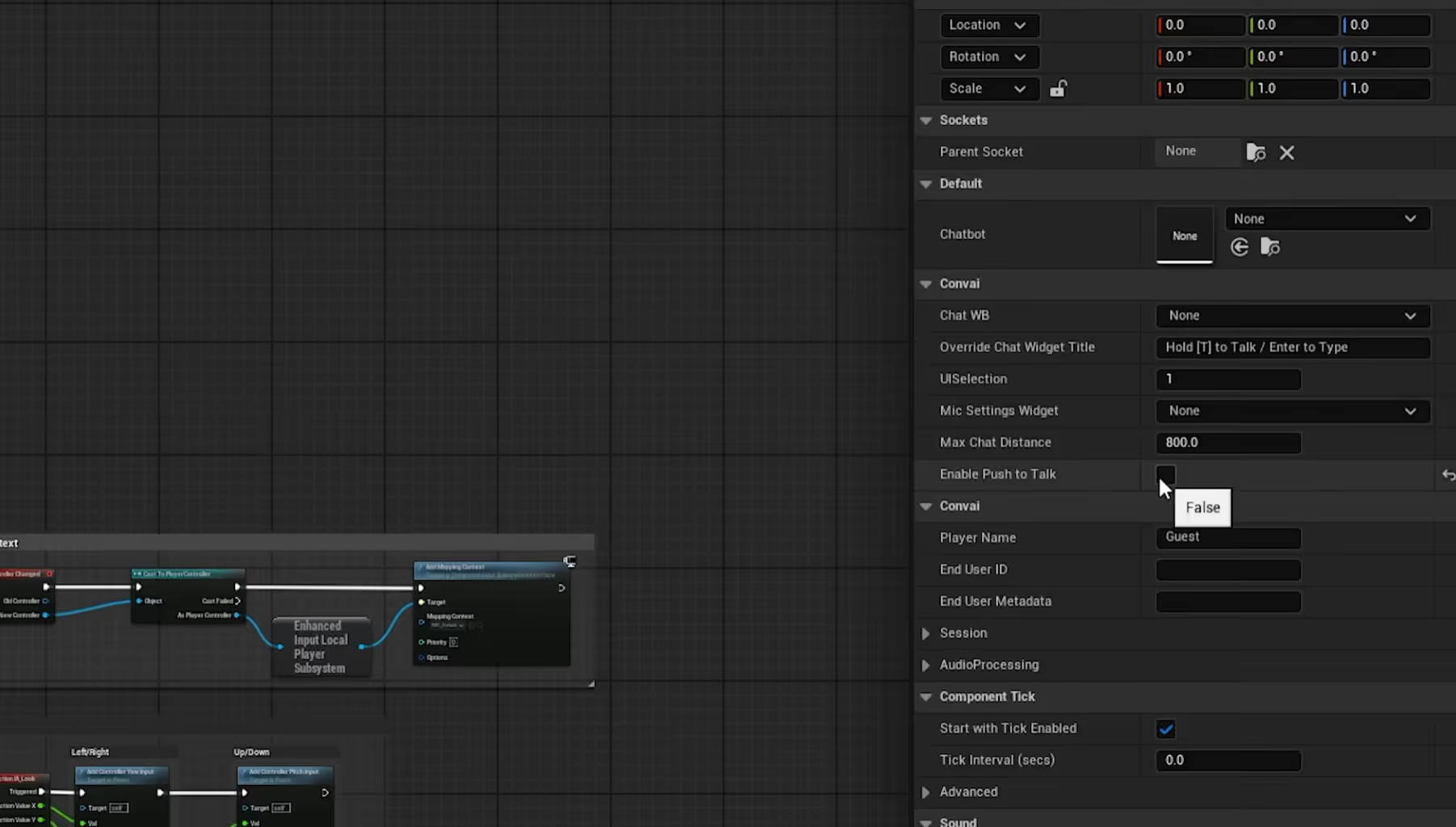
To enable voice interactions:
Hit Play! Walk up to your MetaHuman and start talking.

Not sure what to build first? Here are two powerful, ready-to-use, Convai characters to integrate with your MetaHumans in your next project:
Also Watch: Reallusion Avatars with Conversational AI, Real-time Lipsync & Facial Animation | Convai UE Tutorial
While this tutorial focuses on Unreal Engine, Convai’s NPC AI Engine supports real-time voice AI and dynamic dialogue systems in multiple platforms including Unity. Developers can use Convai’s SDK to integrate NPC speech that reacts to game states, enabling seamless player interactions without scripted dialogue limitations.
Q: Do I need to create my own facial animations for the AI to speak?
A: No! Convai's NeuroSync system processes the generated audio stream in real-time and automatically drives over 250 MetaHuman facial blend shapes. You do not need to manually animate the lip-sync or facial expressions.
Q: Can I use this setup for VR and XR applications?
A: Yes. The Convai Unreal Engine plugin is highly optimized for AI in XR. Because it processes audio and animation streams with very low latency, it is perfect for maintaining immersion in Virtual Reality.
Q: Does Convai work with avatars other than MetaHumans?
A: Absolutely. While this tutorial focuses specifically on MetaHumans, Convai is avatar agnostic and supports various avatar systems, including Reallusion, and custom 3D characters.
Q: Do I need heavy coding experience to integrate this?
A: No. As shown in the tutorial, Convai utilizes Unreal Engine Blueprints. By simply adding the Chatbot, FaceSync, and Player components to your existing Blueprints, you can achieve conversational AI without writing C++ code.
Q: Is the voice interaction actually real-time?
A: Yes. By combining fast Speech-to-Text, an optimized LLM pipeline, and rapid Text-to-Speech generation, the latency is kept incredibly low to simulate a natural, flowing conversation.
Q: What is Convai’s NeuroSync technology? A: NeuroSync is Convai’s neural AI model that processes live audio streams instantly to drive real-time lipsync and facial animation on MetaHumans. It eliminates the need for pre-baked animations, enabling dynamic and expressive AI characters.
Q: Can Convai’s system be used in VR and XR environments? A: Yes. Convai’s Unreal Engine plugin is optimized for low latency and high fidelity, making it ideal for immersive VR and XR applications that require natural voice AI and facial animation synchronization.
Q: Do I need to write code to integrate Convai with Unreal Engine? A: No. Convai leverages Unreal Engine Blueprints, allowing developers to add Chatbot, FaceSync, and Player components without heavy coding. This makes conversational AI accessible even to those with minimal programming experience.
Q: Is Convai compatible with avatars other than MetaHumans? A: Absolutely. While this tutorial focuses on MetaHumans, Convai supports multiple avatar systems, including Reallusion and custom 3D characters, offering flexibility across different projects.
Q: How real-time is the voice interaction using Convai? A: Convai combines fast Speech-to-Text, optimized large language models, and rapid Text-to-Speech generation to ensure ultra-low latency, enabling natural, flowing conversations with AI-driven characters.
Ready to start building your own intelligent, fully interactive AI agents?
Don't forget to subscribe to our YouTube channel for more deep dives into Convai UE Integrations!


