Use Cases
.png)
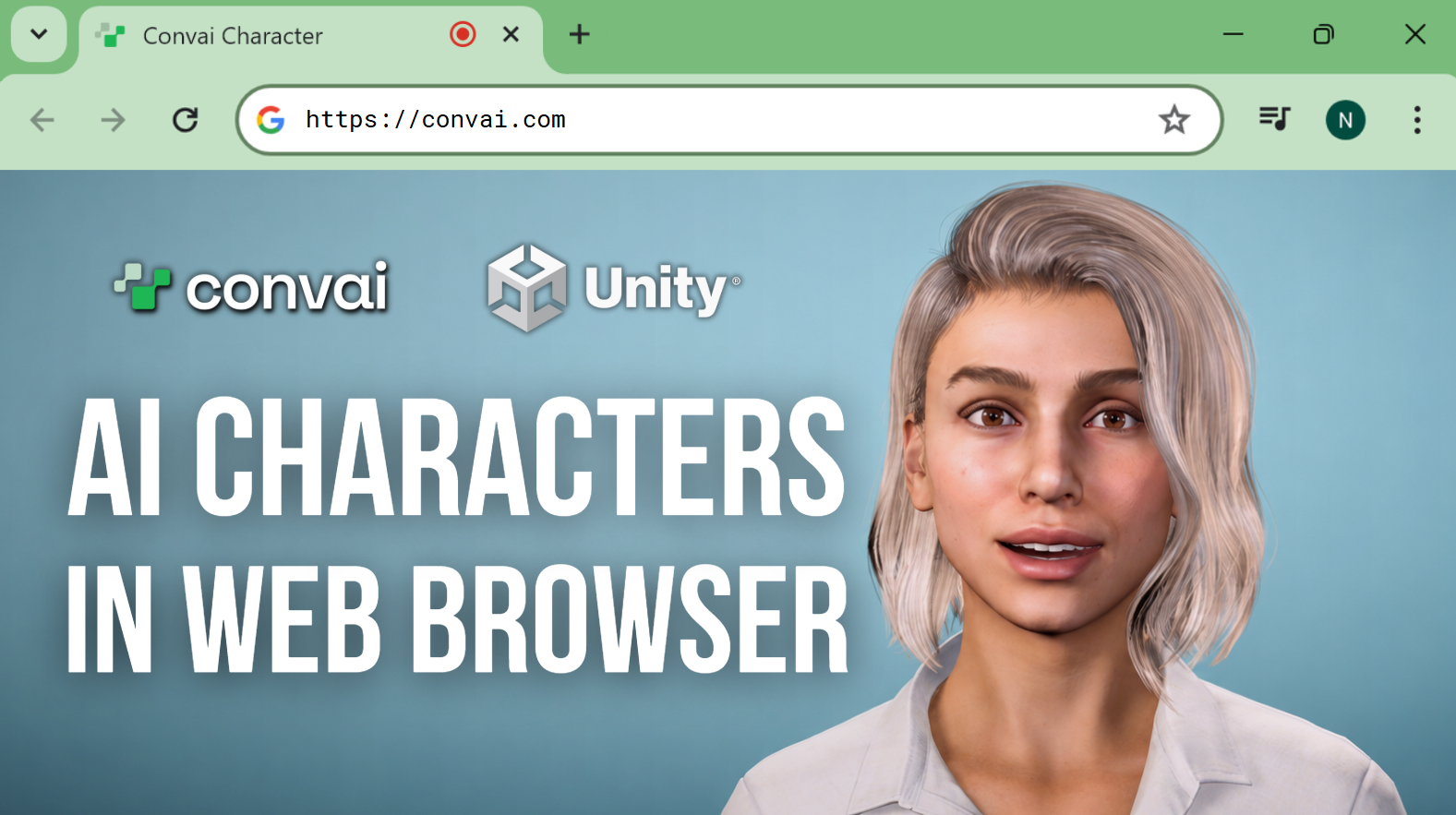
You can build a Convai-powered Unity Web project, previously known as Unity WebGL, and run an interactive AI avatar directly in the browser. No install, no launcher, just a URL. In this tutorial, we take a Unity 6 scene with a Convai AI character, switch to the Web build profile, build and run the project, allow microphone access, and test real-time voice conversation with the avatar in the browser.
The Convai Unity SDK supports voice conversation, lip sync, Vision, long-term memory, actions, and more on Unity Web. That means you can bring AI characters into browser-based 3D experiences, product demos, training simulations, and virtual worlds that anyone can open with a link.
Also, you can grab the Convai Unity plugin on the Asset Store.
Unity Web is Unity's build target for the browser, previously known as Unity WebGL. Instead of shipping a desktop or mobile executable, Unity compiles your project to run inside Chrome, Edge, Firefox, and other modern browsers. For AI characters, this is the lowest-friction way to reach users: they click a link, allow their microphone, and start talking to your AI avatar.
With the Convai Unity SDK, your Unity Web build keeps the full conversational stack. The character's brain, including its LLM, voice, personality, and knowledge, stays hosted on Convai. The browser handles rendering, audio input, and lip sync in real time.
This tutorial starts with a scene that already has a Convai-powered avatar. You need:
If you haven't added an AI mind to your avatar yet, follow the Convai Unity setup documentation or watch the detailed tutorial below first, then come back here for the Web build.
Convai Unity Setup Tutorial:
The whole process takes four steps inside the Unity editor.

Go to File, then Build Profiles. This is where you choose the target platform for your project.

Before starting the build, make sure the scene you want is currently open. Click Open Scene List. If a scene appears that you don't want in the build, right-click it and remove it. Then click Add Open Scenes to bring your current scene into the build.
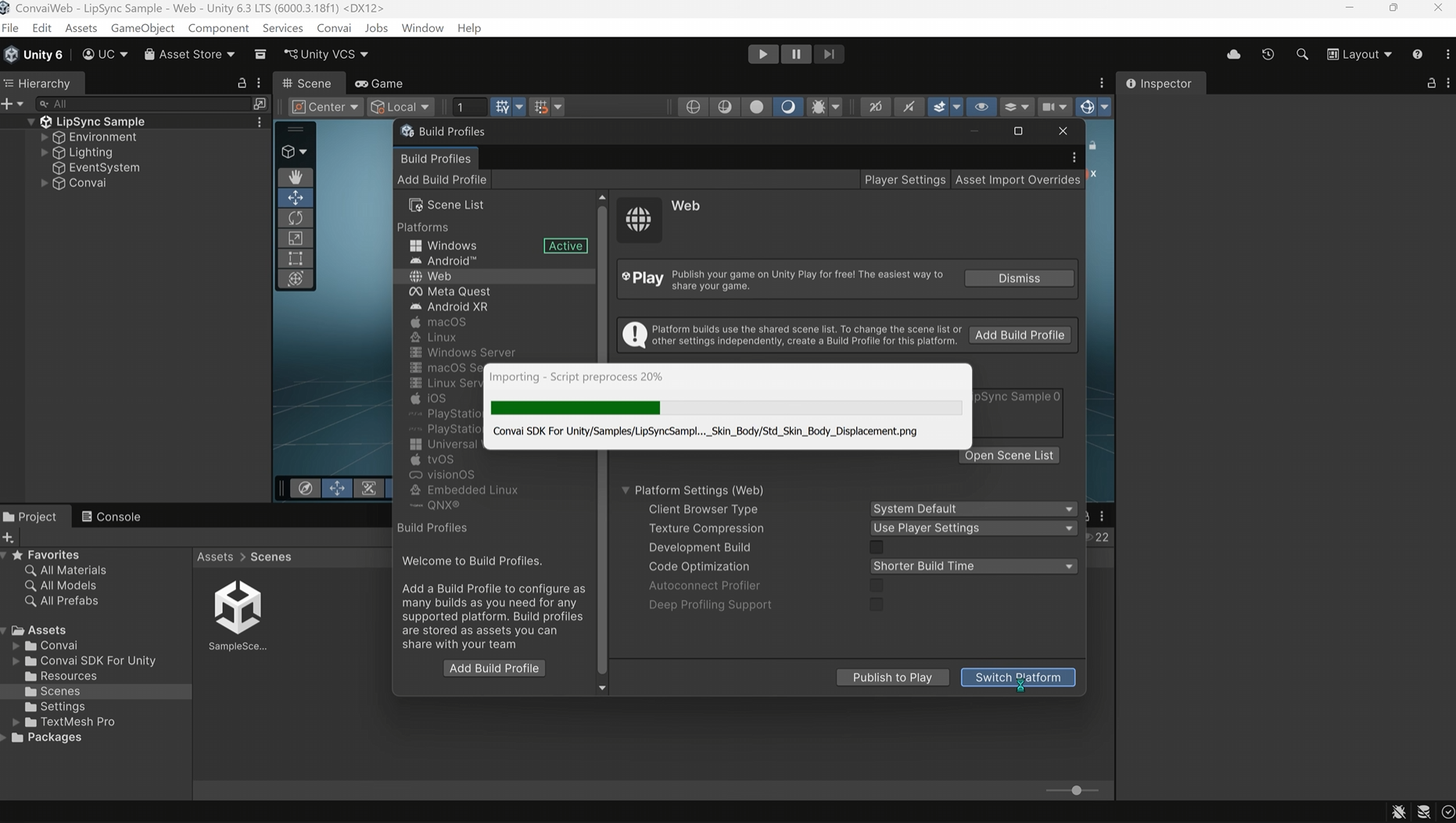
Since the build targets the browser, select the Web build profile and click Switch Platform. Unity takes a few seconds to switch the platform for the browser.

Click Build And Run. Unity asks for a build destination, so create a new folder called Builds, select it, and start the build. In a few minutes, your project is ready and opens in the browser automatically.
For platform-specific details, see the Convai Unity Web / WebGL documentation.
Also read: How to Build Convai-Powered AI NPC VR Projects in Unity for Meta Quest
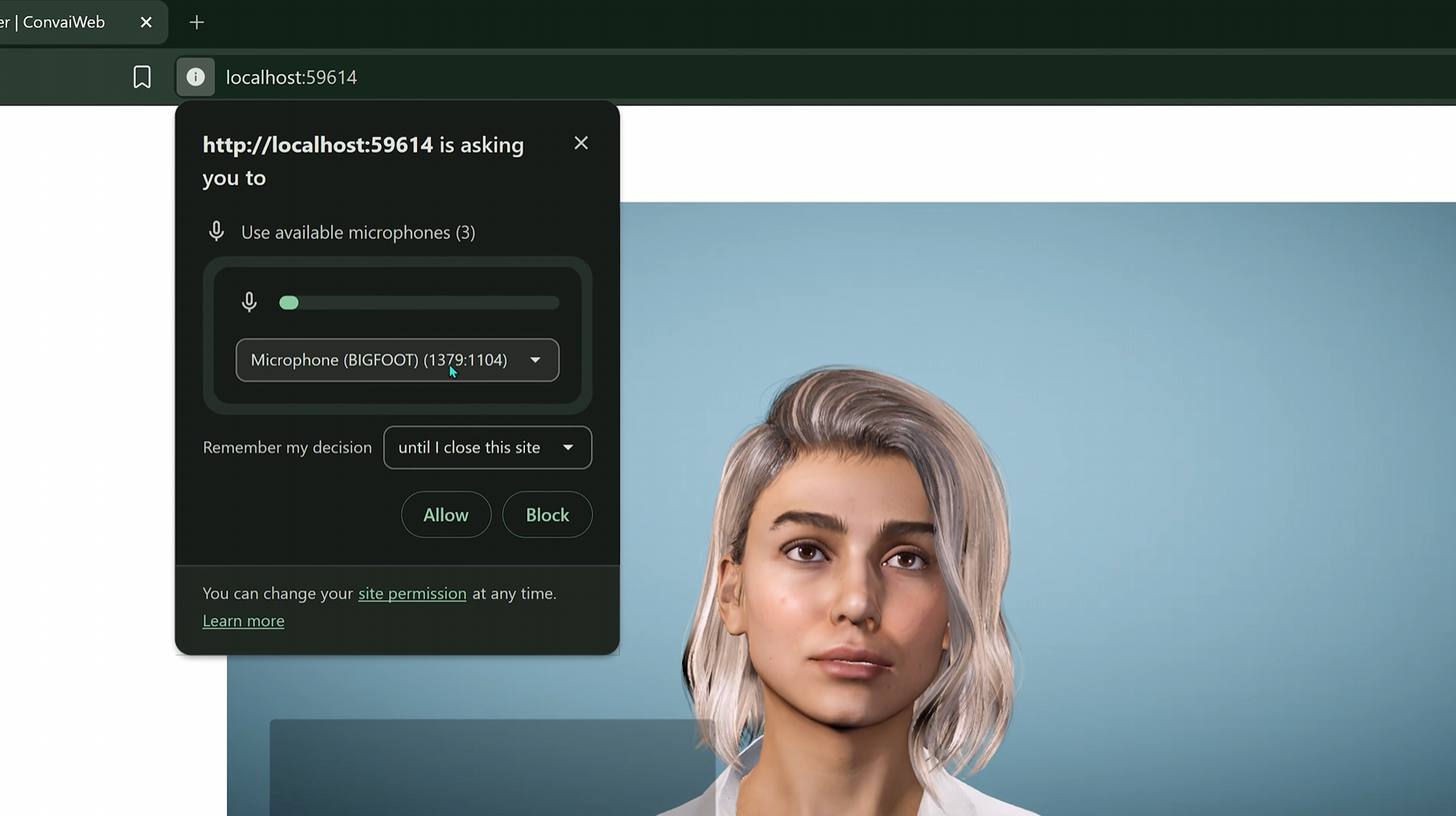
When the project opens in the browser, a microphone permission popup appears. Check that the correct microphone is selected, then click Allow to enable your microphone input. Voice conversation with your Convai character won't work until this permission is granted. If the avatar isn't hearing you, check the browser's site permissions first.

With the mic enabled, just talk. In the demo, asking "Hey, what's your name?" gets an immediate in-character reply from Sophia, the AI avatar: an actor who loves exploring new worlds through film scripts and Dungeons and Dragons. The conversation runs with real-time voice and lip sync directly in the browser tab, with no native app involved.
Because the Convai Unity SDK carries its full feature set to Unity Web, you can add more than conversation:
Browser delivery removes the biggest barrier between your AI characters and your audience. Teams use Convai Unity Web builds for:
Also Watch: How to Add AI Characters to Unity 6 VR Projects (Meta Quest & PCVR) | Convai Unity VR Tutorial
What is a Convai Unity Web (WebGL) project?
A Convai Unity Web project is a Unity build that runs in the browser, previously known as Unity WebGL, with an interactive Convai AI character inside it. Users open a URL, allow microphone access, and have real-time voice conversations with an AI avatar that supports lip sync, Vision, long-term memory, and actions.
How do I build a Convai project for Unity Web?
Open File then Build Profiles, click Open Scene List and remove unwanted scenes, click Add Open Scenes, select the Web build profile, click Switch Platform, then click Build And Run and choose a build folder. Unity compiles the project and opens it in the browser.
Why can't my AI avatar hear me in the browser?
Microphone permission is required. When the Unity Web build opens, a permission popup appears; select the correct microphone and click Allow. If you dismissed it, re-enable the mic in the browser's site permissions and reload the page.
Does the Convai Unity SDK support lip sync and voice on WebGL?
Yes. The Convai Unity SDK supports voice conversation, lip sync, Vision, long-term memory, actions, and more on Unity Web, so browser builds keep the same conversational capabilities as desktop builds.
Which Unity version does this tutorial use?
The tutorial uses Unity 6 with the Web build profile. The workflow is the same as earlier WebGL builds: manage your scenes, switch platform to Web, and build and run.
A Convai Unity Web build turns your AI character into a link anyone can open. Prepare your scene, switch to the Web build profile, build and run, allow the microphone, and you have a real-time conversational AI avatar running in the browser. It's the fastest way to put interactive AI characters in front of your users.
Ready to build? Sign up at convai.com · Read the Unity Web documentation · Get the plugin on the Asset Store · Ask questions on the Developer Forum
Follow Convai: LinkedIn · Reddit · X/Twitter · Instagram · YouTube


