Use Cases


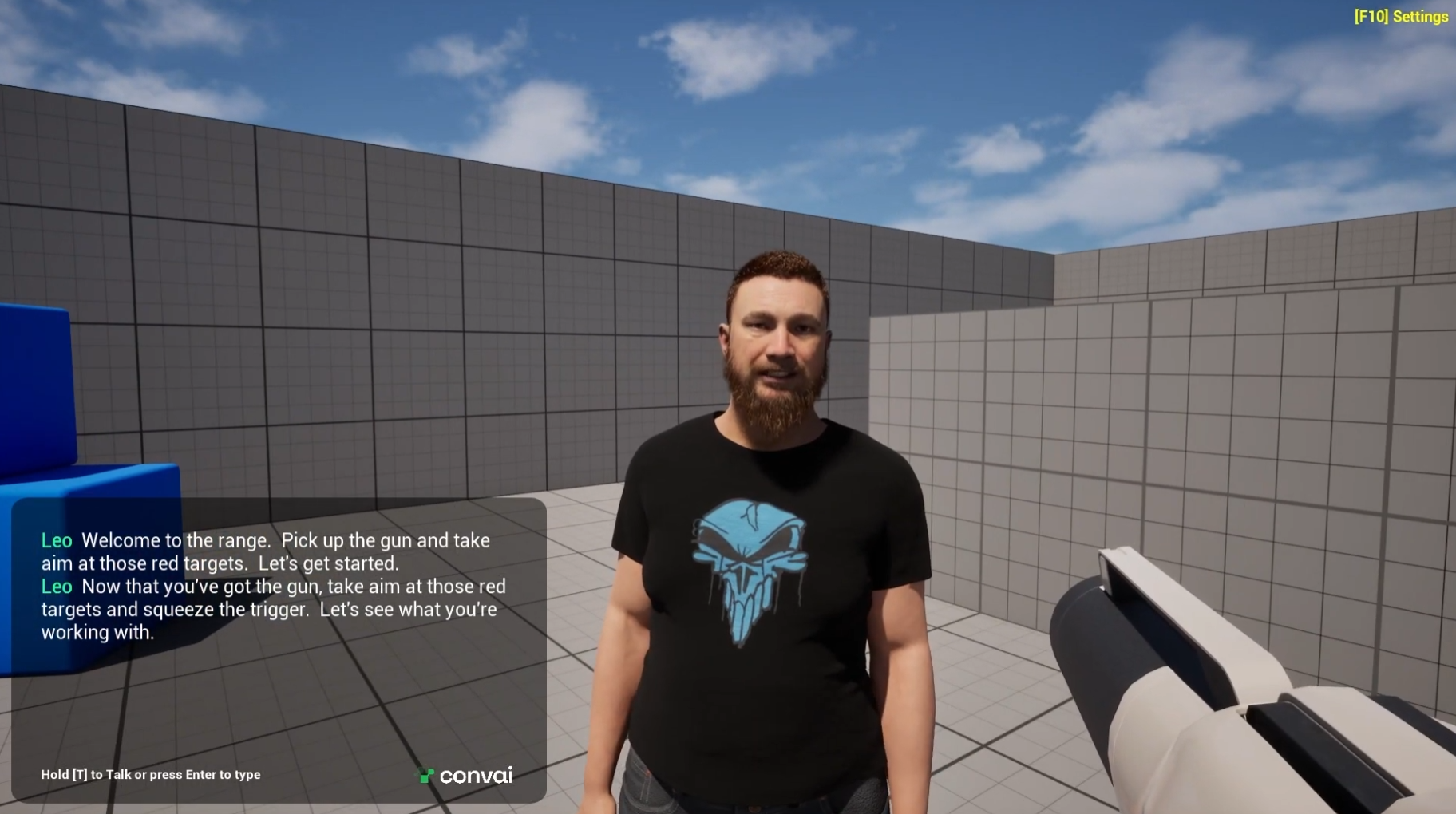
Most AI NPCs in games are reactive at best. A player does something. The character says something. The loop ends there. The character has no memory of the score, no awareness of the environment, and no ability to do anything beyond talk. Convai's Dynamic Context changes this. It gives your AI characters a live feed of everything happening in your game, tracked as named variables that the character can reason about in real time. The result is a character that does not just respond to prompts but reacts to the actual state of your virtual world. This tutorial walks through exactly how to set this up in Unreal Engine 5 using a virtual shooting range, where a training instructor AI metahuman tracks the player's accuracy, reacts when they pick up a weapon, and even sees the targets through a vision component.
Watch the full tutorial below:
The standard AI character pipeline stops at talking. Speech-to-text captures what the player says. A large language model (LLM) generates a response. Text-to-speech delivers it. The character looks like it understands the player. But it has no idea what is happening in the game around it. Dynamic Context extends this pipeline with a persistent state layer. Instead of the character only knowing what was said, it also knows:
This context gets assembled turn by turn and injected into the character's reasoning at the right moment. It is not a static prompt. It is a live feed.
According to the 2026 State of the Game Industry report by the Game Developers Conference, 47% of studios are now actively exploring AI-driven NPC dialogue systems. The gap between what players expect and what scripted dialogue trees deliver has never been wider. Dynamic Context is what closes it.
Also read: Agentic AI Platform for Virtual Worlds: How Convai's Always-On Reasoning Works

Before getting into the implementation, it helps to understand the design philosophy behind Dynamic Context.
The traditional model is action-to-dialogue: something happens in the game, and the character talks about it. The player shoots a target. The character says something about it. The character is a narrator. Convai enables Prompt-to-Action (P2A), which inverts this. A player prompt or game event maps directly to a structured action the character executes in the scene. The character is not just narrating. It is participating.
P2A reliability depends entirely on context quality. If the character does not know the current score, the current weapon state, and what the player just did, it cannot make good action decisions. That is what Dynamic Context feeds into the system. Think of Dynamic Context as the mechanism that makes P2A work.
You can inspect exactly what context reached the LLM on any given turn using Mindview, Convai's prompt debugger. If a character makes an unexpected decision, Mindview shows you whether the relevant context variable was actually present.
Also read: Integrating Dynamic NPC Actions for Game Development with Convai

1. Start by selecting your AI character in the scene and clicking Edit Blueprint. In the Begin Play event, you want the character to greet the player when the scene loads.
2. Grab the Convai Chatbot Component and call the Invoke Speech function. Set a trigger message that gives the character its opening line and context. Keep it concise by adding 'be concise' to the trigger message. Long welcome messages slow the experience down.
3. The Generate Actions and Replicate on Network options are still under development. Leave them disabled for now.
This sets up the character's starting state. From here, every subsequent interaction layers on top of what the character already knows from its Dynamic Context feed.
Read the full documentation here: Dynamic Context for Unreal Engine
1. Select the weapon actor in your scene and click Edit Blueprint. Find the overlap event that handles the pickup mechanic, specifically where the weapon component gets added to the player before the actor destroys itself.
2. Right before the destroy node, add a reference to the Convai Chatbot Component using Get First Convai Chatbot Component. Call the Add Context Event function and pass a message like: 'The player has picked up the gun.'
3. Set the response mode to Always so the character acknowledges the pickup immediately. This is a one-time event that signals a meaningful state change, so an immediate reaction makes sense.
The difference between Add Context Event and Set Context State is important:
Also read: Build Vision-Based Conversational AI Characters in Unity

This is where Dynamic Context gets powerful. You are not just notifying the character about events. You are giving it a live count it can reason about.
1. Select a target cone and click Edit Blueprint. Scroll to Events and find On Component Hit. This fires each time the cone is struck.
2. Get the Convai Chatbot Component and this time call Set Context State. Name the variable targets_shot. For the value, you need to retrieve the previous count and increment it:
Set the response mode to Auto. The character will choose when to comment rather than speaking on every single hit, which would be disruptive.
1. Find the weapon component, typically labeled BP_WeaponComponent in the First Person blueprints. Locate the left mouse button event that spawns a projectile.
2. Copy the same Set Context State logic from the target blueprint and paste it here. Rename the variable to bullets_shot. Set the response mode to Never. The character should silently track bullet count without commenting each time the player fires. It would be jarring if it spoke on every shot.
Now the character has everything it needs to calculate accuracy on the fly. eg: Six shots, three targets hit: the character can arrive at 50% hit rate without you scripting that calculation anywhere.

Dynamic Context handles what the character knows about game state. Vision handles what the character can literally see.
1. Select the character and click Edit Blueprint. Under Components, search for Environment Webcam. Attach it and align it with the character's eye level, pushing it slightly forward to avoid mesh collision.
2. Navigate to your Content folder and create a new folder called convai_vision. Right-click inside it, select Convai, and choose Create Vision Render Target. In the character details panel, set the render target to the one you just created and enable Auto Start Vision.
3. The render target now shows exactly what the character sees. You can ask it questions about the environment: 'How many targets do you see?' and it will count them from its camera view, not from any pre-baked script.
This is where the two systems converge. Dynamic Context tells the character what has happened. Vision tells the character what is in front of it. Together they give the character genuine situational awareness.
The shooting range is a simple demonstration but the pattern generalizes to any game or simulation:
There is also an emerging use case worth watching: QA testing by NPC. When AI characters can track state, execute actions, and reason about objectives, you can give two NPCs a goal and let them play your game against each other before you ship. Every unexpected behavior they surface is a bug you find pre-launch. The same Dynamic Context infrastructure that makes characters feel alive in production also makes them useful as automated testers in development.
Open Mindview in the Convai Playground and watch your character's context assemble turn by turn. Define your first context state variable and trigger it from a blueprint event. Then give two NPCs an objective and let them play.
The Convai Unreal Engine plugin is available on the Epic Games FAB Marketplace. Full documentation for Dynamic Context can be found at the official Convai Documentation page.
Have questions? The Convai Developer Forum is the fastest way to get help from the team and the community.
Dynamic Context is a Convai feature that lets AI characters continuously track game state variables in real time, such as player actions, scores, and environmental changes, so they respond contextually to everything happening in your virtual world. It connects your Unreal Engine blueprint logic directly to the character's reasoning layer via the Convai chatbot component.
Action-to-dialogue means the character talks about something after it happens. Prompt-to-Action inverts this: a user prompt or game event maps directly to a physical action the character executes in the scene, such as walking to a location, picking up an object, or triggering an animation. Dynamic Context is the infrastructure that makes Prompt-to-Action reliable.
Use the Set Context State function in the Convai chatbot component. Attach it to the relevant event in your blueprint, specify a variable name such as targets_shot, and pass the incremented value each time the event fires. Use Get Context State Value to retrieve the previous count before incrementing.
Yes. Convai supports vision input via a render target camera component attached to the character. When Auto Start Vision is enabled, the character can answer questions about what it sees in the scene in real time. This works alongside Dynamic Context so the character has both state awareness and visual awareness simultaneously.
Add Context Event sends a one-time message to the character about something that just happened, such as the player picking up a weapon. Set Context State tracks a persistent variable over time, like how many targets have been hit, which the character can reference across multiple conversation turns.


