Use Cases

.jpg)
A 3D AI character can run in a browser tab, hold a real conversation out loud, and move its face in time with its own speech. No game engine build, no download, no launcher. This tutorial builds one with the Convai Web SDK, Claude Code, Vite, TypeScript, and React Three Fiber.
The workflow leans on an AI coding agent for the parts that are boilerplate. You point Claude Code at the Convai Web SDK documentation, it scaffolds the React Three Fiber project, and you spend your time on the parts that matter: your own AI character, your own avatar, and lip sync that reads as a face rather than a flapping jaw.
▶ Watch the full walkthrough below:
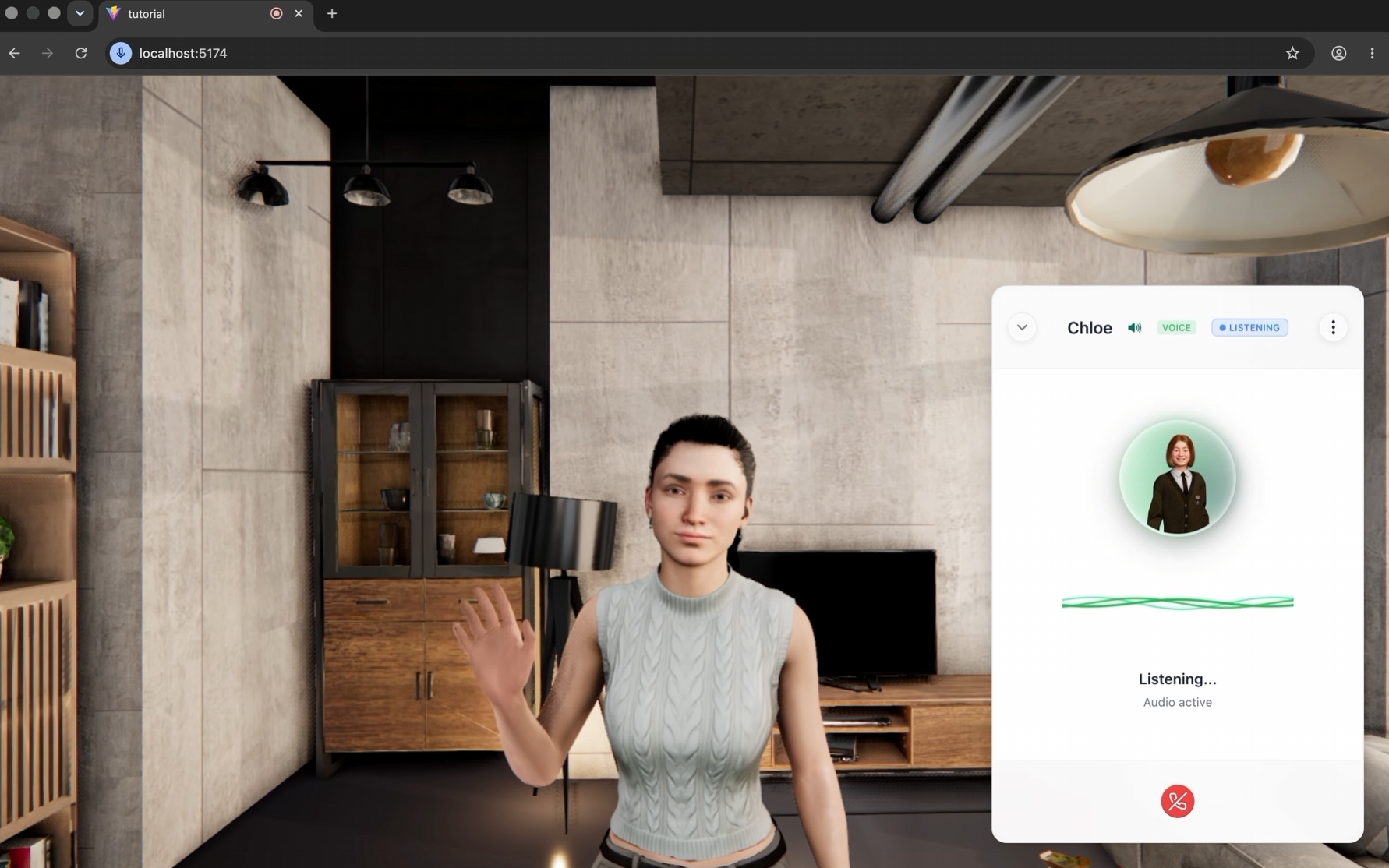
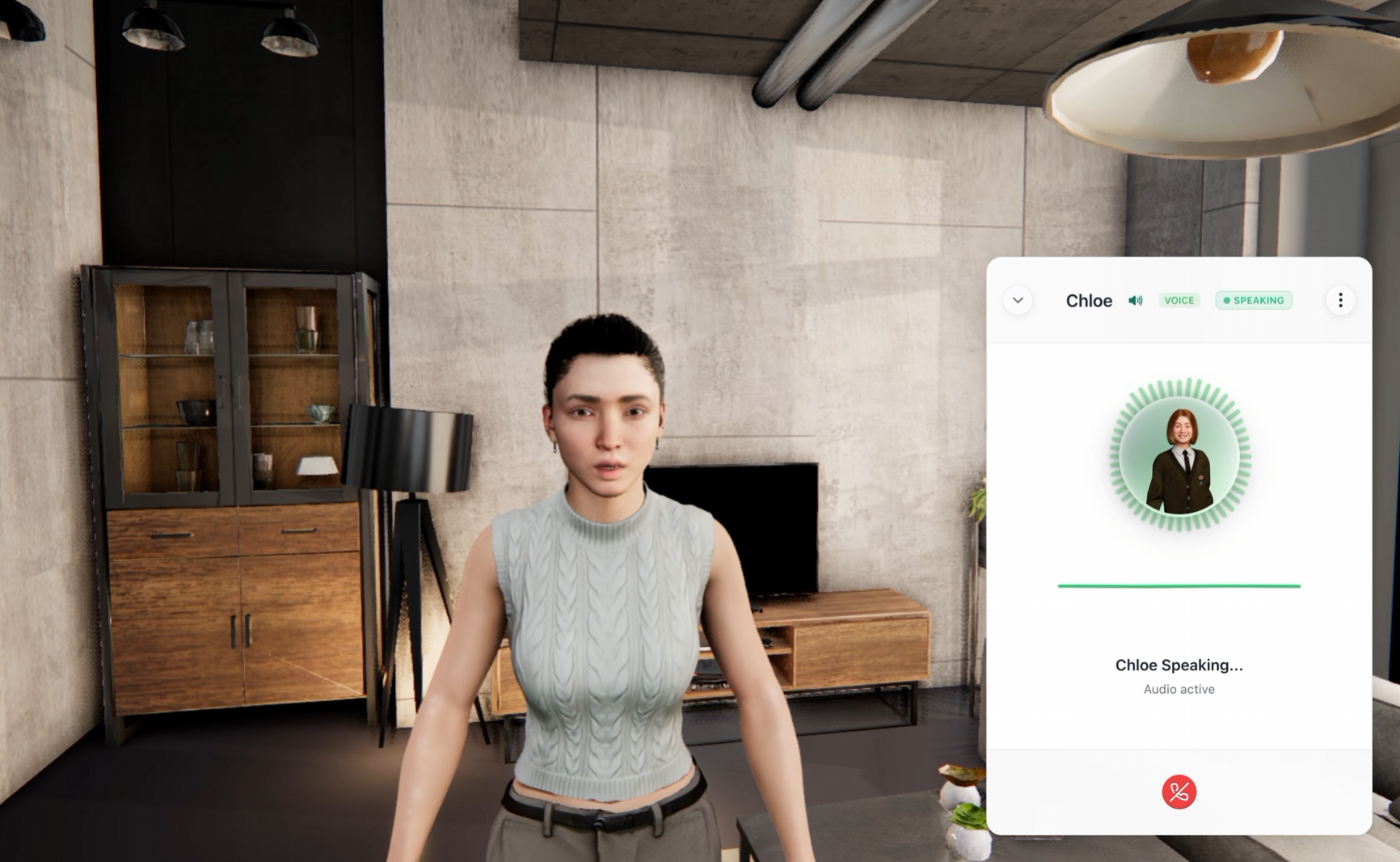
The finished demo puts a virtual guide named Chloe inside a browser-based house walkthrough. She greets the visitor, reads the room, and asks a qualifying question the way a human agent would:
"There's truly a special energy here, isn't there? I find the way the light catches the features in this room really changes the whole mood throughout the day. Since this is our first stop, I'd love to hear your thoughts. What kind of lifestyle are you looking to build here? Are you picturing a quiet sanctuary for unwinding or perhaps a hub for hosting friends and entertaining?"
That runs on a page a visitor opens from a link. The same pattern covers real estate walkthroughs, product showrooms, virtual tour guides, and AI companions embedded in an existing web app.
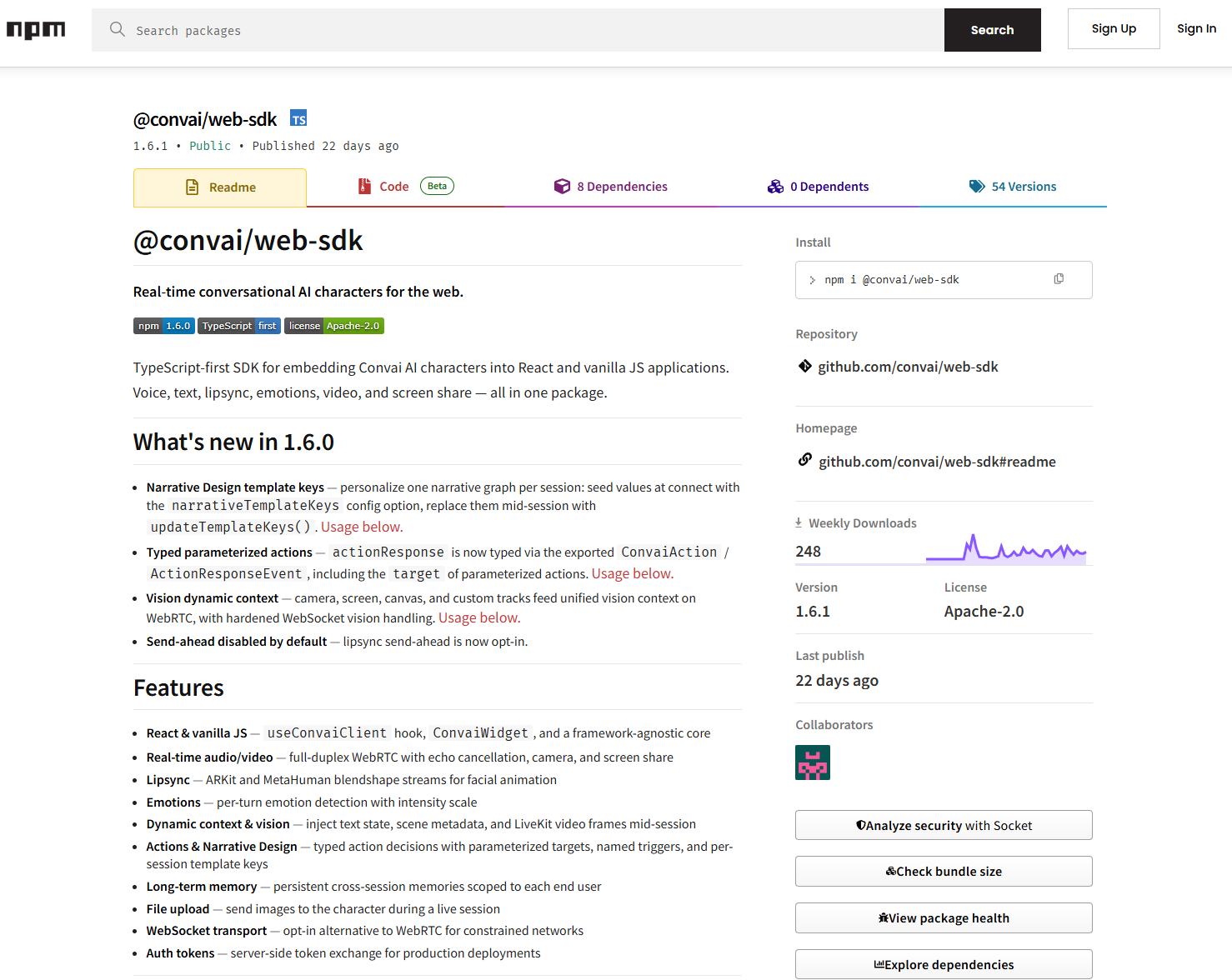
The Convai Web SDK is the npm package convai/web-sdk, and it connects a browser app to Convai's newest backend over WebRTC. It handles real-time audio, text, optional video and screen share, character actions, and emotion signals, so your app receives a conversational character rather than a transcript stream you have to animate yourself.
Five pieces do the work. ConvaiClient is the brain, managing connection, state, messages, audio and video controls, and the blendshape queue. ConvaiWidget is a finished chat interface covering text, voice, and optional video, which is what the tutorial uses to get talking on day one. AudioRenderer attaches the character's audio tracks to the user's speakers, and the widget includes one already, though a custom UI has to add it or the character stays silent. BlendshapeQueue buffers facial animation data at 60 frames per second and hands it to your renderer on demand. MemoryManager carries per-user long-term memory across sessions when you supply a stable end user ID.
Connection type decides what the session can carry. Audio is the default and covers voice conversation. Video opens up camera input and screen share.
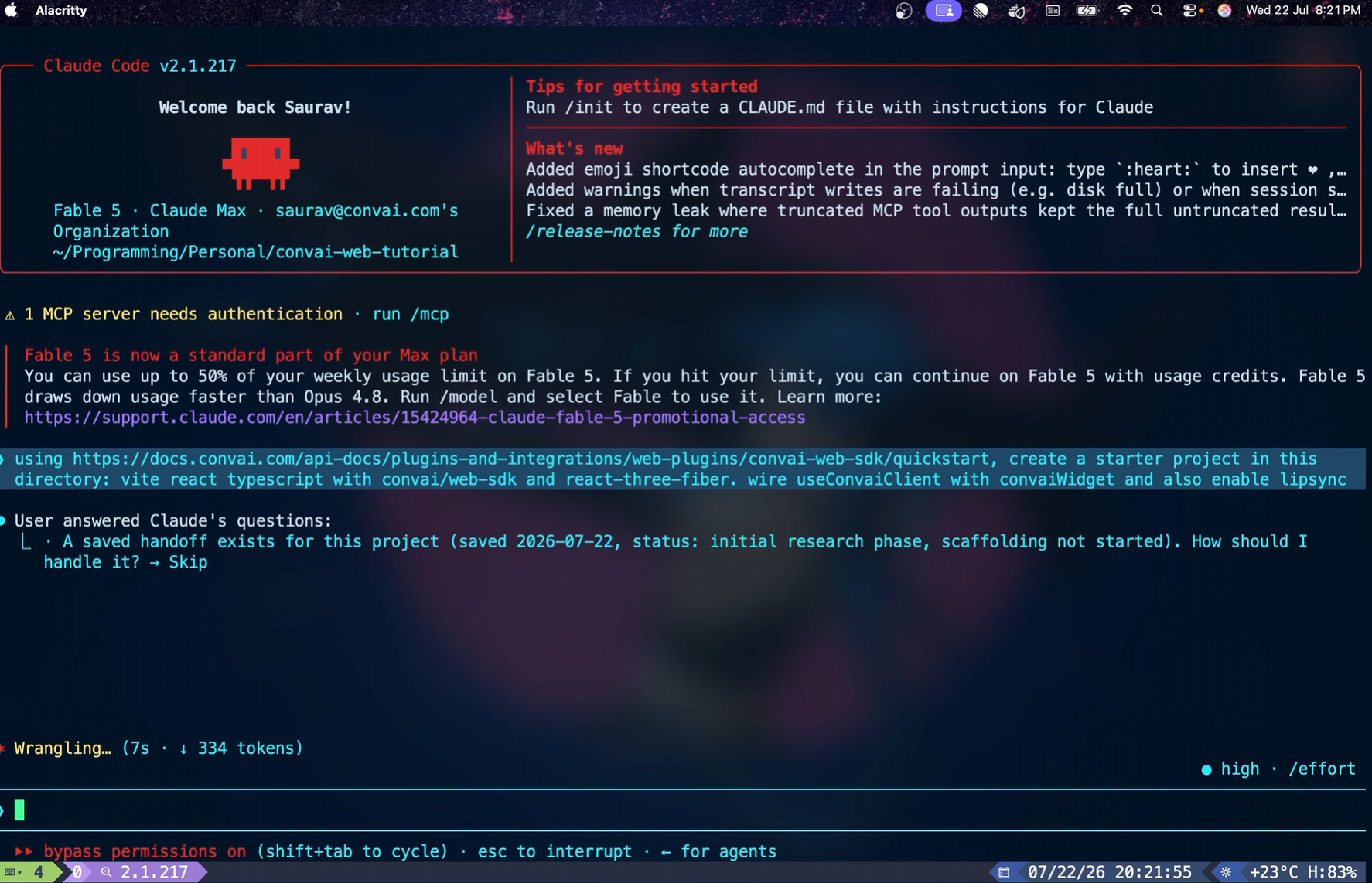
Start with a React project built on Vite and TypeScript. Two packages carry the experience: the Convai Web SDK connects your project to Convai's backend and controls the character, and React Three Fiber renders that character inside your React tree.
Open the Convai Web SDK documentation, go to Web Plugins, and select the Web SDK option. The Quickstart section lists the three prerequisites, the install command, and starter code for wiring up the Convai client with your API key and Character ID. You can drive the client on its own and build your own interface, or reach for the prebuilt widget. The tutorial uses both, because the widget gets you a working conversation while you spend your attention on the 3D side.
Create an empty folder, launch Claude Code inside it, and hand it the documentation link along with what you want: a starter project in this directory, TypeScript, React Three Fiber, the Convai SDK, the Convai client paired with the Convai widget, and lip sync switched on. Scaffolding takes a few minutes.
What comes back is a standard React and Vite project. An Avatar component holds the path to the avatar GLB, which is where your own model goes later. An environment file sits waiting for a Character ID and an API key.
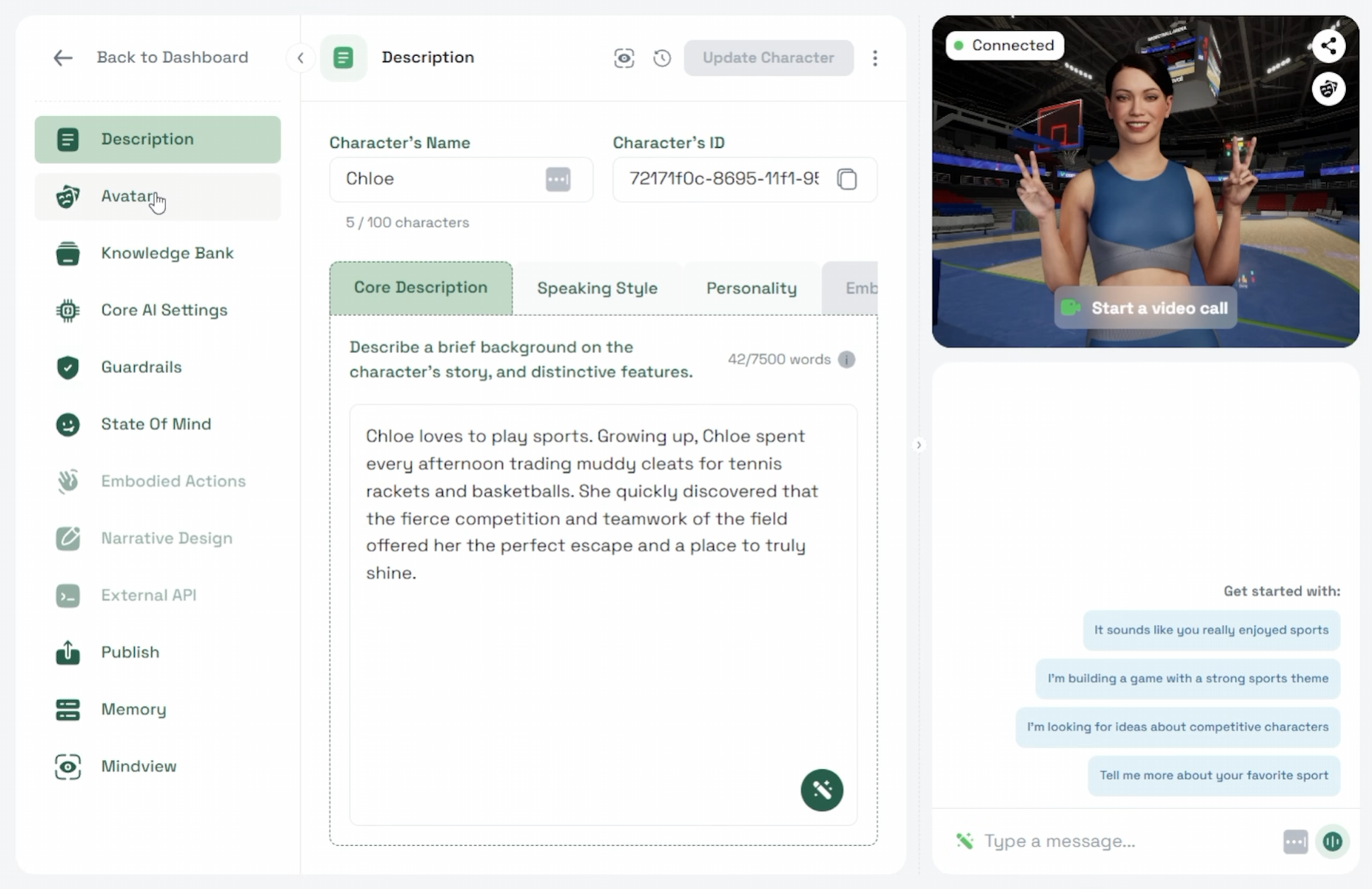
Head to convai.com and click Create Character. Give it a name and a backstory, then create it. From there you can swap the avatar, attach documents that feed its knowledge, and open the core AI settings to choose the foundational LLM, the voice and language, and the animation model.
For a browser experience where response time decides whether the conversation feels alive, Convai recommends the gemini-flash-2.5-beta model in Core AI settings. It's tuned for speed, which matters more on the web than raw model size.
Save the character and copy its Character ID. Copy your API key as well, then paste both into the environment file the agent generated. Run npm run dev, or ask your coding agent to run it, and open the localhost link.
An avatar appears inside a static scene the agent assembled, with the Convai widget sitting in the corner. Click it and talk:
"Hey, what's up? How are you?" "Hey, I'm doing great. Thanks for asking. Just finished up a solid training session earlier, so I'm feeling pretty energized. How about you? How's your day treating you?"
At that point you have a conversational AI avatar running in a browser tab, built from a documentation link and a prompt.
Also read: Build Browser-Based Low-Latency Conversational AI Avatars with Three.js and React
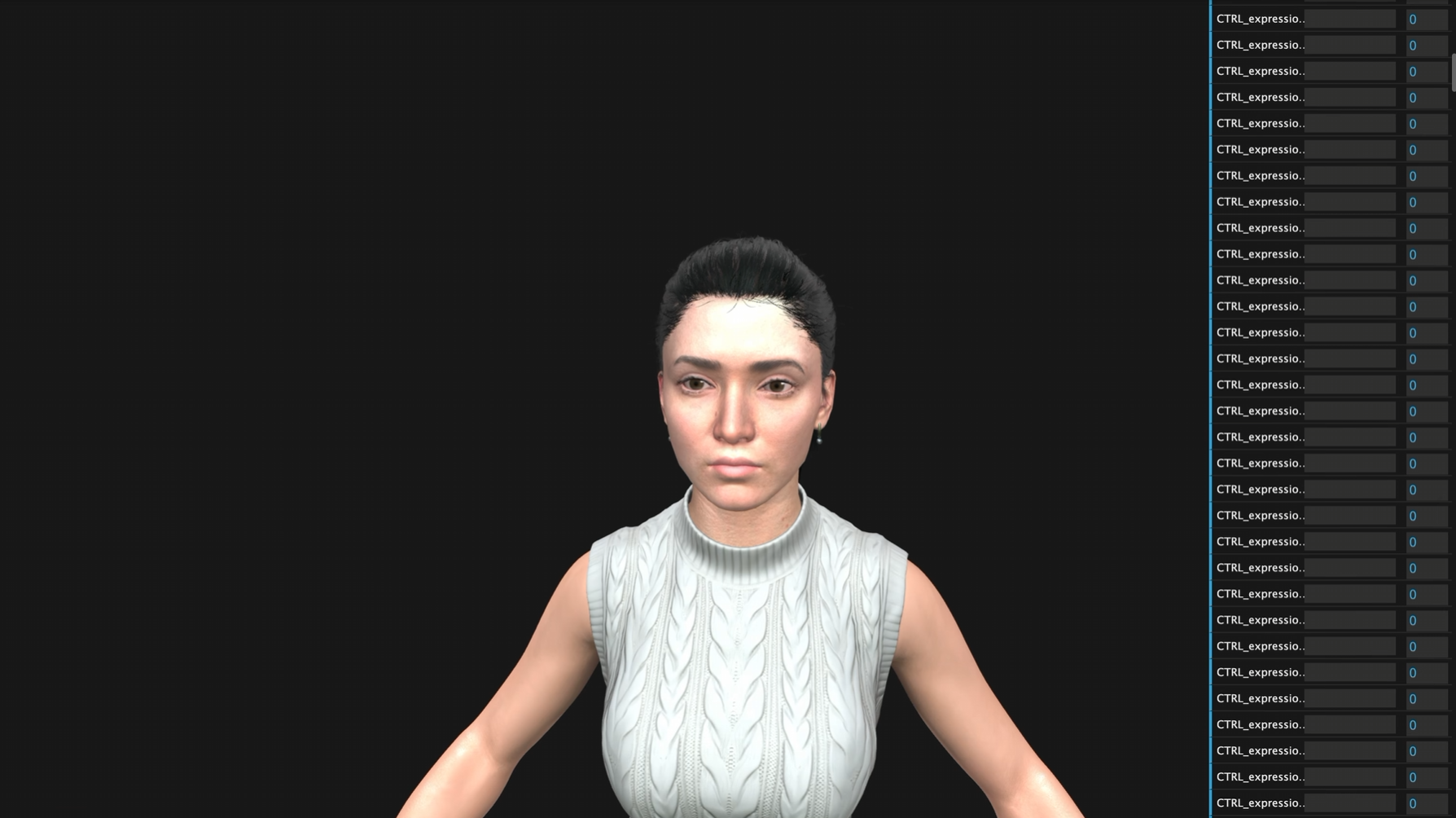
Before touching code, inspect the model. Upload your GLB to a glTF viewer and look at the blendshape modifiers it exposes. The avatar in the tutorial carries MetaHuman-style blendshapes, and dragging those values around shows you which shapes drive the mouth and how far they travel. Those are the values lip sync writes on every frame, so knowing what the model offers saves a long debugging session later.
The same viewer lists the bones available on the avatar. Some rigs control mouth shape through bone rotations rather than morph targets, and it's worth knowing which camp your character falls into before you wire anything up.
Drop your avatar and animation files into the project directory, then ask the agent to render your character instead of the default. In the tutorial that took about ten minutes, after which the character URL and animation URL in the Avatar component pointed at the new files. Reload localhost and your avatar stands in the scene.
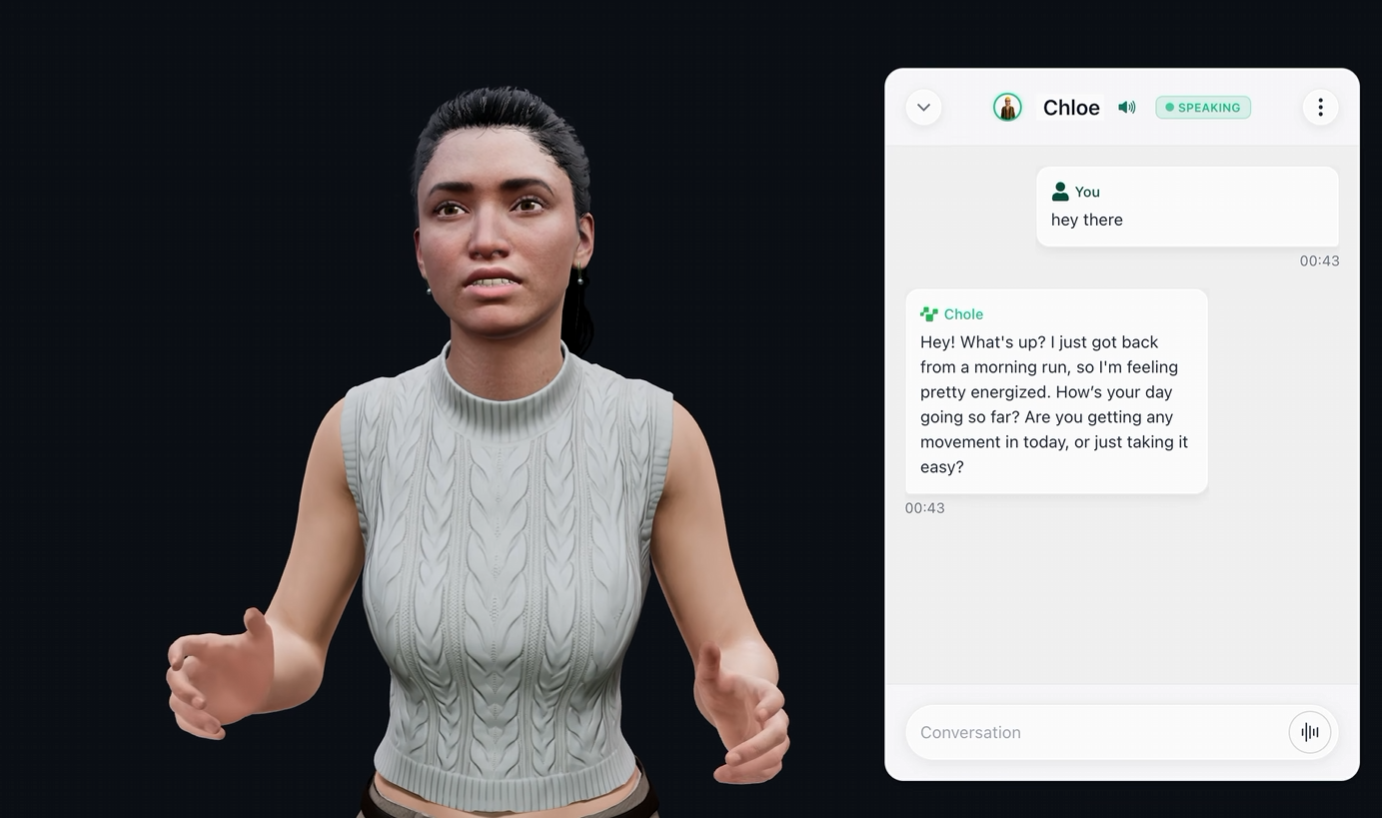
Point your coding agent at the Lipsync and Blendshape documentation and ask it to run lip sync on your avatar with the blendshape preset your model uses. Understanding the pipeline helps you review what it writes.
Enabling lip sync in the client config tells the server to generate blendshape frames alongside the text-to-speech audio. Frames arrive in chunks of ten and buffer in the client's blendshape queue. Your render loop reads from that queue at 60 frames per second, synchronized to when the character is speaking. Once speech stops, the queue drains and signals the end of the turn.
The blendshape configuration decides the format of the data you receive. MetaHuman Animation is the default, with 251 channels, and MetaHuman-Lite characters consume their named subset of the same stream. ARKit gives you the 61-channel Apple standard. Reallusion Character Creator 4 gets a 170-channel ExpressionPlus format. There's also a 15-element OVR viseme set for simpler rigs. One caution worth knowing: the server accepts a CC5 HD format but sends no frames for it today, so pick one of the others.
On the rendering side, the Three.js loop dequeues data from the client's blendshape queue and syncs it using Three.js timing. You then write those values to the morph targets on your character's skinned meshes, addressed through the morph target dictionary and influence array. If your character's morph targets carry different names than the stream's channels, a custom mapping function bridges the gap without touching the rest of your code.
Two smaller controls shape the result. Fading the blendshapes in when the character starts speaking and out when it stops keeps the face from snapping. Buffer tuning governs how much blendshape data the server accumulates before releasing the audio, with a default of 100 milliseconds. Raising it buys accuracy and costs latency.
Raw lip sync gets a mouth moving. Six patterns from Convai's production characters turn it into a face, and each one fixes an artifact you will otherwise ship. All six live in the lip sync documentation.
Fade the stream in and out. Frames hit the face at full strength on the first one and freeze the last viseme when they stop. Scale every stream-driven value by an eased envelope: bloom in over about a quarter second at speech start, settle out over half a second after the last frame. Keep that final frame and fade it to zero rather than dropping it mid-shape.
Let procedural systems own their channels. If you run procedural blinking or camera-following gaze, the stream must never write the eye channels. Two writers on different timers race each other into flicker, and the visible symptom is blinks that never close all the way. Keep a skip mask of channel indices the stream leaves alone.
Detect the end of speech yourself. Frames can stop arriving before any explicit end event fires. Treat around 300 milliseconds without a new frame as end of speech and start the fade-out, so a late end signal doesn't leave a frozen face on screen.
Tune per-channel gains. The stream is tuned against a reference face, and your character's shapes may read too strong. On one MetaHuman-style rig Convai ships a jaw open gain of 0.7 and zeroes the lateral jaw and mouth shifts, which read as lopsidedness, leaving every other channel untouched.
Average the mouth pairs. The stream can drive left and right mouth shapes at different strengths, and Convai has measured a gap of up to 1.5 times side to side, so averaging each sided pair before applying gives you a mouth that opens straight.
Apply lip sync after your animation mixer. If body animation clips also touch the head, reapply the current lip sync frame after the mixer updates on each render frame, so speech always wins on the face.
For the wider context on why any of this matters, Convai's overview of lip sync techniques for virtual AI characters covers the approaches and their trade-offs.
Lighting, facial performance beyond the mouth, and character actions are the three things that separate the raw demo from the refined one at the end of the video. Convai's own React Three Fiber example goes further still, pairing a MetaHuman-style character in a lit room with lip sync, procedural blink and gaze, head tracking, body animation, and SDK-driven actions.
An actions integration tutorial is on the way. Until then, the walkthrough thread on the Convai Developer Forum collects the documentation links from the video and is where the team fields setup questions, so it's the fastest place to get unstuck on a blendshape mapping or a first connection that won't hold. The Web SDK and Embeds category alongside it has years of Three.js and React integration threads worth searching first.
Also watch: Build Browser-Based Conversational AI Avatars with the Convai Web SDK, Three.js, and React
If your 3D content already lives in a game engine, the same browser delivery works from there: see running a Convai AI avatar in a Unity Web build or bringing AI characters to PlayCanvas.
How do I add a 3D conversational AI character to a website? Install the Convai Web SDK in a React project, create a character in your Convai dashboard, and pass your API key and Character ID to the Convai client. Render the avatar with React Three Fiber, add the Convai widget for a ready-made chat interface, then enable lip sync so the client streams blendshape data alongside the character's speech.
What is the Convai Web SDK? It's the npm package convai/web-sdk, which connects browser apps to Convai's backend over WebRTC. It handles real-time audio and text, optional video and screen share, character actions, emotion signals, and 60 frames-per-second facial blendshape streaming, and it ships both a prebuilt widget and full control APIs for custom interfaces.
Can I use an AI coding agent to set up a Convai web project? Yes. Point Claude Code, or another coding agent, at the Convai Web SDK documentation link and ask it to scaffold a Vite, TypeScript, and React Three Fiber project using the Convai client, the Convai widget, and lip sync. Scaffolding takes a few minutes, after which you add your API key and Character ID.
Which blendshape formats does the Convai Web SDK support? MetaHuman Animation with 251 channels is the default, ARKit provides the 61-channel Apple standard, Reallusion Character Creator 4 uses a 170-channel ExpressionPlus format, and a 15-element OVR viseme set covers simpler rigs. A CC5 HD option is accepted by the server but delivers no frames at present.
Why doesn't my character's face move in the browser? Check that lip sync is enabled in the client configuration, and reload after any config change, because a session started before the edit keeps the old settings. If frames arrive but the face stays still, the usual cause is a mismatch between your character's morph target names and the stream's channel names, which a custom mapping function resolves.
How do I use my own GLB avatar with the Convai Web SDK? Upload the GLB to a glTF viewer first and check which blendshape modifiers and bones it exposes, so you know which preset to use. Place the avatar and animation files in your project directory, update the avatar and animation paths in your Avatar component, and set the blendshape preset that matches the model's rig.
Why does my character's mouth look lopsided or twitchy? Three causes account for most of it. The stream can drive left and right mouth shapes at different strengths, which averaging each sided pair fixes. Lateral jaw and mouth shifts often read as lopsidedness and can be zeroed. And if procedural blinking or gaze writes the same channels as the stream, the two race each other into flicker, so give those channels to one owner. The lip sync guide covers each fix.
A Convai Web SDK build turns an AI character into a URL. Scaffold the project with your coding agent, connect your character with an API key and Character ID, render your own avatar with React Three Fiber, and drive the face from the blendshape queue.
Ready to build? Sign up at convai.com · Read the Web SDK documentation · Read the lip sync and blendshape guide · Start with the Quickstart · Ask questions on the Developer Forum
Follow Convai: LinkedIn · Reddit · X/Twitter · Instagram · YouTube


