Use Cases

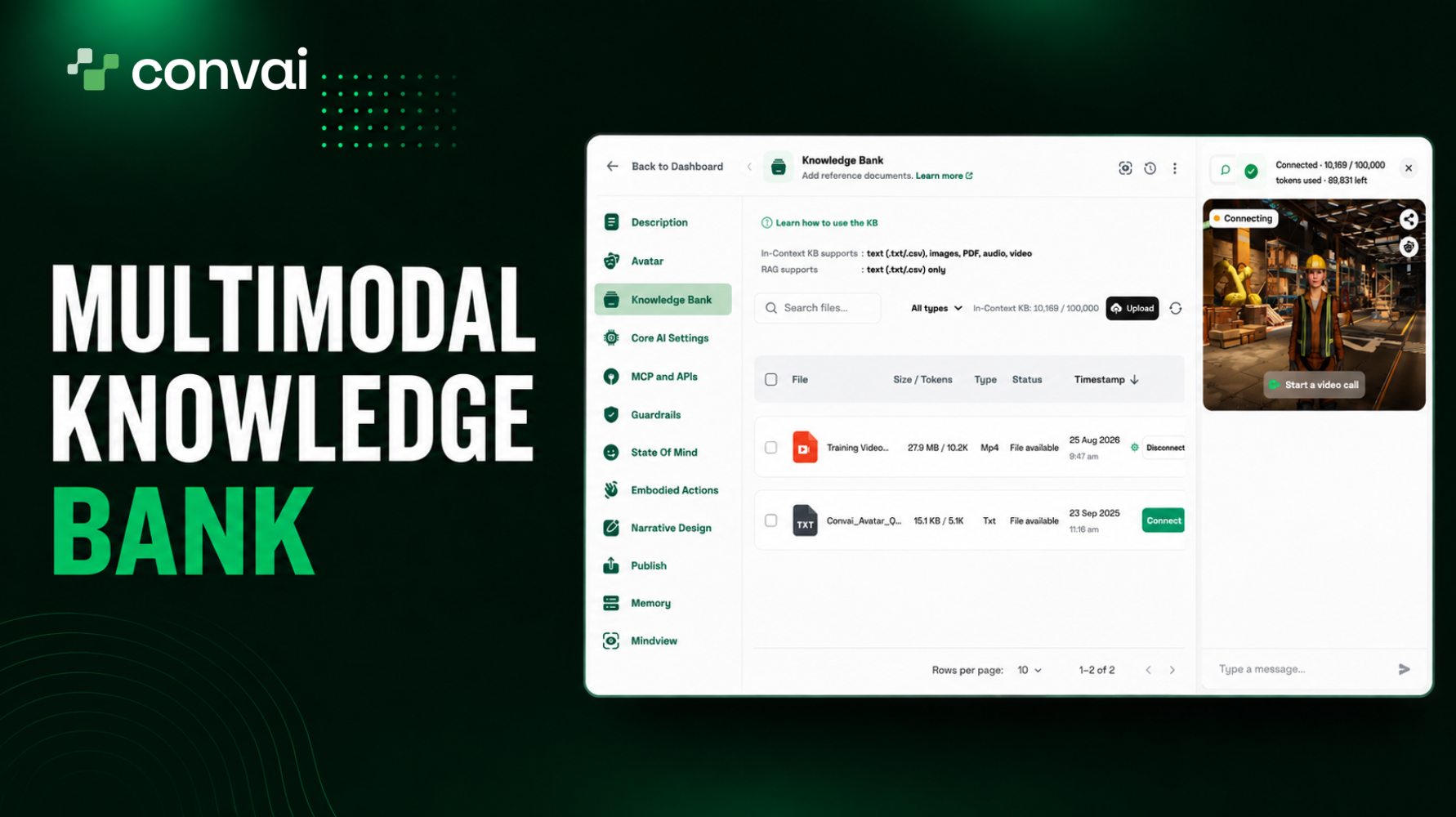
Upload an industrial training video about manual lathe operation, attach it to a character, and ask about the setup procedure. The character answers from the footage. Nothing about lathes exists in its backstory. It read the video.
The In-Context Knowledge Bank extends a Convai character's knowledge to videos, images, PDFs, and audio alongside text. This guide covers how it differs from the RAG mode you already know, which file types work, how the size limit behaves, and how to connect files in the Convai Playground.
▶ Watch the full In-Context KB video below:
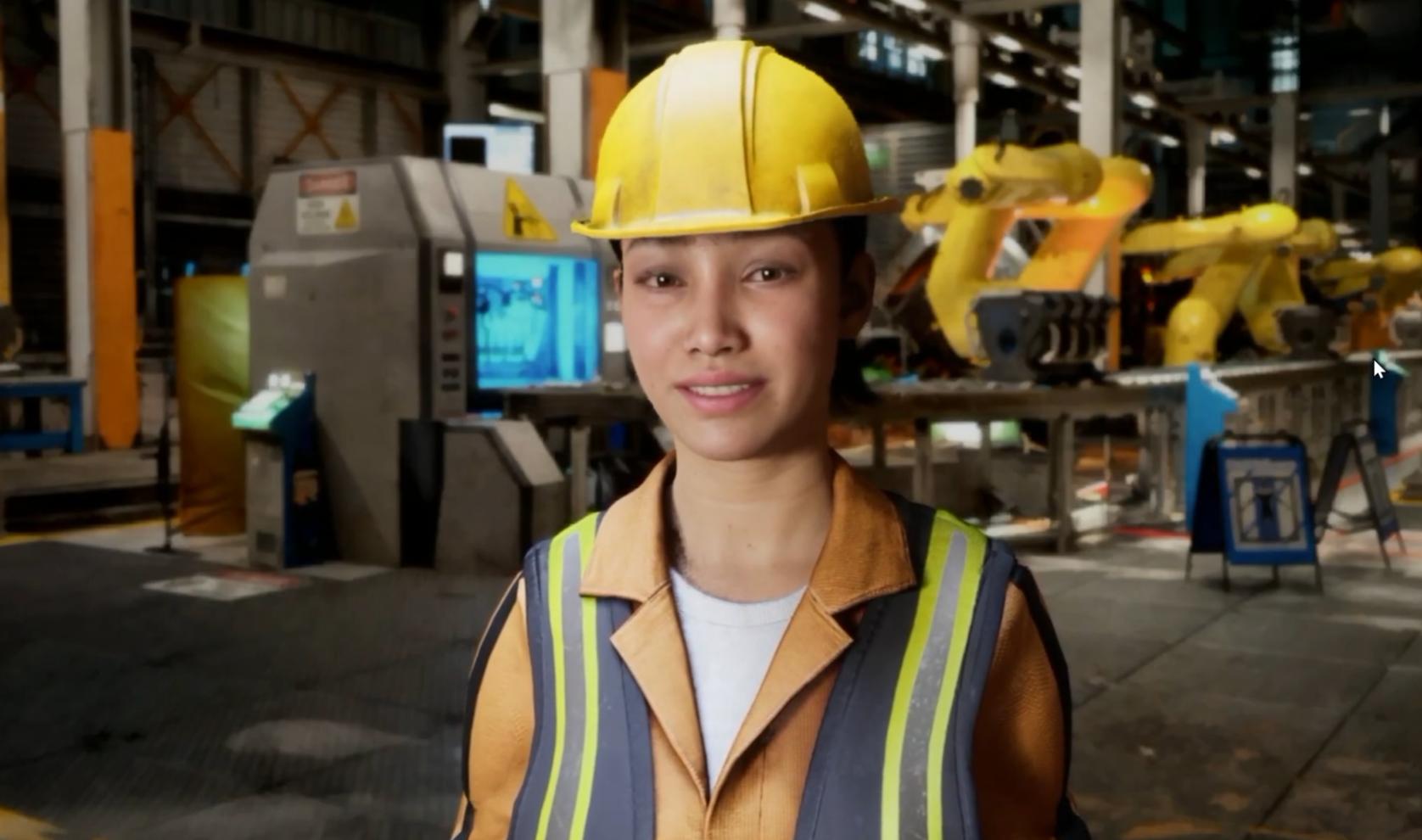
Samantha Reyes is a senior warehouse operations specialist character. Her backstory says nothing about machining. What she has is a training video on manual lathe operation, covering machine setup, safe operating practices, and the key steps in running the machine, uploaded to the Knowledge Bank and attached with In-Context knowledge.
Ask her for an overview and she works from the footage:
"Machining is all about precision and safety. So the operation starts by securely placing your raw material into the lathe chuck, and checking that the cutting tool has safe clearance before you start. Once everything is properly aligned, you carefully feed the tool along the piece to get that perfectly smooth finish."
That comes from both the visual and audio content of the video. The demo also shows the character identifying specific information presented inside an image, which is computer vision applied to your reference material rather than to a live scene the way Convai Vision works.
The shift here is what counts as knowledge. The transcription step disappears, and you hand the character the source material itself.
The Knowledge Bank is where you store information your character can reach during conversation. Files live at the account level, so anything you upload can connect to any of your characters.
In-Context is one of two retrieval modes, and it works by placing the whole connected knowledge base into the character's context every turn, cached for efficiency. That's a different shape from RAG, which indexes your files into a vector search and pulls only the passages relevant to each message.
Two consequences follow. The character always has everything you connected, with no retrieval step deciding what's relevant. And because the model reads the raw file, In-Context handles multimodal content: images, PDFs, audio, and video, on top of text.
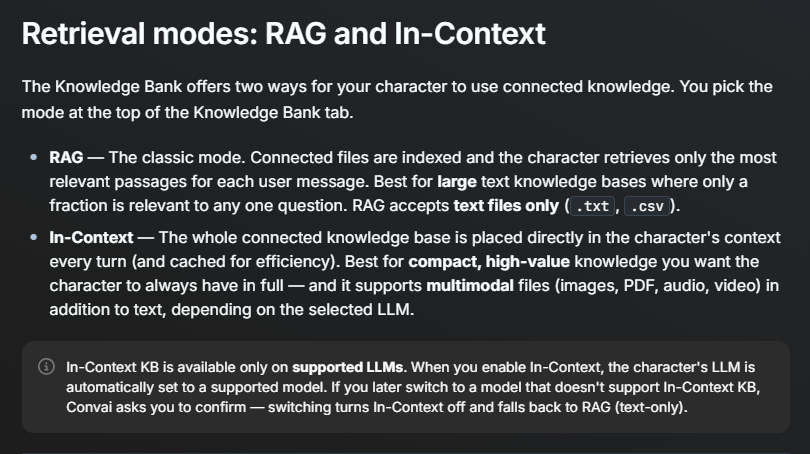
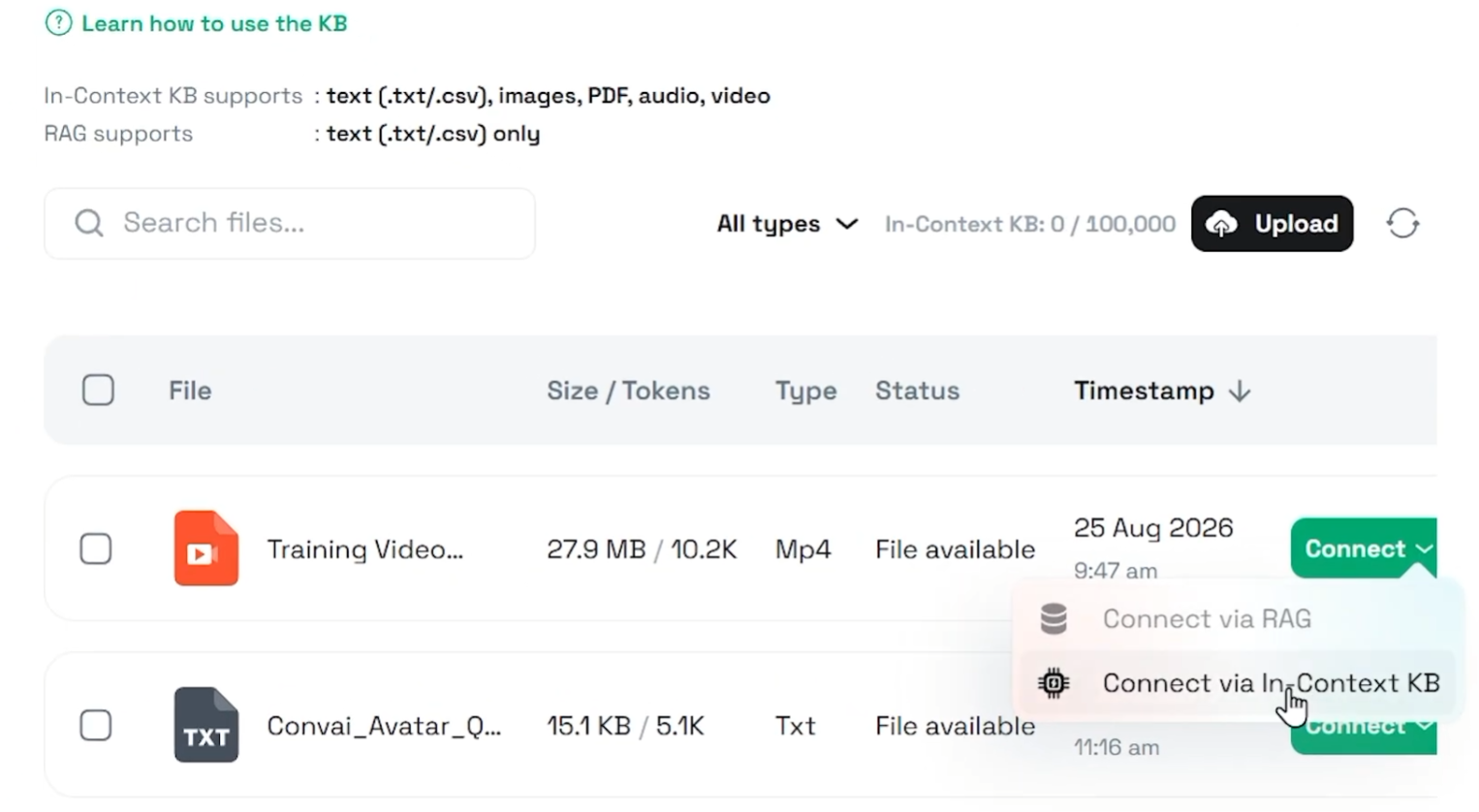
You pick the mode at the top of the Knowledge Bank tab, and the choice comes down to the shape of your knowledge.
Reach for RAG when you have a large text corpus where only a fraction matters for any given question. A product catalog, a policy library, years of support articles. That's the mode the original Knowledge Bank guide covers. RAG indexes it and retrieves what fits the message. It accepts text files only, meaning .txt and .csv.
Reach for In-Context when your knowledge is compact and high value, the kind you want the character to hold in full at all times. A training video, a product sheet, a set of reference images, an operating manual. It pairs well with a tight backstory and personality rather than replacing them. This is also the only mode that handles anything beyond text.
One behavior to know before you switch. Enabling In-Context sets the character's LLM to a supported model on its own. If you later move to a model that doesn't support In-Context, Convai asks you to confirm, and confirming turns In-Context off and drops back to RAG with its text-only limits. That's a quiet way to lose your video knowledge, so check the Core AI Settings tab after any model change.
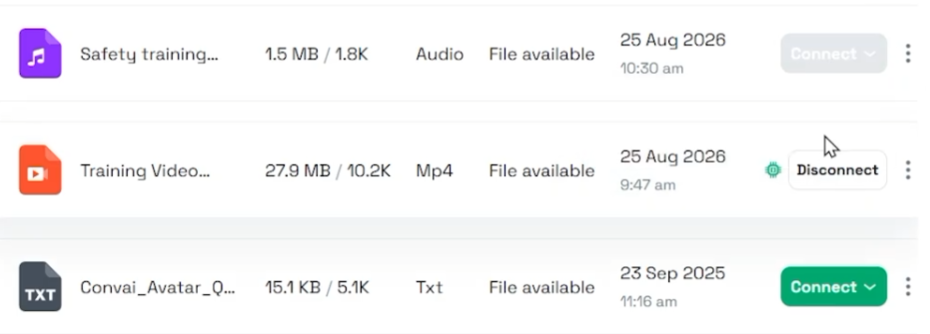
RAG takes .txt and .csv. Nothing else.
In-Context takes text, images, PDF, audio, and video, subject to what the selected model can read. That last clause matters, because not every In-Context model handles every modality. Some self-hosted models accept text and images alone.
The Knowledge Bank tab carries a line reading "Supported file types for the selected model" so you can see what the current model takes before choosing a file, and both the upload picker and drag-and-drop reject anything outside that set.
Office documents don't work. Word, PowerPoint, and Excel files are not supported in either mode, because the models can't read them raw and Convai doesn't text-extract them for this feature. Convert to .txt, .csv, or PDF first. This catches people out more than anything else on the page, since a .docx feels like the most obvious thing to upload.
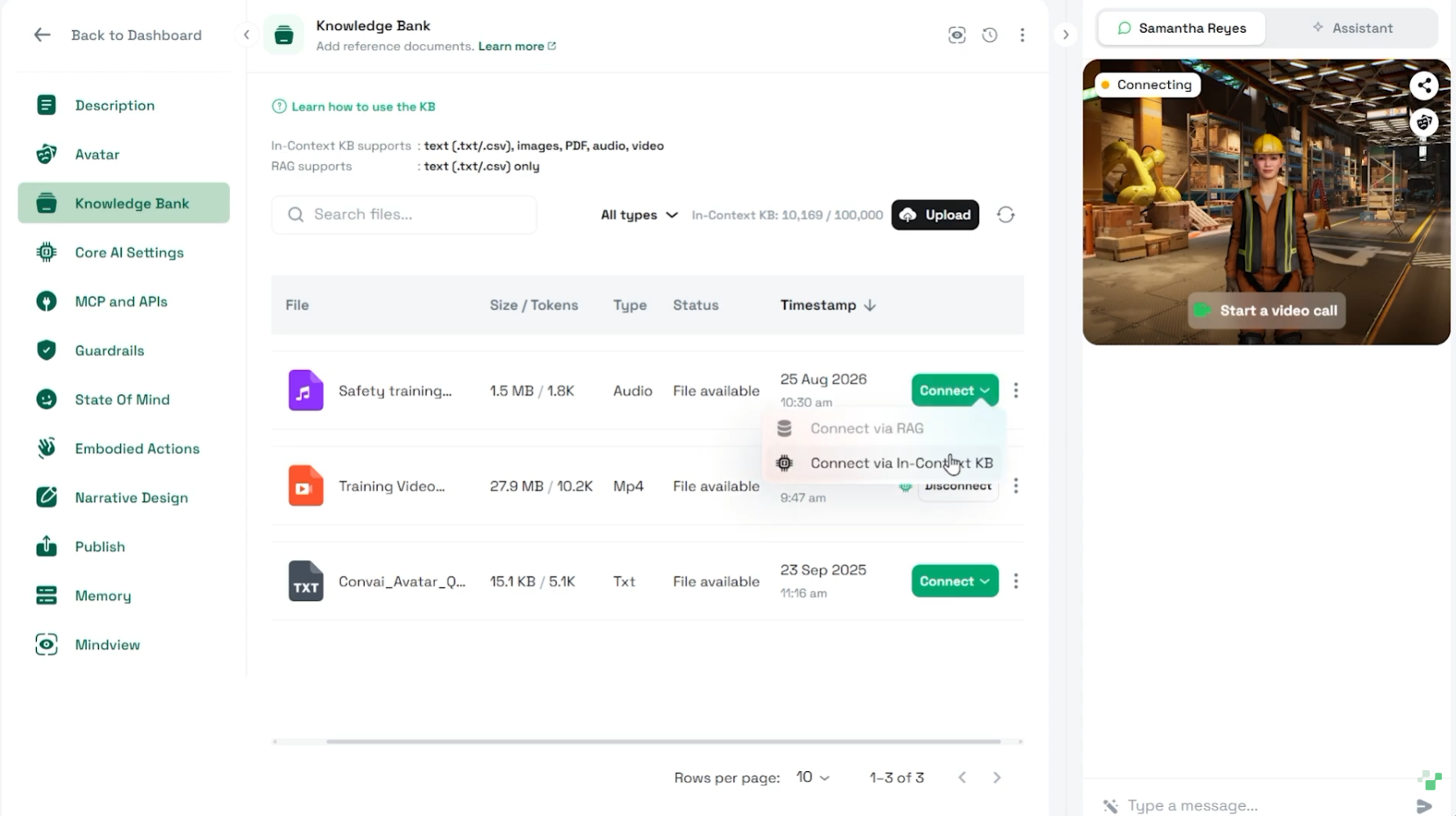
Four steps.
Open your character in the Convai Playground and go to the Knowledge Bank tab. If you haven't built a character yet, create one and give it a backstory and personality first.
Confirm you're on a supported model in the Core AI Settings tab. Switching to In-Context handles this for you, but it's worth knowing where the setting lives.
Upload your files. Upload Knowledge takes files from your computer, and Add Knowledge lets you type plain text into an editor and save it as a .txt file without leaving the browser.
Connect the files you want and attach them using In-Context knowledge. Then reset the chat session before testing, because a session that started before you connected the file keeps the old knowledge.
That last step is the single most common reason a file you just connected appears to do nothing.
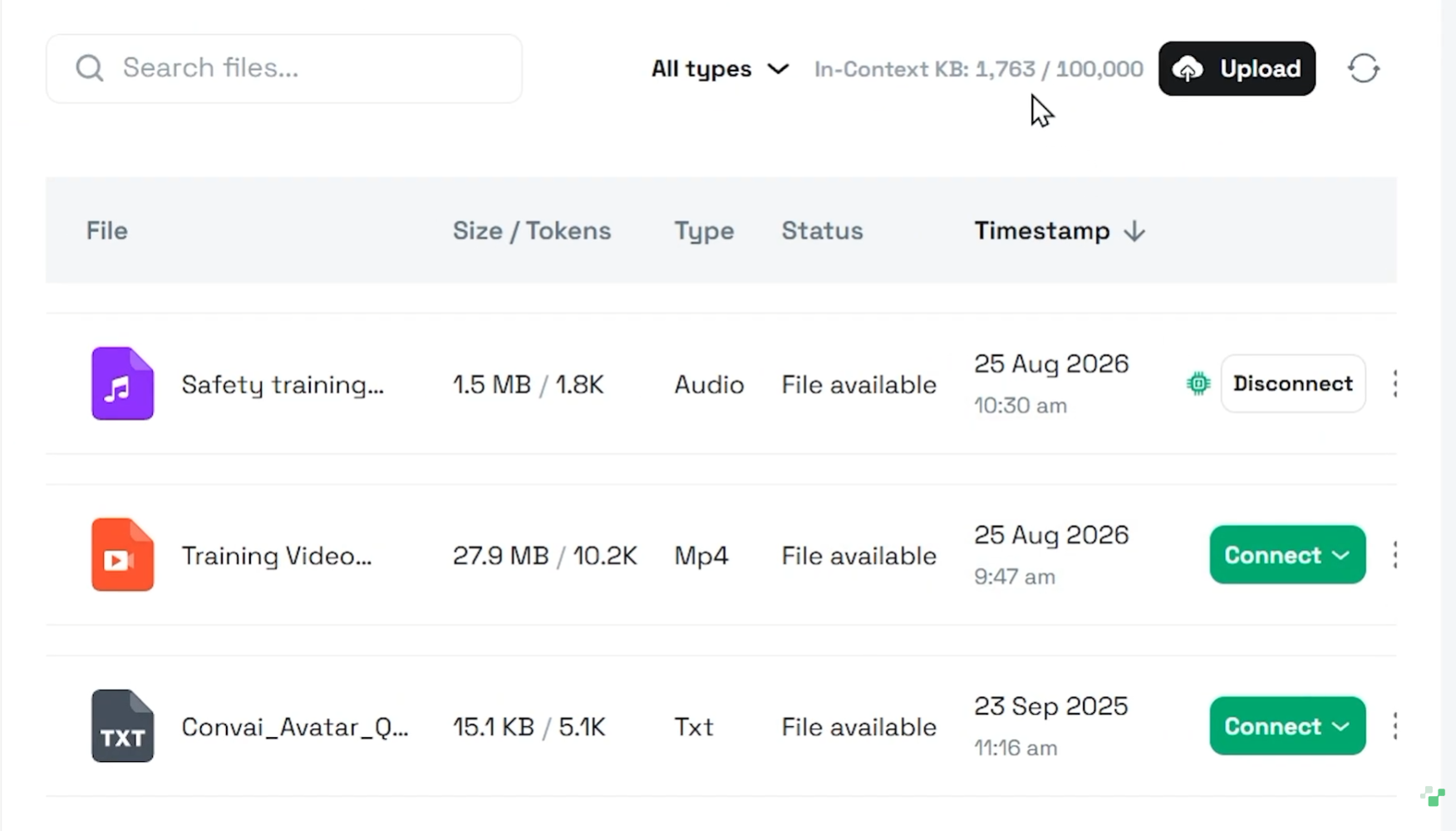
In-Context puts your whole connected knowledge base in the prompt, so it carries a fixed size cap that RAG doesn't have.
Each attached file consumes part of the model's available context window, which means long videos and large documents add up fast. The Knowledge Bank shows how much context each file uses, so you can judge which combination fits rather than discovering the ceiling by hitting it.
Go over the cap and the tab shows an over-limit warning and blocks further uploads until you remove documents to get back under it. RAG has no per-prompt limit of this kind, though your overall storage still depends on your plan. The credit calculator helps you model the wider consumption picture.
The practical read: In-Context rewards curation. Two well-chosen files beat ten mediocre ones, both for the size cap and for the quality of the answers.
The Convai docs suggest a before-and-after test, and it's worth doing once so you know what a working connection looks like.
Upload a file but leave it disconnected, then ask the character a question only that file can answer. In the documentation's example, an employee onboarding guide lists specific first-week steps, and the character answers from its own personality and the model's general knowledge, missing the specifics.
Now connect the file in My Documents, click Reset Chat in the Chatbox, and ask the same question. The answer should follow the exact steps in your file.
That contrast tells you two things at once: whether the file is reaching the character at all, and how much the connected knowledge changes the response. Run it whenever you swap a file or change models, since a model switch can drop In-Context back to RAG and take your multimodal files out of scope without much warning.
For a deeper look at what the character receives, Mindview shows the assembled context sent to the model on each turn.
My Documents lists everything in your account with its name, type, size, and status, showing whether a file is Available and whether it's Connected to the current character. From there you can connect, disconnect, edit a text file's contents, download, or delete.
Disconnect and Delete do different jobs. Disconnecting detaches a file from the character while leaving it in your Knowledge Bank for later. Deleting removes it from your account.
File status tells you when something is ready. While a file processes, its status reads "Learning" and you refresh until it turns Available. Raw media in In-Context mode skips that wait. Images, audio, and video are available at once with no indexing step, since the model reads them as they are.
For anything the documentation doesn't answer, the Convai Developer Forum is where the team works through knowledge bank questions, and the Character Intelligence category collects the threads on knowledge, models, and context.
Also read: Building a Knowledge Bank for AI Characters with Convai
Also read: Introducing Mindview: See Exactly What Your Convai Character Sends to the Model
What is the Convai In-Context Knowledge Bank? In-Context is a Knowledge Bank retrieval mode that places your character's whole connected knowledge base into its context every turn, cached for efficiency. Because the model reads the raw files, it supports multimodal content including images, PDFs, audio, and video alongside text, which the RAG mode does not.
What's the difference between RAG and In-Context in the Convai Knowledge Bank? RAG indexes your connected files and retrieves only the passages relevant to each user message, which suits large text knowledge bases. It accepts .txt and .csv only. In-Context places the entire connected knowledge base in the character's context every turn, which suits compact high-value knowledge, and it accepts images, PDF, audio, and video as well as text.
Which file types does the Convai Knowledge Bank support? RAG accepts .txt and .csv. In-Context accepts text, images, PDF, audio, and video, subject to what the selected model can read, since not every supported model handles every modality. Office documents such as .docx, .pptx, and .xlsx are not supported in either mode and need converting to .txt, .csv, or PDF first.
Can a Convai AI character understand video content? Yes, through In-Context knowledge on a supported model. Upload the video to the Knowledge Bank, confirm your model supports video, and connect the file. The character can then answer from both the visual and audio content of the footage, as the demo shows with an industrial lathe training video.
Why doesn't my character use a knowledge file I just connected? The usual cause is a chat session that started before you connected the file. Reset the chat session in the Playground and ask again. If the file still isn't used, check that its status reads Available rather than Learning, and confirm it shows as Connected to the current character in My Documents.
Does In-Context knowledge have a size limit? Yes. In-Context places the whole connected knowledge base in the prompt, so it carries a fixed size cap and each attached file consumes part of the model's context window. The Knowledge Bank shows how much context each file uses. Exceeding the cap triggers an over-limit warning and blocks further uploads until you remove documents.
Which LLMs support In-Context knowledge in Convai? In-Context is available on supported models only, and enabling it sets your character's model to a supported one for you. If you later switch to a model that doesn't support it, Convai asks you to confirm, and confirming turns In-Context off and falls back to RAG with its text-only file limits.
Do knowledge files apply to all my characters? Files uploaded to the Knowledge Bank are linked to your Convai account, so any of them can be connected to any of your characters. Connecting attaches a file to the character you have open, and disconnecting detaches it while leaving the file in your Knowledge Bank for later use.
Upload the video, the manual, or the reference images you already have, confirm your model supports them, connect the files, and reset the session. The character reads your material and answers from it.
Ready to build? Sign up at convai.com · Read the Knowledge Bank documentation · Check plan storage limits · Ask questions on the Developer Forum
Follow Convai: LinkedIn · Reddit · X/Twitter · Instagram · YouTube


