Use Cases

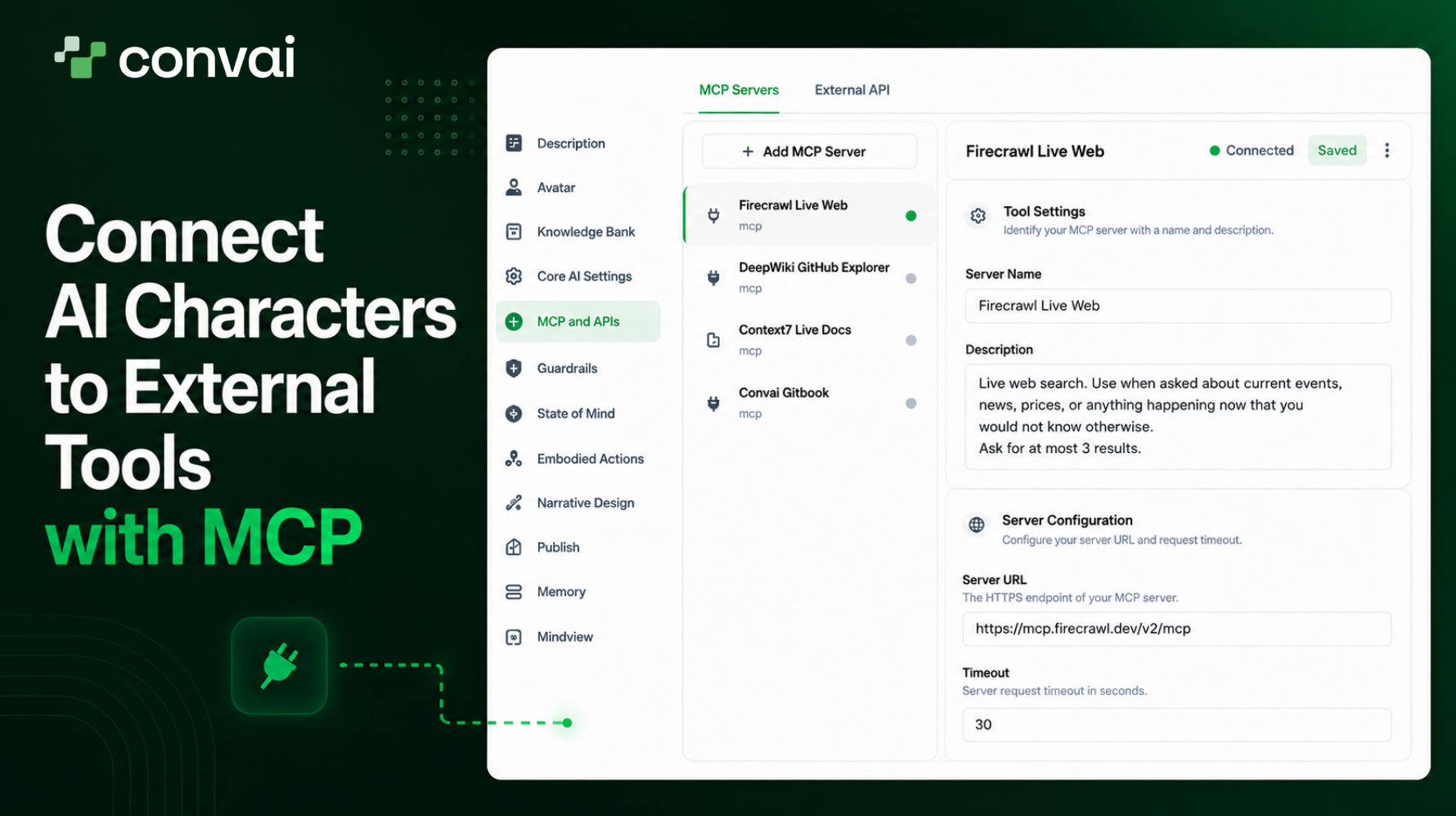
A guest asks the hotel concierge for a room tonight. The concierge checks the property management system, finds one free, and books it. Open the PMS afterwards and suite 401 shows as taken. The AI character did that through conversation, with no custom integration written for the booking system.
Convai's MCP integration connects a character to any Model Context Protocol server, so it can look up live data, search a knowledge source, and take action in your systems. This guide covers what you can connect, how to set it up in the Convai Playground, how tool calls behave mid-conversation, and the security model you should understand before you attach anything.
▶ Watch the full video below to learn more:
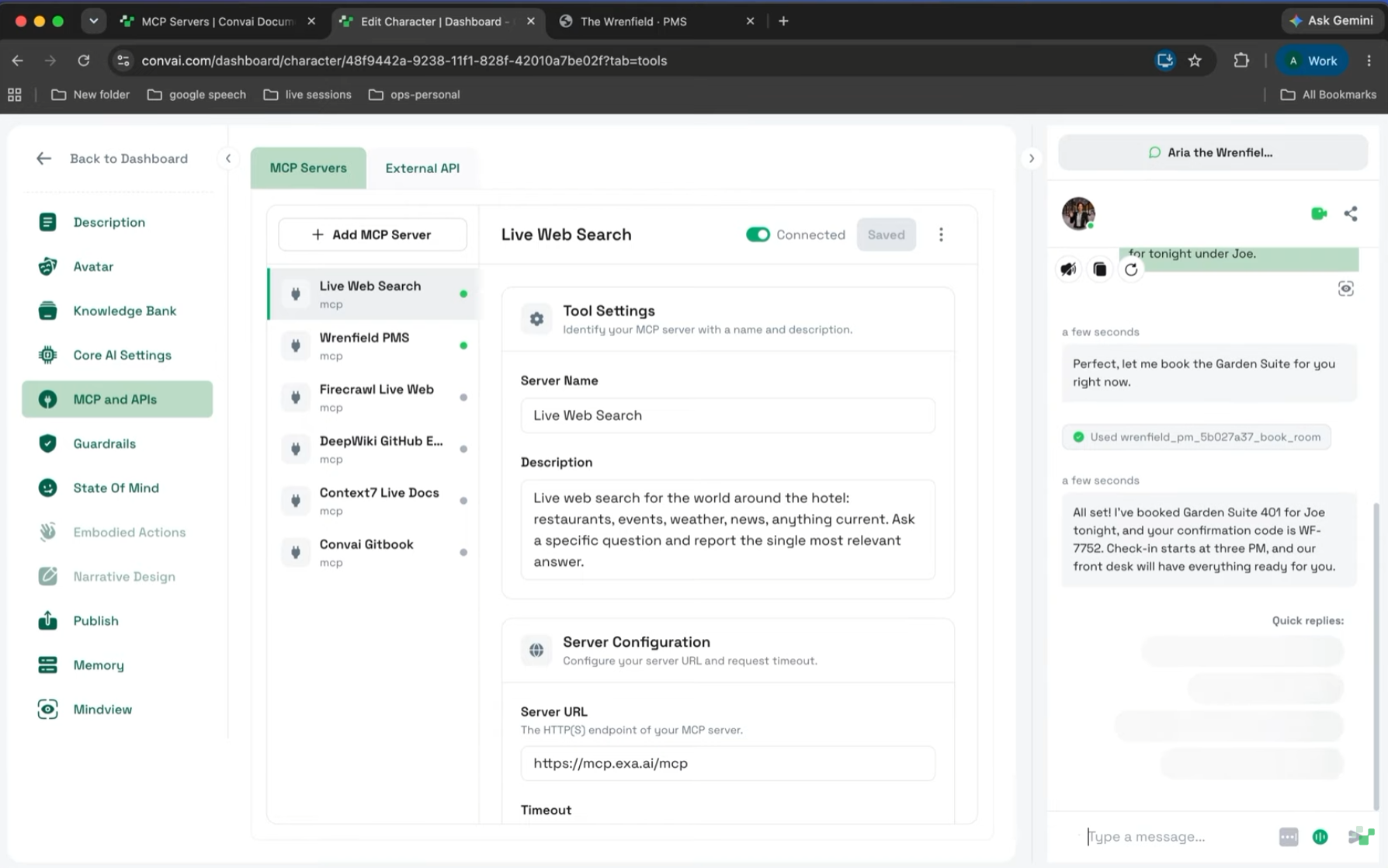
Aria is a hotel concierge character in the Convai Playground, connected to two MCP servers. The first wraps a property management system, the internal tool a hotel front desk runs on. The second is a live web search.
Ask Aria about availability and she queries the PMS, reports one room free, and completes the booking when asked. Switch to the PMS and suite 401 is reserved. Ask her for restaurant recommendations nearby and she reaches for the web search tool instead, returning current answers rather than whatever the model remembers from training.
The PMS is the interesting part because it's ordinary. A booking engine, a CRM, a knowledge source, an inventory database, any internal system you can put behind an MCP server works the same way.
MCP is the open standard that lets AI models talk to external tools through a shared interface. Convai's integration connects your character to any MCP-compatible server you host or subscribe to.
Three things happen without you writing integration code. The character discovers the server's tools at the start of each conversation. It calls those tools mid-conversation when the request calls for one. And it uses the results in its replies, so the tool output arrives as natural speech rather than a data dump.
That removes the per-service integration work. One protocol covers your PMS, your CRM, your search provider, and anything else you expose, which is a different job from the Character Crafting APIs you use to build the character itself.
Your MCP server needs three things:
That covers servers you build yourself with the Python or TypeScript MCP SDK or FastMCP, and hosted servers that take an API key in a header, including Firecrawl, Context7, and GitHub with a personal access token. OAuth-based servers such as Notion and Linear work too. Check the provider's own docs for the endpoint URL and auth style.
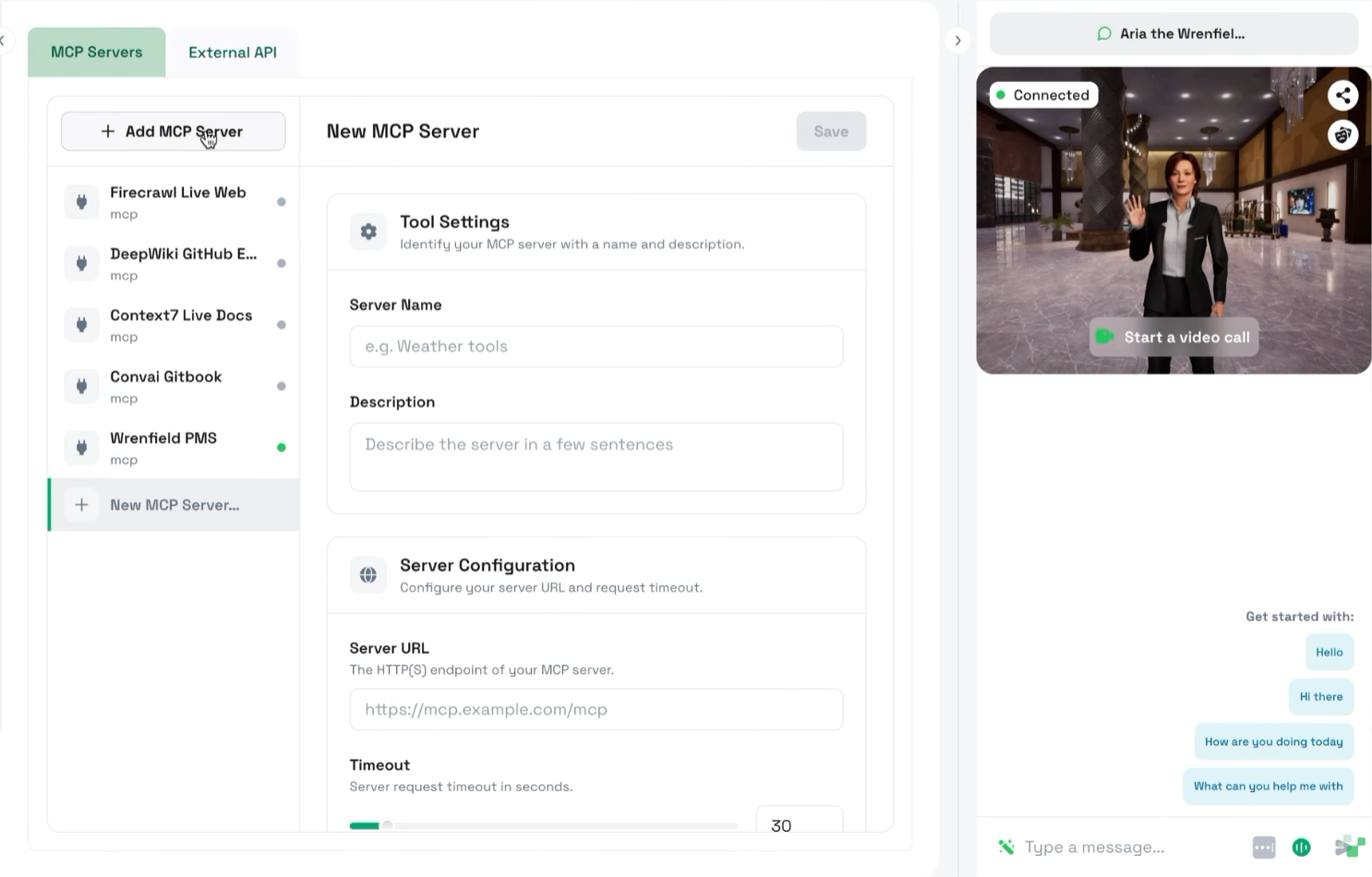
Open your character in the Playground and go to the MCP and APIs tab, then click Create Server. If you haven't made a character yet, create one first and give it a backstory and personality.
Name appears in the tool list, so keep it short and descriptive. Description is for your own reference, though a clear one also helps you keep servers straight as the list grows. It works alongside the character's other customization settings rather than replacing them.
Server URL is the full MCP endpoint including the path, which ends in /mcp on most servers. Leaving the path off is the most common reason a connection fails.
Protocol should be Streamable HTTP unless your server only speaks SSE.
Authorization takes either HTTP headers or OAuth. For headers, add name and value pairs sent with every request, which for the demo means an Authorization header carrying a bearer token. Many servers need the word Bearer before the token, and omitting it produces a 401.
Timeout caps how long a single tool call can run, from 1 to 300 seconds with a default of 30. Keep it low. The character cannot reply until the call finishes, so a long timeout means a long silence.
The Available Tools section then connects to your server and lists what it exposes, which doubles as your connection test. An unreachable server or a bad auth header surfaces its error right here rather than during a conversation. Uncheck anything the character shouldn't have, since only checked tools reach the model. Turn on Connected to this character and click Save.
The demo adds a second server the same way, a live web search that needs no headers at all, leaving the authorization section empty.
Two details worth knowing. Servers register at the account level, so one server can serve several characters. Disconnect removes it from the current character while Delete removes it from your account.
And tools are discovered when a session starts, never mid-session. After adding or editing a server, reset the Playground chat session before testing, because a session that began before you saved keeps the old tool list.
Some servers have no key to paste. You sign in to the provider instead, the same way you'd connect an app to a Notion or Linear workspace.
Set the auth method to OAuth in the server form and click Connect account. A popup opens the provider's sign-in page, you approve the access, and the popup closes itself. The status then reads Connected along with the scope the provider granted. From there it works like any other server: review the tool list, turn on the character connection, and save.
Convai registers itself with most providers on its own. Google and most enterprise identity systems don't allow that, and Connect fails with a client or registration error. For those, create an OAuth app in the provider's developer console, register https://api.convai.com/mcp/oauth/callback as the redirect URL, then expand Provider requires a registered app? in the server form and enter the Client ID along with the Client secret if the provider issued one.
Convai stores provider tokens encrypted and refreshes them for you. If the provider invalidates the grant through token expiry, a password change, or an admin revoking the app, the status switches to Reconnect needed and the server's tools drop out of new sessions until you reconnect.
Disconnecting revokes the grant and deletes the stored tokens while keeping the server configuration, so you can reconnect later. Switching the auth method back to headers also disconnects. Not every provider supports remote revocation, so revoke from the provider's own security settings when you need certainty that a grant is dead.
At session start, Convai connects to each attached server and fetches its tool list. A server that's down or slow gets skipped after a short connection budget, and the conversation starts without its tools. Your character keeps talking through an outage.
During the conversation the model decides when to call a tool, working from the tool's name and description. Three behaviors follow from that:
The reply waits for the tool call. In voice, the character is silent while the tool runs, which is why the timeout guidance matters. Aim for under a couple of seconds.
Errors and timeouts reach the character. It's told the call failed and says so instead of pretending it succeeded.
Several tools can run in one turn, in parallel. That pairs well with the character's own core AI settings, where a faster model shortens the silence around each call.
Tool descriptions are prompts. One clear sentence about what the tool does and when to use it beats an exhaustive spec, and it's the single biggest lever on whether the character picks the right tool.
Expose few tools rather than many. Large tool sets slow the model down and raise the odds of a wrong pick, which is what the per-tool checklist is for.
Return short results fast. A long payload costs latency at both ends and buries the answer the character needs to speak.
Fail with a message rather than an empty result. "No orders found for that email" gives the character something to say. An empty array gives it nothing.
This is the part to read twice before attaching anything to a live character.
Tools run under your credentials, whoever is talking. You configure the auth once and every conversation uses it. For a public character, that means strangers can trigger tool calls under your account. Attach only tools that are safe to expose: read-only, rate-limited, and free of sensitive data. If you're using OAuth, approve the narrowest scope the provider offers and connect a dedicated account rather than your personal one.
Permissions are set before the conversation. The per-tool checklist is the whole approval surface, and there are no per-call prompts. Enable only tools you're comfortable having called on any turn.
Data leaves Convai. Tool arguments, which can include things the user just said, go to your MCP server, and results enter the model's context. That data is subject to your server's own logging and retention.
Tool descriptions and results are untrusted text. They enter the model's prompt, so a malicious server can attempt prompt injection to steer your character. Connect only servers you control or trust.
Credentials themselves are encrypted at rest, both header values and OAuth tokens, and used only to connect to your server. Convai's guardrails documentation covers the character-side controls that sit alongside this.
Most failures show up at the Load tools step, which is the point of putting the tool list in the form.
A 401 or unauthorized means the server rejected your header. Check the header name, the value format since many servers need the Bearer prefix, and that the token is still active.
A timeout or connection error points at a URL that isn't a reachable MCP endpoint. Include the MCP path, confirm the transport, and confirm public reachability. Private and localhost URLs are rejected outright.
Zero tools means the connection worked but the server registers nothing. That's a server-side issue.
Tools missing in conversation almost always means the session started before you saved. Start a new one. If it persists, check that the Connected switch is on and at least one tool is checked.
The character says the tool failed points at a timeout, a server-side error worth checking in your logs, or an expired credential. Re-run Load tools, and a 401 there confirms the credential.
A tool being ignored or misused is a description problem. Sharpen it, reduce the number of enabled tools, add prompt guidance naming the tool for a given question type, and trim long results on the server side.
Connect account doing nothing means your browser blocked the popup. Allow popups for convai.com and try again.
For anything the documentation doesn't cover, the Convai Developer Forum is where the team works through server configuration and auth issues, and the Character Intelligence category collects the threads on extending characters with external systems.
Also read: Query Your Convai Analytics Data with Claude, Cursor, Codex, or Any MCP Client
Also read: Build, Control and Empower AI Characters Programmatically with Convai's Character Crafting APIs

What is Convai's MCP integration? It connects a Convai character to any Model Context Protocol server you host or subscribe to. The character discovers the server's tools at the start of each conversation, calls them mid-conversation when a request needs one, and uses the results in its replies, without a custom integration built for each service.
What are the requirements for an MCP server to work with Convai? It must be reachable over public HTTPS, speak Streamable HTTP transport with SSE available as a legacy fallback, and authenticate with static HTTP headers, OAuth, or no auth. Local stdio servers and servers on private networks are not supported, so use a tunnel during development.
How do I connect an MCP server to a Convai character? Open the character in the Playground, go to the MCP and APIs tab, and click Create Server. Enter a name, the full server URL including the MCP path, the protocol, and your authorization headers. Review the Available Tools list, uncheck anything the character shouldn't have, turn on Connected to this character, and save.
Why don't my MCP tools show up in the conversation? Tools are discovered when a session starts, never mid-session. If the session began before you saved the server, reset the Playground chat session and try again. If the problem persists, confirm the Connected switch is on and at least one tool is checked.
Can anyone talking to my character trigger MCP tool calls? Yes. Tools run under the credentials you configured, whoever is speaking. For a public character, that means strangers can trigger calls under your account, so attach only tools that are safe to expose: read-only, rate-limited, and free of sensitive data. There are no per-call approval prompts, since the per-tool checklist is the approval surface.
What timeout should I set for an MCP tool call? The range is 1 to 300 seconds with a default of 30, and lower is better. The character cannot reply until the tool call finishes, so in voice a long timeout means a long silence. Aim for tools that return in under a couple of seconds.
Why is my MCP server returning a 401 when Convai loads tools? The server rejected the auth header. Check the header name, confirm the value format since many servers expect the word Bearer before the token, and verify the token is still active. Running Load tools again after fixing it confirms the credential.
Can I connect an MCP server that uses OAuth instead of an API key? Yes. Set the auth method to OAuth and click Connect account, then sign in and approve the access in the popup. Convai registers itself with most providers on its own. Google and most enterprise identity systems require you to create an OAuth app and register Convai's callback URL, then enter the Client ID in the server form.
Put your system behind an MCP server, point your character at it from the MCP and APIs tab, check the tools you want exposed, and start a fresh session. From there the character handles the rest through conversation.
Ready to build? Sign up at convai.com · Read the MCP servers documentation · Learn about MCP · Ask questions on the Developer Forum
Follow Convai: LinkedIn · Reddit · X/Twitter · Instagram · YouTube


