Use Cases

.png)
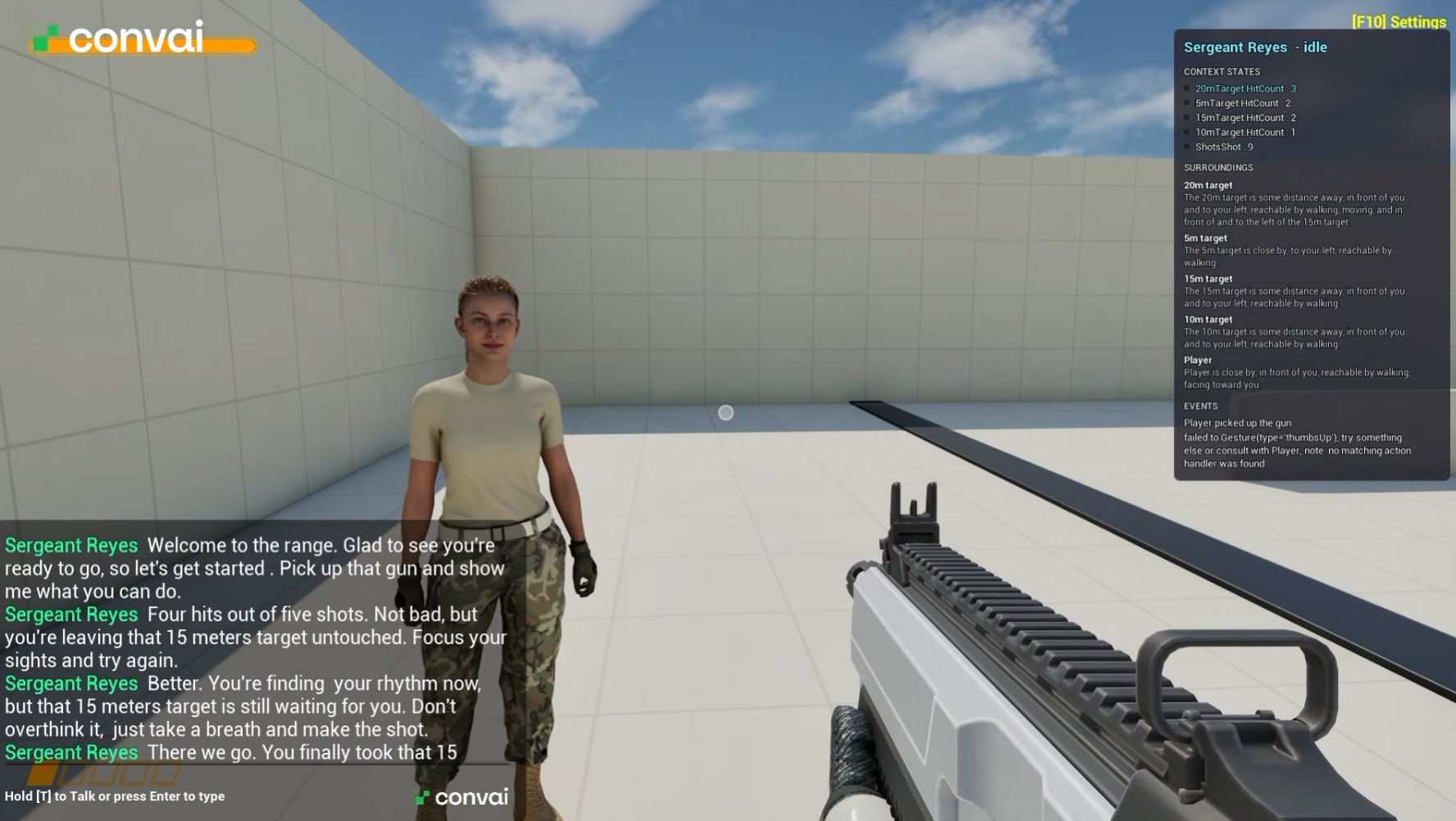
"Four hits out of five shots. Not bad, but you're leaving that 15 meter target untouched." No script produced that line. The AI character instructor counted the shots, read the hit count on each target, noticed which one stayed at zero, and said something about it.
This tutorial builds that shooting-range instructor in Unreal Engine using Convai Dynamic Context, broken into three levels of scene awareness. Manual awareness sends events and states from Blueprint. Automatic awareness comes from tagging objects. Semi-automatic awareness watches specific Blueprint properties and reports when they change. It's the layer that turns a conversational NPC into one that participates in your game.
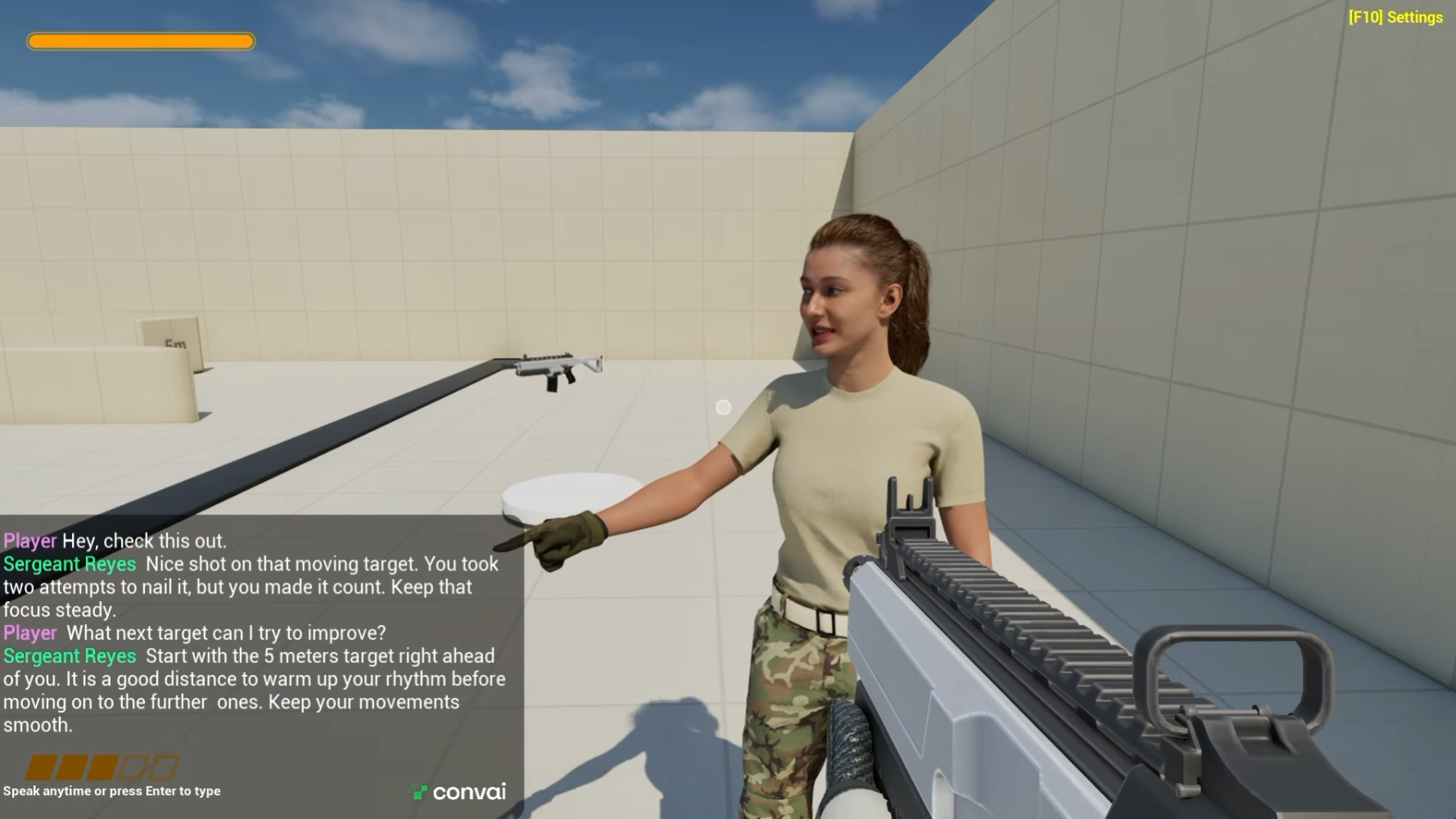
A range instructor who tracks what the shooter is doing and coaches on it:
"Hey, check this out." "Nice shot on that moving target. You took two attempts to nail it, but you made it count. Keep that focus steady."
"So, what is my accuracy so far on each range?" "Let us look at the math. At 5 meters, you hit two out of two. At 10 meters, you hit one out of one. At 15 meters, you hit two out of two. And at 20 meters, you are three for four."
Every number in that answer came from the level, not from a prompt. The character receives the shot count, each target's hit count, which target the player is looking at, and which target is moving, all through Dynamic Context.
Dynamic Context is how a Convai character learns about runtime information that had not happened when the session started. You push updates from Blueprint, the plugin batches rapid changes, and it sends assembled payloads to Convai. The quick start walks through a first update end to end.
It runs on two channels. A state is a current fact that gets replaced, written with Set Context State, like Health is 80 or Zone is Market District. An event is a one-time moment appended to a chronological list, written with Add Context Event, like Player picked up the red key.
At flush time the plugin assembles both into a single newline-separated string. States appear first in insertion order, and updating a value leaves its position alone. Events follow in chronological order. That assembled string is what the character reasons over.
Before starting, install the Convai Unreal Engine plugin if you haven't, using the setup video or the getting started docs. You'll also want a character created in your Convai dashboard. Then select the Convai Chatbot component and check Enable Actions.
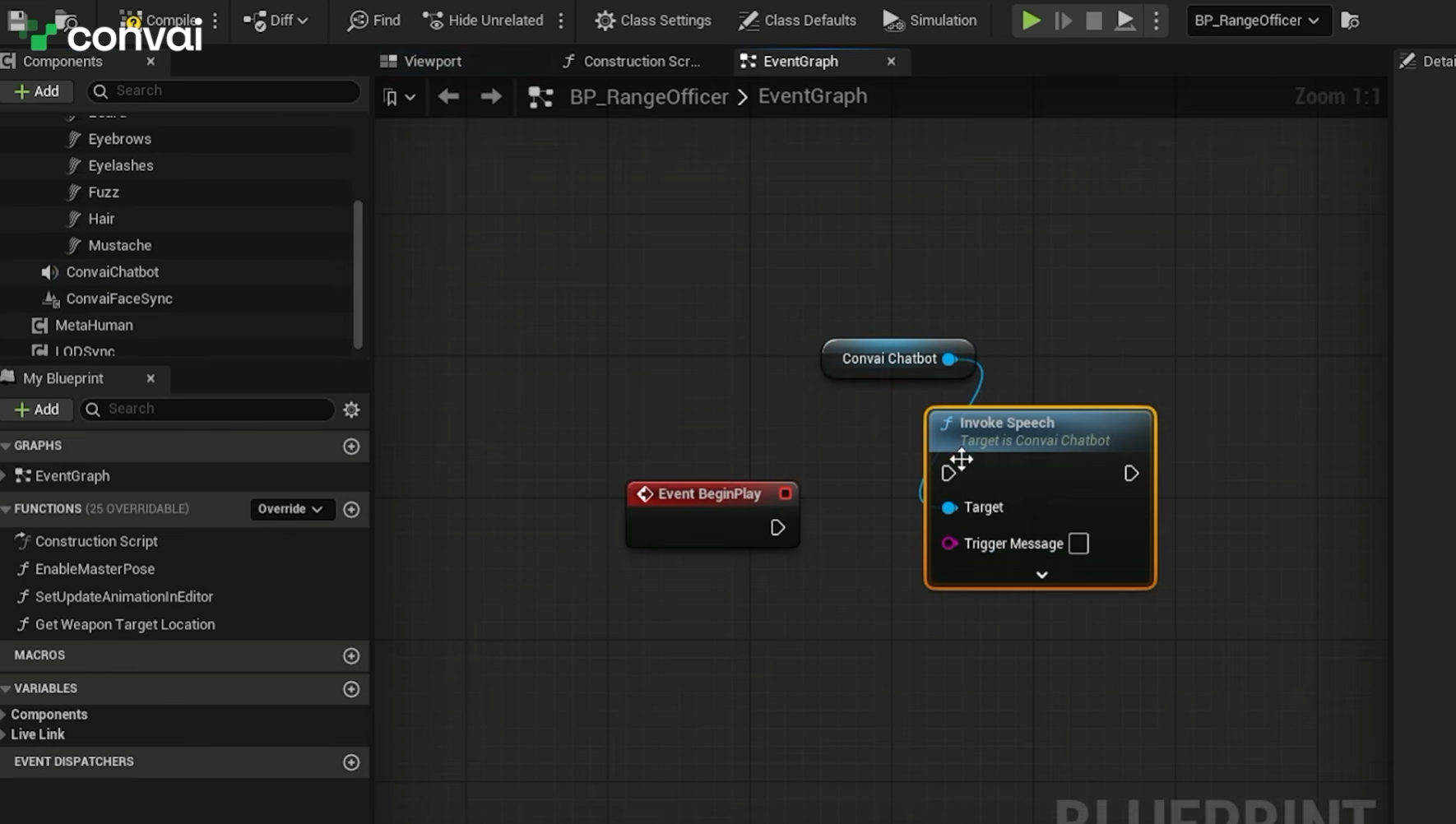
Open the character's blueprint and drag the Convai Chatbot component into the graph. Call Invoke Speech with a trigger message, which is the function to reach for when you want the character to say something. The tutorial keeps it plain: welcome the player and ask him to pick up the gun.
Add Set Look At Target alongside it, referenced to the player pawn, so the instructor faces the person it's addressing. Convai's gaze and attention system covers the automatic version of this.
"Welcome to the range. Good to see you. Whenever you're ready, grab your gear and let's get started."
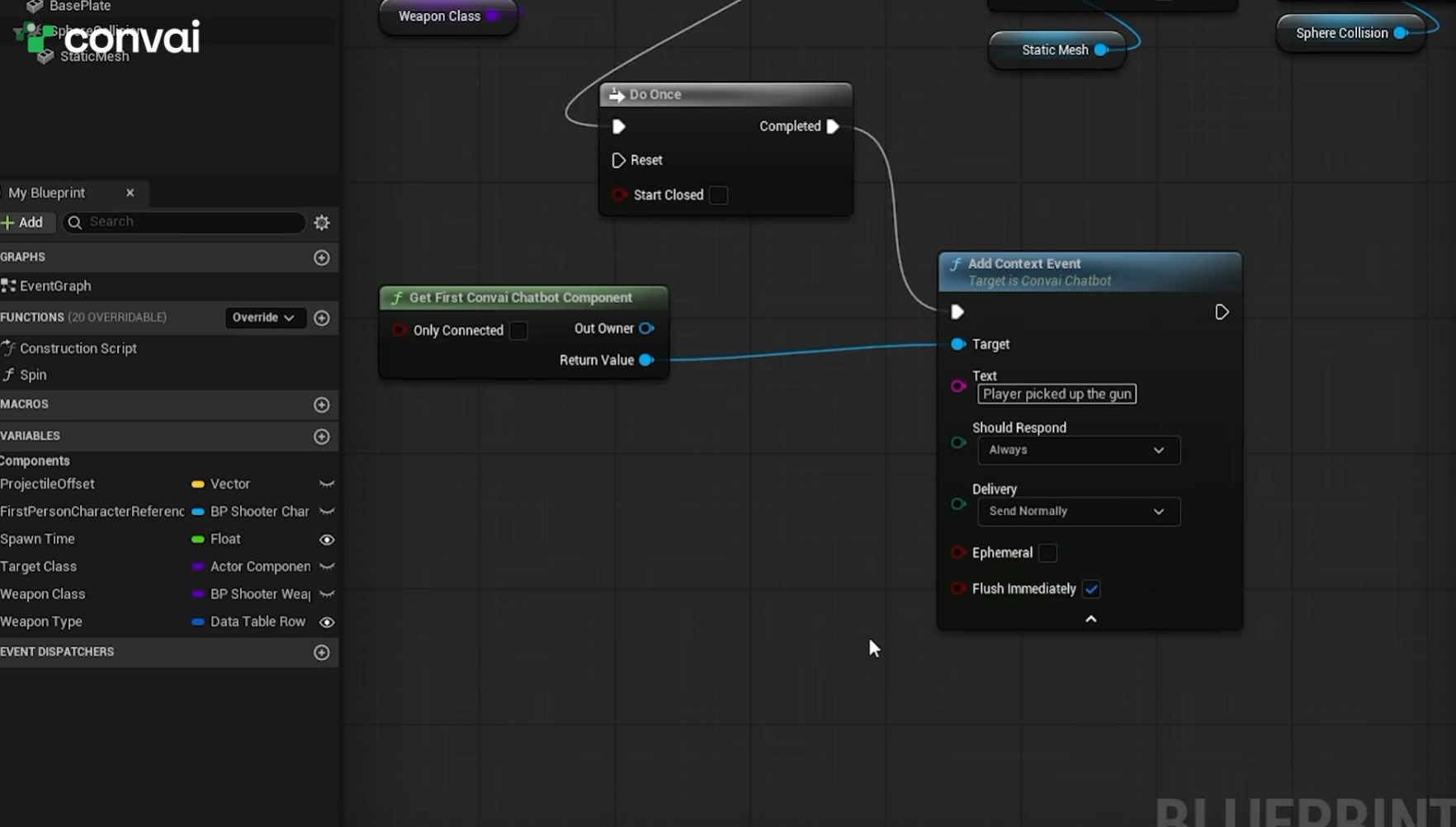
Select the weapon spawner and click Edit Blueprint. Its existing logic adds the weapon to the player on overlap. Insert a Sequence node, add Get First Convai Chatbot Component, and call Add Context Event with the text "player picked up the gun".
Add Context Event does something different from Invoke Speech. Invoke Speech asks the character to say a specific thing. Add Context Event tells the character a fact and lets it decide what to do with it. A Do Once node in front stops the event repeating.
Four settings shape the behavior:
Should Respond goes to Always here, because a one-time pickup deserves a reaction. The documented default for Add Context Event is Auto, and Set Context State defaults to Never.
Delivery mode goes to Send Normally, since an interruption is acceptable for this moment.
Ephemeral stays unchecked. Ephemeral text does not persist in the character's context, and the pickup should stick around.
Flush Immediately gets checked. It bypasses the debounce window and sends in the current frame, which suits one-time events the character should know about at once. Leave it off for high-frequency updates where batching helps.
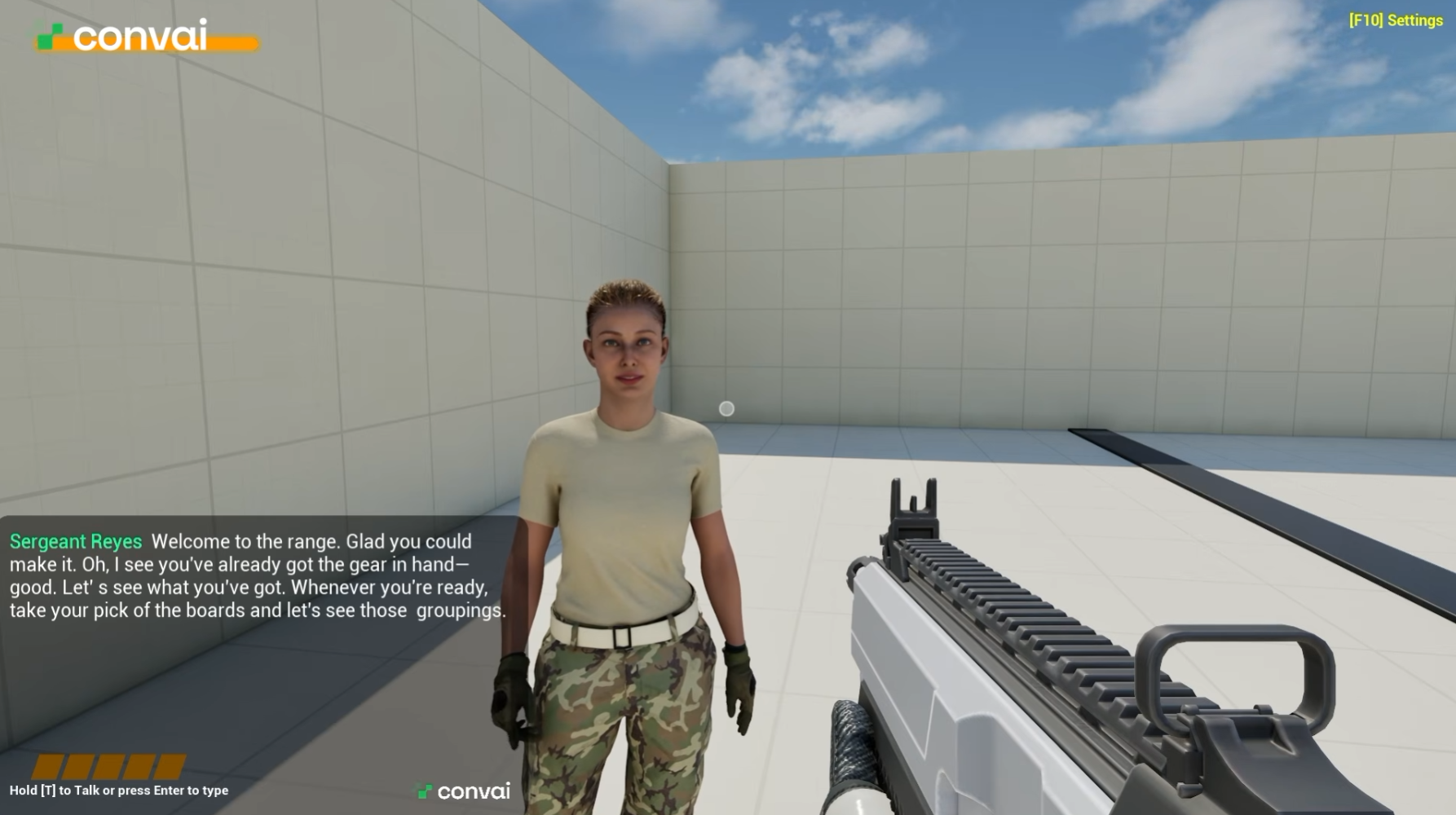
Pick up the gun before the welcome fires and both messages arrive together. The character produces one coherent line instead of two disconnected ones:
"Welcome to the range. Glad you could make it. Oh, I see you've already got the gear in hand? Good. Let's see what you've got."
That merge comes from debounce batching. Staged updates wait out a debounce window, which defaults to half a second and resets on each new update, capped by a maximum window of three seconds from the start of the burst. Everything staged in that window combines into one context update. When several items batch together, their Should Respond values merge into one aggregate rank where Always beats Auto beats Never.
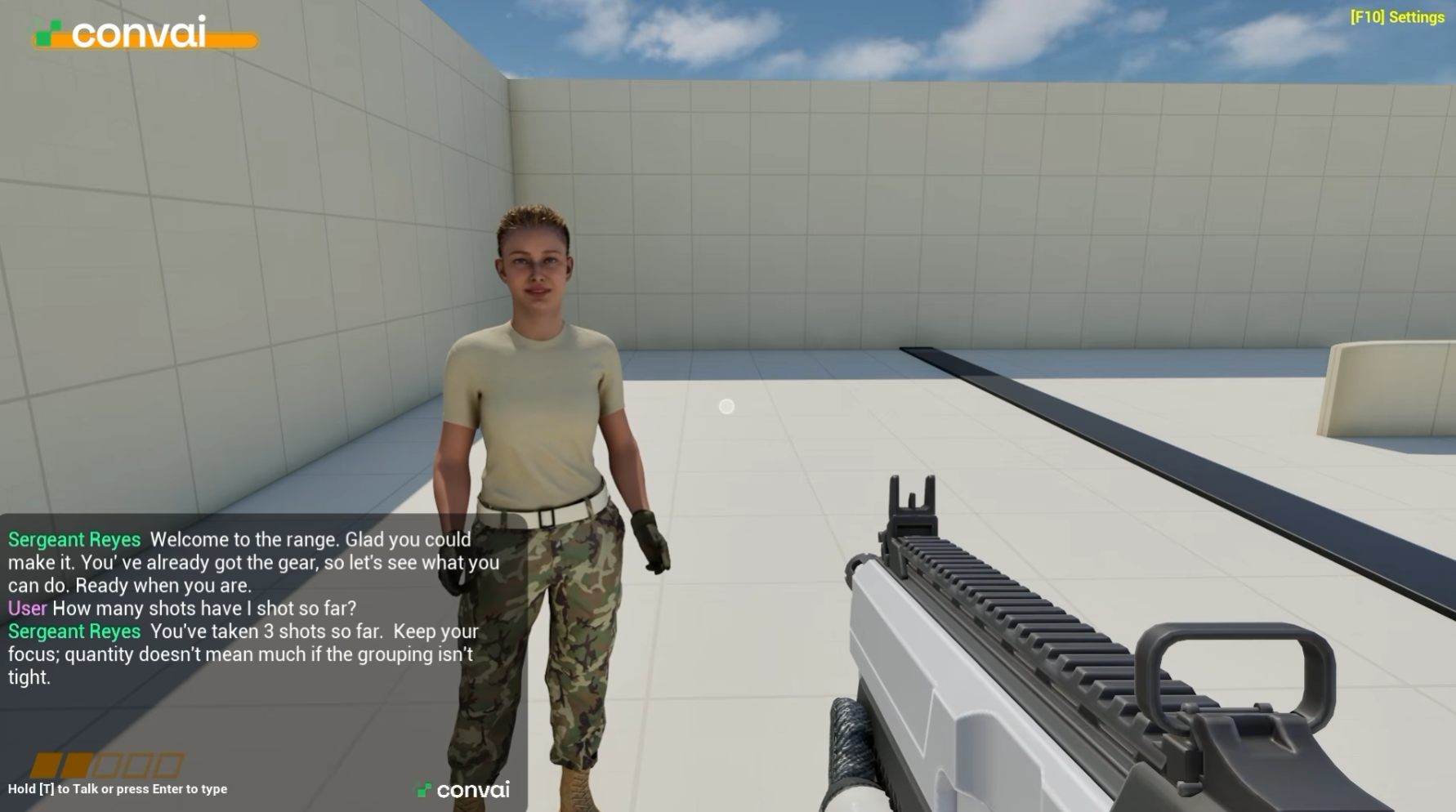
Open the player blueprint through World Settings, Default Pawn Class. Where the fire logic lives, add Get First Convai Chatbot Component and call Set Context State with a name like shots fired.
Creating that state creates a property you can read back. Add Get Context State, paste in the same name, convert the output to an integer, increment by one, and feed the result into the Set node's value. The state starts empty, which converts to zero, so the first shot writes one.
Set Should Respond to Never so the count updates in silence. Delivery goes to Send Normally, and Flush Immediately stays off because this value changes often and batching serves it better.
"How many shots have I shot so far?" "You've taken three shots so far. Keep your focus. Quantity doesn't mean much if the grouping isn't tight."
One note from the video worth carrying into your own project: tracking the weapon rather than the player is the better pattern, which matters most for automatic weapons. The tutorial counts left mouse clicks for simplicity.
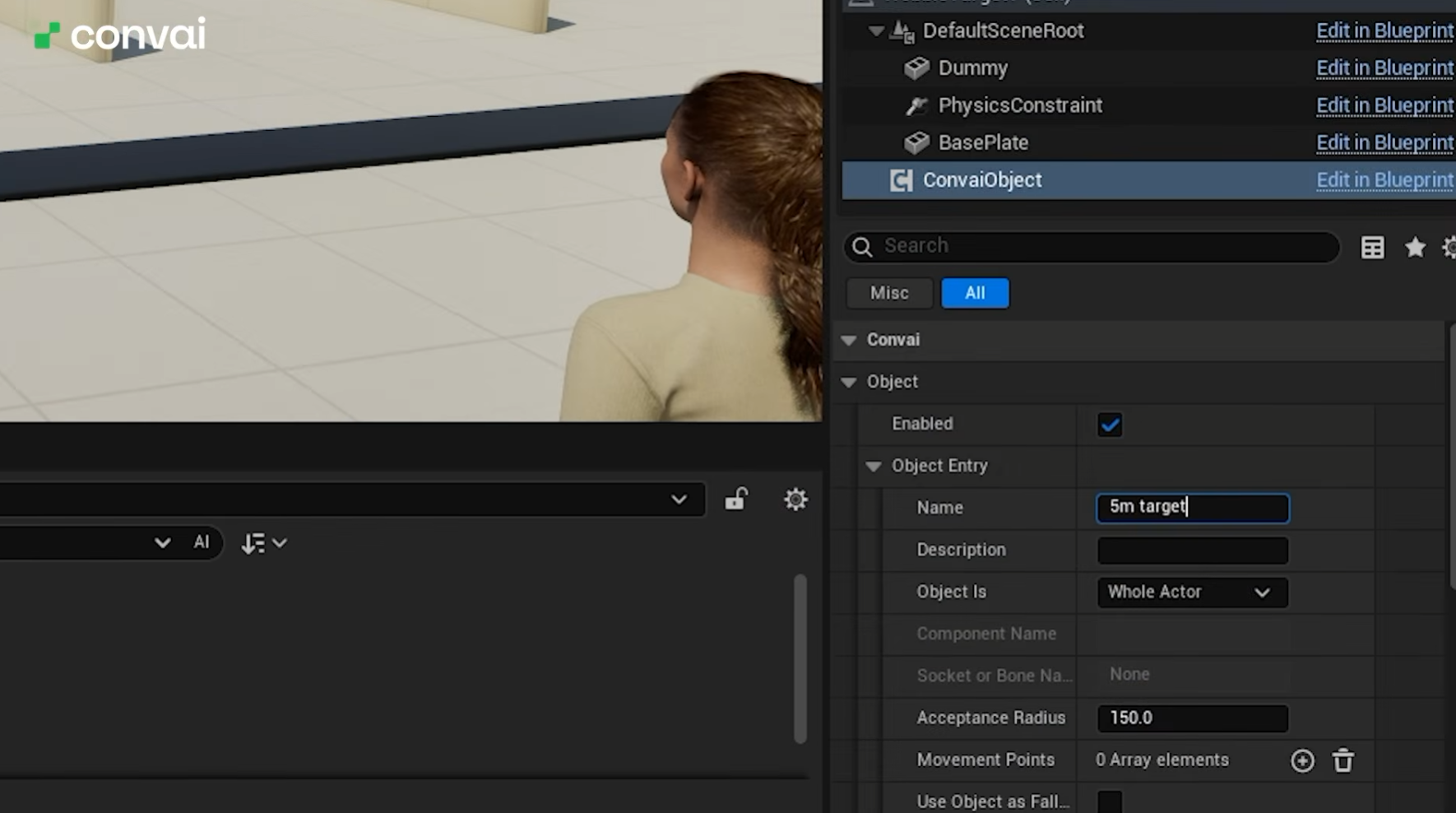
Tagging objects hands the character spatial understanding without any Blueprint work. It learns where each object sits relative to itself, to the player, and to other objects, along with which objects are moving and in which direction.
Select one of the targets, open its blueprint, and add a Convai Object component. Because all four targets share that blueprint, one addition covers them all, including the moving target, which inherits the component as a child class.
Name each one: 5 meter, 10 meter, 15 meter, 20 meter. The tutorial says nothing about the fourth target being the moving one, which becomes the interesting part later.
Then open the player blueprint, find Convai Player, and enable Gaze Attention. That tells the character which tagged object the player is looking at, and the gaze attention system handles promotion into the character's focus on its own.
Three questions, three answers the character worked out from tags alone:
"Which target am I currently looking at?" "You are currently looking at the 5 meter target right to my left."
"Which target is right next to me?" "The 10 meter target is sitting right there next to you."
"Which target is moving?" "The 20 meter target is the one on the move. It is drifting to your right. Try to lead your shots a bit if you decide to take a crack at it."
Nobody told the character that the 20 meter target moves. Movement awareness is on by default on the Convai Object component, so the character worked out both the movement and its direction.
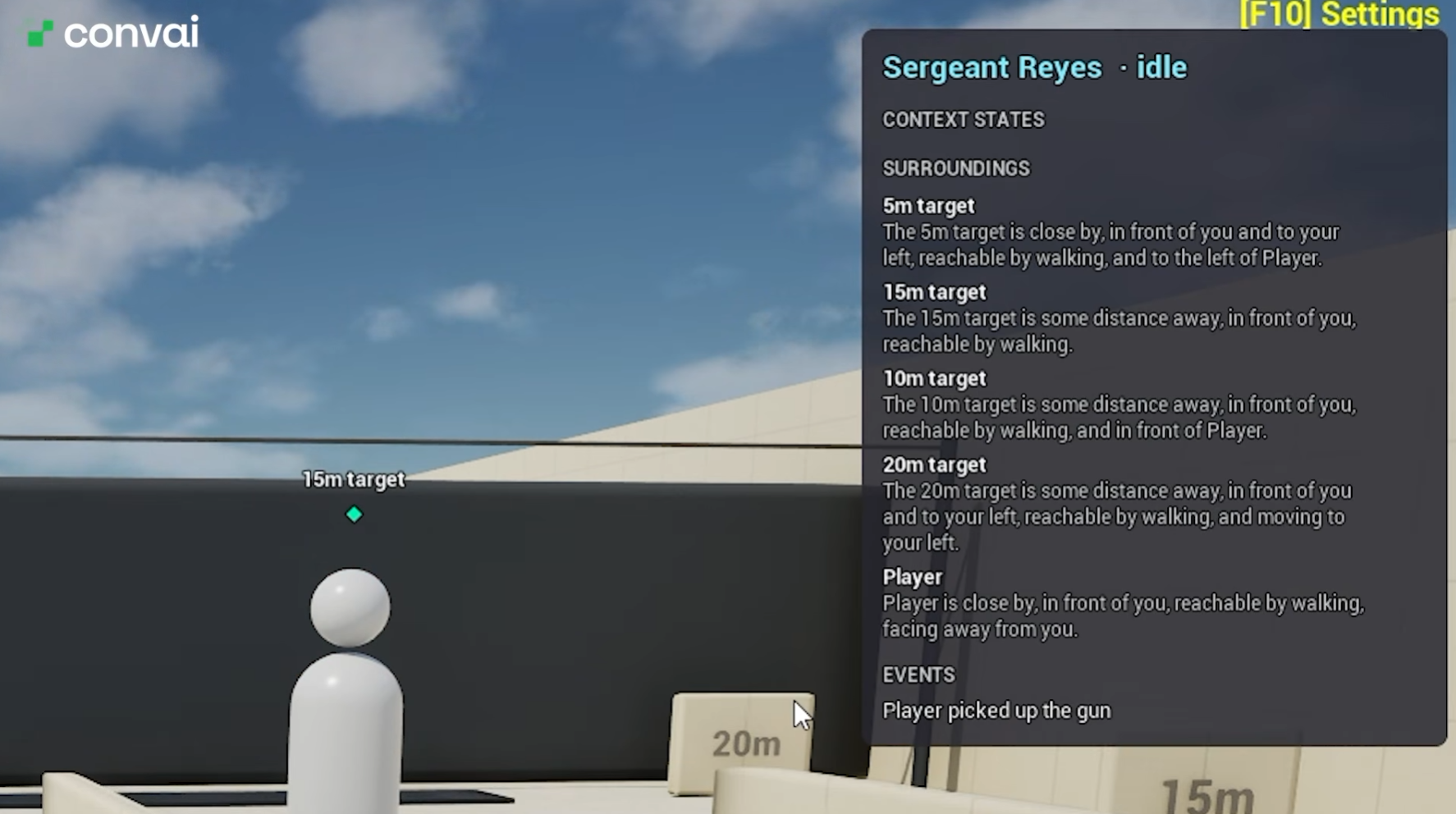
Press Ctrl + Alt + K in play mode to open the Dynamic Context debug overlay. It lists every context state and event being fed to the character at that instant, updating live. When something looks wrong in there, the troubleshooting guide covers updates that arrive late, trigger unexpected responses, or appear ignored after a flush.
In the video the overlay shows the gun pickup event, the shots fired state climbing to one after a shot, a player reached entry confirming proximity, and the 20 meter target's movement. When a character says something you didn't expect, this overlay tells you whether the problem is the data or the reasoning over it.
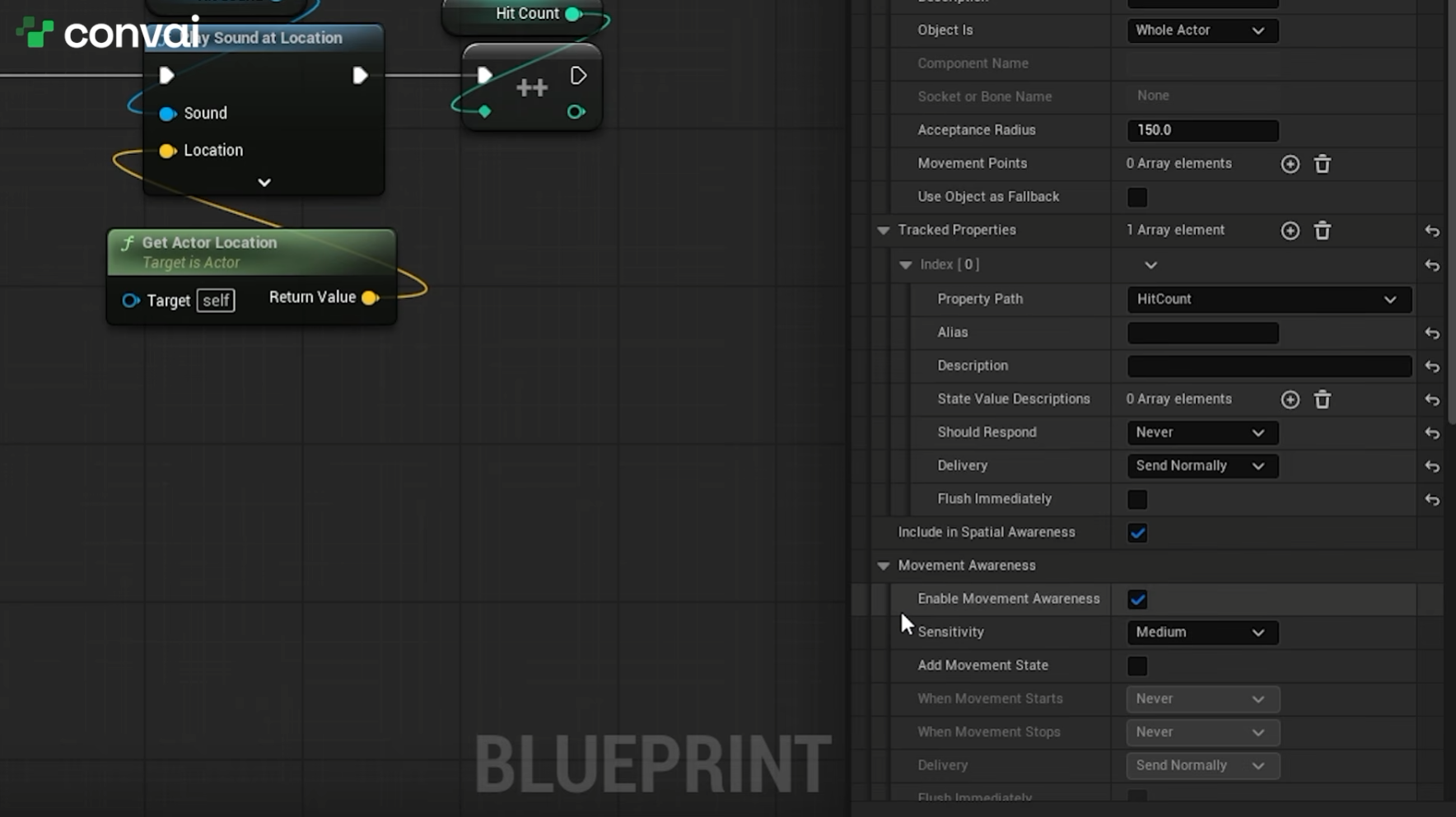
The shots fired state counts every shot in the level. It says nothing about which target absorbed those shots, which is where tracked properties come in.
Open a target's blueprint. It already has a Hit Count property that increments on each hit alongside an audio cue. In the Convai Object component, open Tracked Properties, add a new entry, and point it at Hit Count. That's the whole setup.
Set Should Respond to Never for the static targets, so the character gets notified in silence and can reference the numbers when asked. For the moving target, set Should Respond to Auto, since hitting a moving target carries more weight and the character should decide for itself whether the moment deserves a comment.
Two related settings sit nearby. Movement Awareness defaults to true and is what gives the character its sense of whether an object is moving. Movement State adds a context state for movement, the same shape as the shots fired state from level one.
Now the character reasons across all four ranges:
"Four hits out of five shots. Not bad, but you're leaving that 15 meter target untouched. Focus your sights and try again."
It noticed the untouched target on its own, and it spoke up when the moving target went down because that property was set to Auto rather than Never.
Should Respond is the setting that separates a useful AI instructor from one that narrates every frame. Never updates the character in silence, which is right for counters and any value that changes often. Auto hands the decision to Convai, which is right when a change sometimes matters. Always requests a response every time, which suits one-time beats like a weapon pickup.
Delivery mode and Flush Immediately shape the timing rather than the decision. Send Normally lets an update interrupt, while waiting for an idle conversation holds it back so the character avoids talking over itself. Flush Immediately skips the debounce window for time-critical updates, and the documentation recommends restraint, since heavy use sends one message per call.
Two behaviors from the sync and timing documentation are worth knowing before you ship. Identical event strings staged inside the same debounce window are deduplicated, so a repeated event fires once per flush. And calls made before the session connects accumulate without loss and deliver as one snapshot after connection, which means you can populate opening state from BeginPlay without connection guards.
If a context update lands in a way you didn't expect, the Dynamic Context thread on the Convai Developer Forum carries the tutorial links and is where the team works through response modes and timing questions with developers. The Guides and Tutorials category carries the rest of the Unreal series.
Also read: How to Use Dynamic Context in Convai to Build AI Characters That React in Real Time
Also watch: Create an AI Player That Talks, Acts, and Uses Game State in Unreal Engine
If you'd rather have a coding agent wire the scene for you, Convai MCP for Unreal Engine covers that workflow, and Convai Object in Attention goes deeper on what the character does with gaze.
What is Dynamic Context in the Convai Unreal Engine plugin? Dynamic Context is how a Convai character learns about runtime information that was not available when the session started. You push updates from Blueprint on two channels: states for current facts that get replaced, written with Set Context State, and events for one-time moments, written with Add Context Event.
What's the difference between Invoke Speech and Add Context Event? Invoke Speech asks the character to say something, so you supply the trigger message. Add Context Event tells the character that something happened and leaves the response to it, which is why the pickup event in this tutorial produces a line the character composes itself.
How do I track a running value like shots fired in Unreal Engine? Call Set Context State with a name for the value, then read it back with Get Context State, convert the result to an integer, increment it, and write it back through the same Set node. The state starts empty and converts to zero, so the first call writes one.
How do I stop an AI character from talking every time game state changes? Set Should Respond to Never on the update, which notifies the character in silence and lets it reference the value when asked. Use Auto when a change sometimes deserves a comment and you want Convai to decide, and reserve Always for one-time moments like a weapon pickup.
How does a Convai character know which object the player is looking at? Add a Convai Object component to the objects you want tracked, give each a clear name, then enable Gaze Attention on the Convai Player component. The character then receives which tagged object the player is looking at, alongside spatial relationships and movement.
How do I debug what a Convai character is receiving in Unreal Engine? Press Ctrl and Alt and K during play to open the Dynamic Context debug overlay, which lists every context state and event being fed to the character at that instant and updates live as gameplay continues.
Why did my AI character combine two separate events into one response? Dynamic Context batches staged updates through a debounce window that defaults to half a second and resets with each new update, capped at three seconds from the start of a burst. Everything staged in that window flushes as one context update, and the character reasons over all of it together.
How do I make a character react to specific Blueprint properties? Add a Convai Object component to the actor, open Tracked Properties, and point a new entry at the property you want watched, such as a Hit Count integer. Set Should Respond to Never for values that should update in silence, or Auto when a change is worth a possible comment.
Send the events that matter with Add Context Event, keep running values in Set Context State, tag your objects so spatial awareness arrives without extra work, and track the Blueprint properties your character should reason about. Then open the debug overlay and watch what it receives.
Ready to build? Sign up at convai.com · Read the Dynamic Context documentation · Read the Blueprint reference · Get the plugin on Fab · Ask questions on the Developer Forum
Follow Convai: LinkedIn · Reddit · X/Twitter · Instagram · YouTube


