Use Cases

.jpg)
Putting three AI characters in one Unity scene takes about four minutes. Deciding which one the player is addressing is the part that takes design judgment.
That asymmetry is the whole story of multi-character sessions. There is no multi-character mode to switch on, no component to add, and no field to fill. Drop a second ConvaiCharacter into a working scene, give it its own Character ID, and the room holds two. The same is true of a fourth, or a tenth.
What changes is that the scene now has to answer a question a single-character scene never asks. A player speaks into a room with Sophia, Ethan, and Marcus standing in it. Who replies? A single AI NPC never forces that question.
This article covers part one of the Convai multi-character series for Unity: the setup, the three targeting modes, and the layered rule underneath them that most teams never read and then spend an afternoon fighting. It applies to games, training, and kiosks alike.
Also watch the tutorial this article follows:
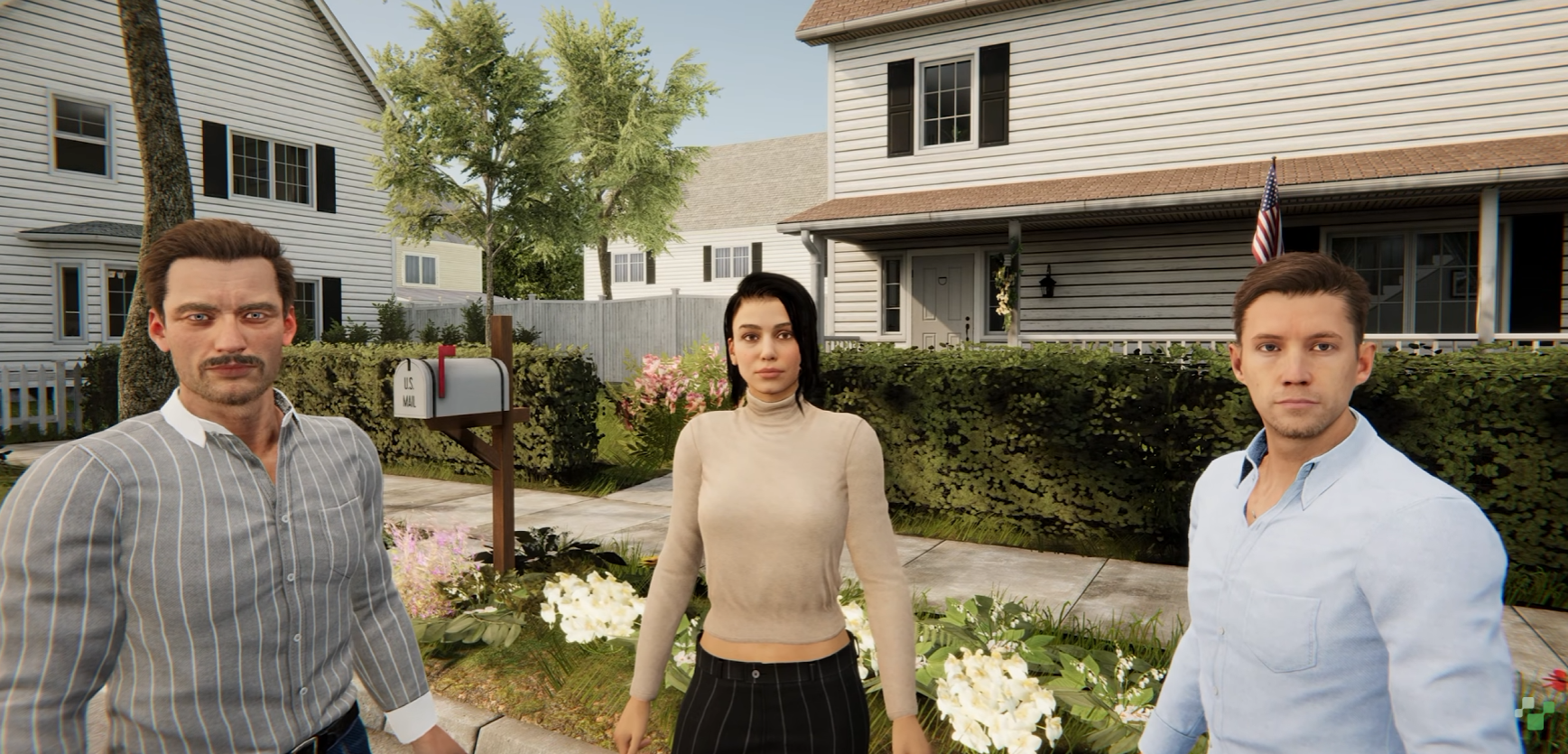
A multi-character session is a Unity scene where two or more ConvaiCharacter components are active at once, sharing one room with Convai. The player addresses one character at a time, and the Convai SDK for Unity works out which, without a component you have to add.
The reason nothing needs configuring is worth stating, because it explains the behavior downstream. A single-character scene and a multi-character scene go through the same connect path. The only difference is how many active characters that path finds when it runs. A room holds every active character in the loaded scenes, so the room becomes multi-character the moment the scene does.
That design choice has a consequence you will notice in the Convai Manager inspector. Its Scene Setup section detects every character in the scene from the Inspector and lists them with a checkbox each, plus an Include Everyone button. Nothing in that list is wired by hand. It is a live view of what the scene already contains.
Three steps, and the first two are things you already know how to do.
Start from a working single-character scene: a Convai Manager, a Convai Room Manager, a Convai Player, and one character that talks back in Play mode, with lip sync wired if you want it to look right. If yours is not there yet, the Unity installation and setup tutorial covers it, as does the getting started guide.
Add the additional characters. Drop in more character prefabs, or duplicate the GameObject you already have. Each character carries the same Convai components as the first, whether it came from Avatar Studio or your own art pipeline. There is no extra component that exists for multi-character scenes.
Give each one its own Character ID from the Convai dashboard, where its knowledge, personality, and core AI settings live as well. This is the step that matters, and the next section is about why.
Then open the Convai Manager, confirm every character is ticked or click Include Everyone, and scroll to Who The Player Talks To. That section appears once a scene has more than one character, because with one character there is nothing to decide.
The quick start walks the same path with the inspector readouts to check at each step. With two characters in the scene, Characters in Scene reads 2 and Joining the Room reads All 2.
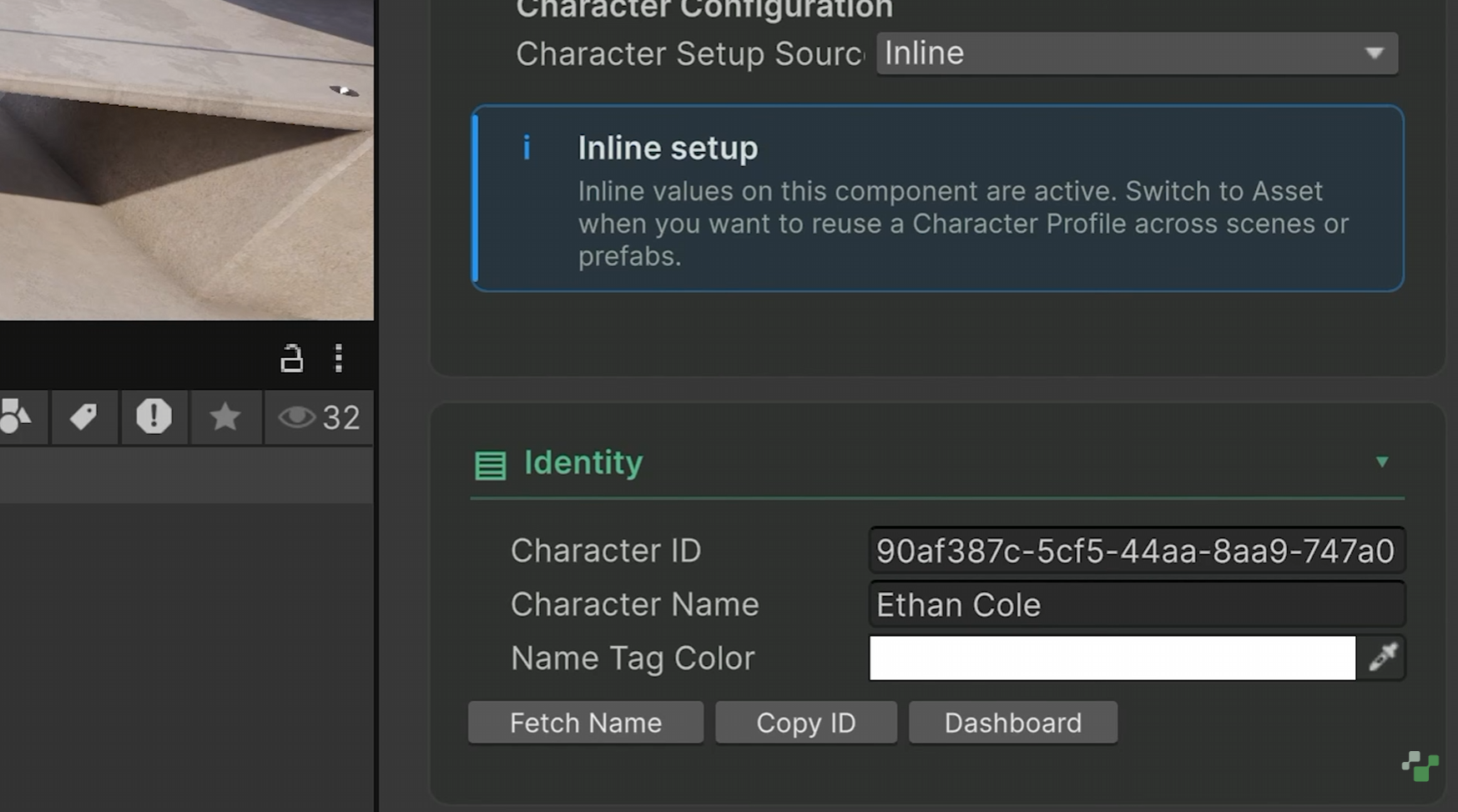
Because the SDK routes ownership, participants, and audio by Character ID. Two characters holding the same ID do not each get their own routing. The second collides with the first, and the room answers both through whichever was registered first.
The reason this matters more than it sounds is how scenes get their second character. Duplicating a working one is the ordinary way, and a duplicate carries the original's Character ID with it. A copied character never gets an ID of its own.
Convai checks for the collision twice, which is unusual enough to be worth noticing.
The first check runs while you edit. Select a character sharing its ID with another in the loaded scenes and its inspector shows an error titled Another character has this Character ID, above every other section. The message names every other character sharing the ID rather than the first one found, and the check runs whether or not a multi-character session is active, because a duplicate ID is wrong in any scene. A validation helper reports the same conflict as an error, so a continuous integration run or an editor script catches it without anyone opening the inspector.
The second check runs when the room connects. A room whose active characters include two with the same ID refuses to connect at all, and the exception names both characters and the shared ID. That refusal covers both paths into a room roster: the full cast submitted at connect, and a single character added later while the room is up.
Refusing to connect is the interesting choice here. The alternative, connecting a room that works for one character and drops the other without a word, is the version that ships to a build and gets reported as a voice bug three weeks later.
The ID field is validated on its own terms too. It has to be 36 characters, shaped as a GUID, with no leading or trailing whitespace. The inspector messages are specific about which of those failed, including one warning that it is easy to copy a character's name by mistake. Duplicate comparison ignores case and surrounding whitespace, so two IDs differing only in capitalization count as the same ID.
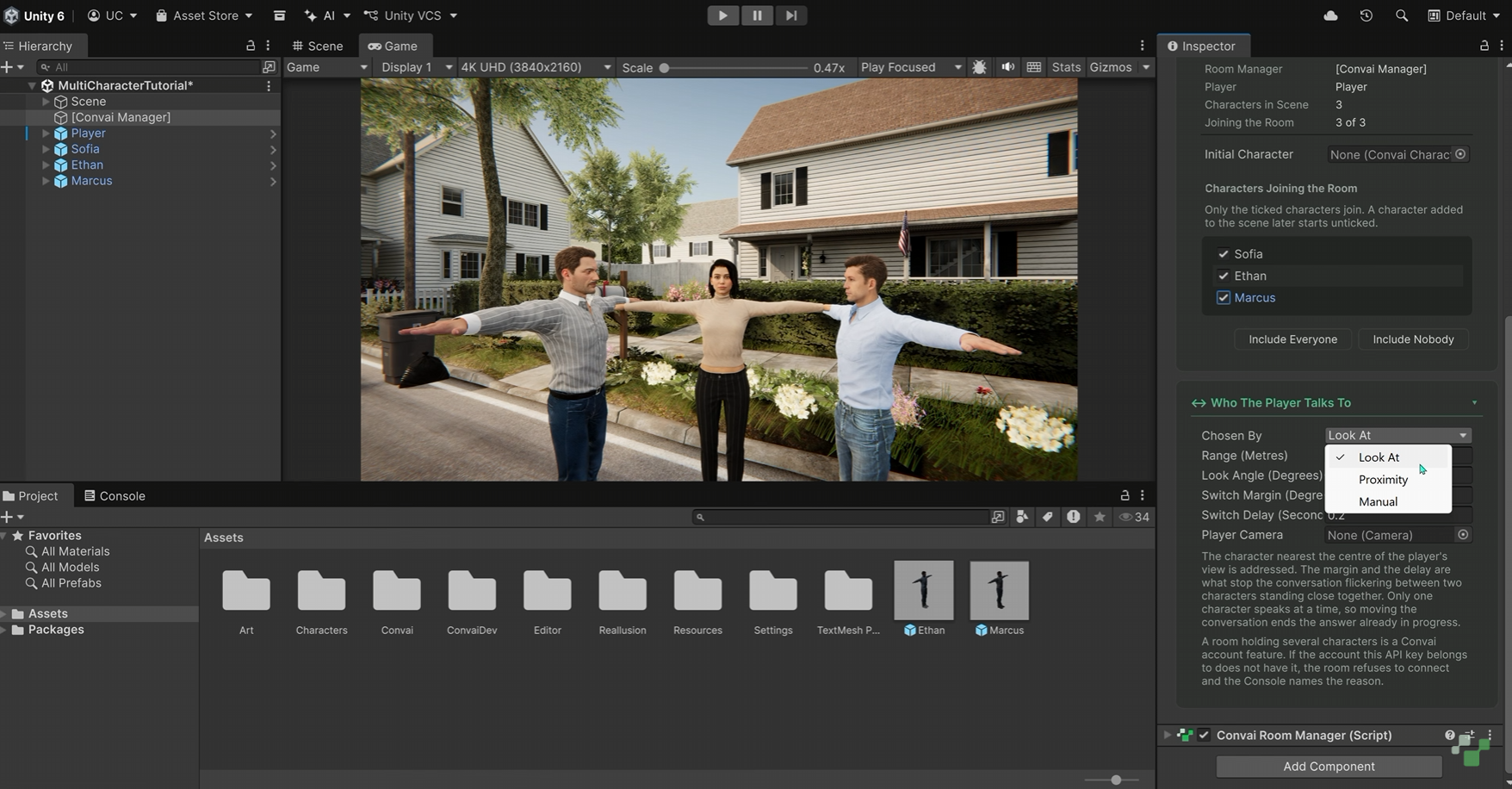
Three modes live under Convai Manager, Who The Player Talks To, in a field called Chosen By. The setting sits on the manager rather than on a component, and the reason is a design principle worth borrowing: a scene where one character works must keep working the moment a second is dropped into it. A rule that takes effect once somebody finds and adds a targeting component is a manual step wearing a different hat.
Look At is the default. It addresses the character nearest the center of the player's view, scoring every eligible character by the angle from the view direction with distance as a tiebreak.
Proximity addresses the nearest character, wherever the player happens to be looking.
Manual changes the target when the game calls it and at no other time.
The honest answer is that the mode follows the camera, not the genre.
Look At suits first-person and VR scenes, and any scene where camera direction is the player's gaze. Under the default mode, targeting reads the player's view direction rather than casting a ray at the scene, which is a meaningful distinction. A ray needs a collider on every character and a layer mask set right, and it fails without saying so when either is missing or a stray collider blocks the line. Reading the camera's forward direction instead means a mouse, a gamepad, a touch screen on mobile, and a head-mounted display all drive targeting the same way, because none of them changes what the camera points at. No colliders, no layers, no input wiring.
Proximity suits top-down and third-person cameras, where the camera is not the player's gaze. An isometric training simulation or a third-person scene with a free camera would otherwise address whichever character the camera happened to be pointed at rather than the one the player stands next to.
Manual suits dialogue menus, quest steps, and cutscenes, where the game decides who is being addressed rather than the player's view or position. It is also the right answer for narrative beats that must play in full, and pairs with Narrative Design when the scene is scripted, for reasons covered further down.
The video uses Look At, which is the default and the right starting point for most 3D scenes, including WebGL builds.
Also watch: the Convai Unity installation and setup tutorial if your scene is not talking back yet.
Here is the part the video passes over in thirty seconds and the documentation spends several pages on. Convai Manager re-runs the targeting rule about fifteen times a second, and that rule has three layers. Two are tunable. The third is not.
Knowing which layer you are fighting saves most of the time people lose to targeting.
Two numbers decide whether a character can be addressed at all.
Range, exposed as MaxDistance, defaults to 30 metres. Look Angle, exposed as MaxAngle, defaults to 35 degrees and is measured from the view direction, so the default describes a 70-degree cone in front of the player. Widen it and you widen the field of view that counts as addressing someone.
These are shape-of-space numbers. When a character cannot be addressed at all no matter how hard the player stares, one of these two is excluding them.
Two more numbers decide what it takes for an eligible challenger to take the conversation over.
Switch Margin defaults to 10 degrees and sets how much better a challenger must score before the conversation moves. It applies to Look At alone, because it is measured in degrees. Switch Delay defaults to 0.2 seconds and sets how long a challenger must stay the best choice before the move commits. Under Proximity, the delay is what separates two characters standing the same distance away, since a margin measured in degrees means nothing to a rule measured in metres.
This second pair is hysteresis, and it exists to stop flickering. Without it, two characters standing near each other would trade the conversation back and forth on sub-degree camera movement, and sweeping the view across a room would hand the conversation to everyone it passed. Both faults are obvious in play and invisible in code, which is why they get their own settings.
Every field clamps rather than throwing. MaxAngle accepts 1 to 180 degrees, Switch Margin 0 to 90, and the other two a minimum of zero. An out-of-range value gets pulled into range instead of breaking the scene.
Three rules govern targeting that no setting disables, and each of them is a courtesy the system extends on your behalf.
A glance is not an address. A character has to be the better choice for a moment before the conversation moves. A look that passes over someone without settling does not redirect anything. Switch Margin and Switch Delay enforce this together, but the principle holds at any values.
The player's own sentence pins the target. The conversation cannot move part way through what the player is saying, because the back half of a sentence reaching a different character than the front half is not something a later correction can repair. A glance made mid-utterance is remembered rather than discarded, so a look held through a whole sentence moves the conversation the instant the sentence ends, without needing the same look twice. That detail is what makes turn-taking feel considerate rather than laggy.
The target never clears itself. When nobody qualifies, the last character addressed keeps the conversation, and conversation availability reports whether that character can hear the player yet. A cleared target would mean the player speaks and nothing answers, which reads as a broken scene rather than as addressing nobody in particular.
That third rule is the one most often mistaken for a bug. A character who keeps answering after the player has turned away is the system holding the line rather than losing track.
A room opens on one character before the player has looked at or said anything, because a conversation has to start somewhere.
Assign an Initial Character in the Convai Manager inspector and the room opens on that character regardless of scene order or where the camera faces. Leave it unassigned and the room opens on the first character in scene order.
That choice only decides where the conversation starts. From the moment the room is ready, the targeting rule re-evaluates and the conversation moves to whoever the player addresses, unless the mode is Manual. An Initial Character is an opening position, not a lock.
Setting it from script on a room that is already connected queues a reconnect rather than moving the current conversation, which is a distinction worth knowing before you call it mid-scene.
Reach for the eligibility pair when a character cannot be reached, and the switching pair when the conversation moves too soon or not soon enough. Three adjustments cover most scenes.
When the conversation flickers between two nearby characters, raise Switch Margin first, then Switch Delay if the flicker survives.
When looking at a character does not move the conversation to them, their distance or angle falls outside Range or Look Angle. Widen whichever is excluding them.
When the target switches too often as the player sweeps the view across a room, raise Switch Delay so a passing glance stops counting as an address.
A narrower Look Angle suits characters standing far apart in a digital twin or showroom, since it lets the player look between them without addressing either. A wider one suits a wide-format screen where a character at the edge of the frame is still visible. The tuning guide covers both the inspector fields and the runtime equivalents.
Yes, and the surface is larger than the three modes suggest.
TalkTo points the conversation at one character. It is safe to call at any time and does nothing when the room is not multi-character or the character is not in it. Called while the player is mid-utterance, the request is held until the utterance ends and then sent, which is the same courtesy rule applied to a scripted move.
SetInitialCharacter chooses who speaks first when the room connects, with the reconnect caveat above.
For teams who want the decision to be their own, a targeting provider interface replaces the built-in modes outright. Its resolve method receives every character in the current room in stable order plus whoever holds the conversation now, and returns the character who should hold it next. Returning nothing, or returning a character outside the candidate list, leaves the conversation where it is. An exception thrown inside it is caught and logged rather than taking the scene down.
Two events report movement. One fires after player input closes and right before the SDK attempts the change, which can still fail. The other fires when an authoritative response from Convai reconciles the target, a round trip later. Projects standing on the event system instead get a single domain event carrying the phase, requested, confirmed, or failed, and the refusal reason on failure.
There is also a verdict you can read at any moment, naming why the last decision went the way it did: the proposal already held the conversation, the change committed, the proposal has not led for long enough, the player is mid-sentence, or a previous change is still in flight. That last set is the difference between debugging targeting and guessing at it.
Select the Convai Manager during Play mode and open its Live section. It reports more than most teams expect.
Characters in Room reads the number the room opened for. Talking To names the character being addressed and updates as the player turns. Player Can Talk reads yes once that character can hear the player, and reports that a character is still joining for the brief moment after it enters the room. Room Holds reads several characters once the room grows past one. Room Roster below lists one row per character, marks the addressed one, and shows which characters are ready. Pair it with the transcript API when you want the same state in your own UI.
The Live section also names the verdict behind the last targeting decision, which is what separates a target that is held on purpose from one that is stuck.
For a one-shot report there is a Troubleshooter under the Convai menu, covering targeting alongside the rest of the conversation state. Teams working with a coding assistant can get the same report through a diagnostic tool, including the targeting rule with its values and whether they are still the shipped defaults. The Convai MCP workflow for Unity covers that setup.
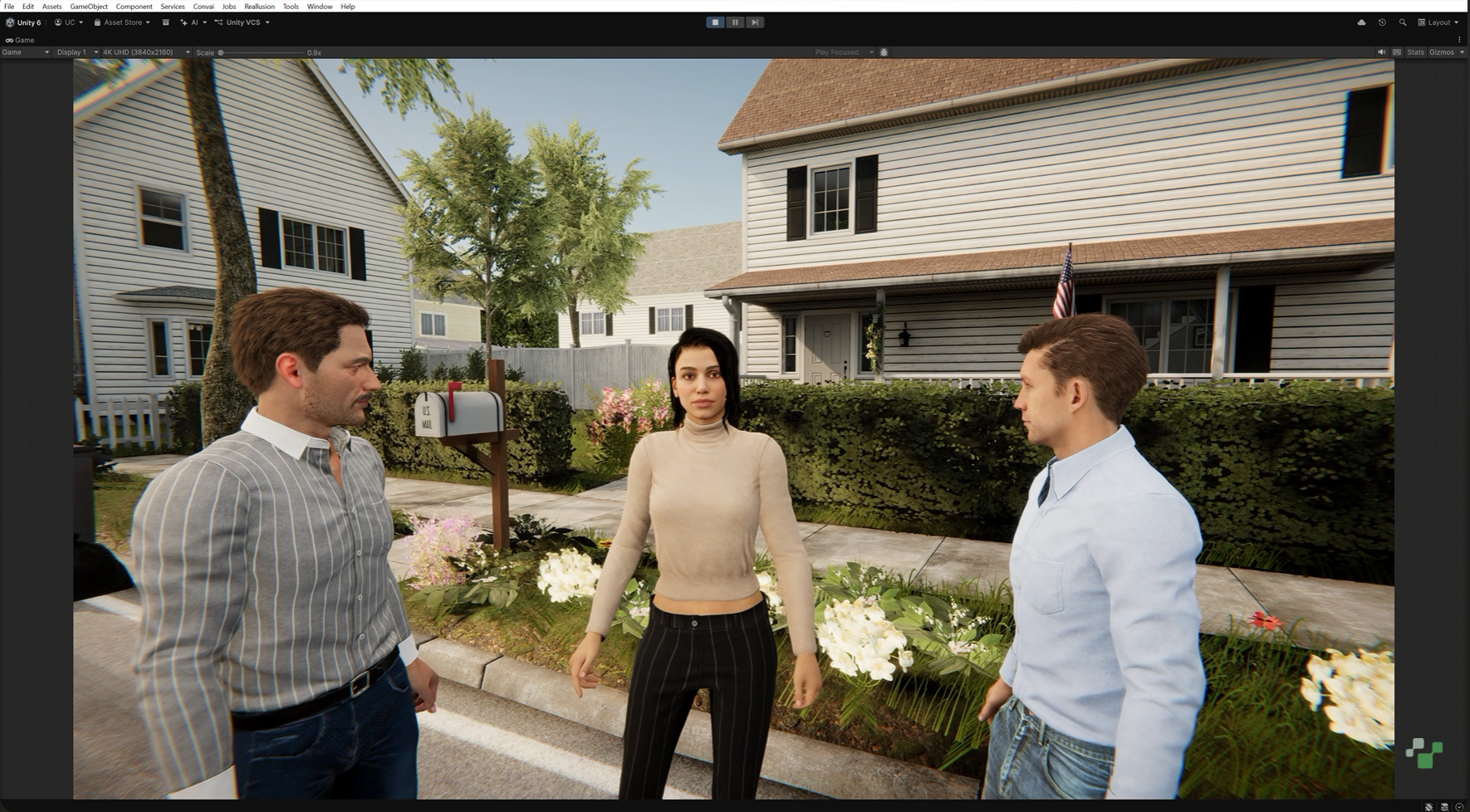
The tutorial tests with three characters, Sophia, Ethan, and Marcus, in a small mystery. Someone stood outside an empty house at two in the morning, and every light on the street went out at once.
The player asks Sophia what she saw. She describes a figure standing still near the front door. Turn to Ethan and ask whether that is strange, and he says the figure by itself is not, but the simultaneous outage is what he cannot explain. Turn to Marcus, who saw the lights go out and volunteers that the house has been empty for three weeks.
Nothing in that exchange is scripted dialogue. What makes it work is that each character has its own Character ID, and so its own Knowledge Bank and its own backstory, knowledge, and personality on the Convai side. Ethan reaching for ordinary explanations first and Marcus withholding the detail that unsettles him are not targeting behavior. They are three characters built from different material, addressed one at a time.
The targeting layer's contribution is invisible when it works, which is the point. The same holds for lip sync and every other layer a player never names. The player turns and the right character answers.
Looking at a character does not switch the conversation. Their distance or angle falls outside Range or Look Angle. Widen the one excluding them.
The conversation flickers between two characters. Switch Margin or Switch Delay is too low for how close together they stand. Raise the margin first.
Nothing switches at all. The mode is Manual, so nothing moves the target except a scripted call. Either drive it from code or change the mode.
TalkTo appears to do nothing and the console logs a warning naming the character. That character is not a member of the current room, and the Console names it. It was never registered, or it left the room since the room connected.
The conversation seems stuck on one character. Check the verdict before assuming a fault. A held target and a stuck target look identical from outside and are told apart by the reason code.
The room refuses to connect and names two characters. They share a Character ID. Give each its own from the dashboard.
For anything past that, the targeting troubleshooting page and the multi-character troubleshooting page cover symptoms one at a time, and the Convai Developer Forum is where setup questions go, alongside the guides and tutorials category and existing threads on multiple characters in one scene and multiple characters in VR. The thread for this tutorial collects questions from people working through the same steps.
Part one is one-to-one inside a shared room. The player addresses one character, that character answers, and the others wait.
Part two extends this to all-to-all awareness, where players and characters alike stay aware of conversations and events happening around them, so a character can react when something said nearby is relevant to it. That is a different problem from targeting: targeting decides who answers, while awareness decides who was listening.
There is also a Playground path worth knowing about. Multi-character conversations can be prototyped as chat before any of this reaches a 3D project, with several characters added, control over who responds, and group conversations you can test in a browser. The tutorial mentions it as a separate walkthrough to come.
Most scenes worth building have more than one character in them. A game with several NPCs holding different roles. A training simulation with an instructor, an assistant, and a guide working the same floor. A virtual tour with staff at different stations. A social space, an XR environment, a mixed reality build using passthrough vision where characters share a physical room with the player, a brand experience with more than one host.
In all of those, each character brings its own knowledge, its own long-term memory, its own actions, its own vision of the scene, and its own reason for being there. What multi-character sessions add is the routing layer that lets a player move between them without a menu, a hotkey, or a proximity trigger you wrote yourself.
Install the Convai SDK for Unity from the Unity Asset Store, or let a coding assistant build the scene for you, then follow the getting started guide to get one character talking, then create your additional characters and copy each Character ID into its own ConvaiCharacter component. The multi-character quick start takes it from one character to two, and a shipped sample scene shows several characters, targeting, and a transcript UI working together.
Also watch: the Convai YouTube channel for the rest of the Unity, Unreal Engine, and XR tutorial series.
What is a multi-character session in Convai for Unity?
A multi-character session is a Unity scene where two or more ConvaiCharacter components are active at once and share one room with Convai. There is no mode to switch on, no component to add, and no field to fill. The room holds every active Convai character in the loaded scenes, and the SDK decides which one the player is addressing.
How do I add a second AI character to a Unity scene?
Drop a second character prefab into the scene or duplicate your existing character's GameObject, then give it its own Character ID from the Convai dashboard. Open the Convai Manager, confirm both characters are ticked under Scene Setup or click Include Everyone, and the Who The Player Talks To section appears.
Why does every Convai character need its own Character ID?
The SDK routes ownership, participants, and audio by Character ID. Two characters sharing one collide instead of each getting its own answer, and the room answers both through whichever was registered first. The inspector warns about the conflict while you edit, and the room refuses to connect if two active characters still share an ID.
What are the three character selection modes in Convai for Unity?
Look At addresses the character nearest the center of the player's view, scored by angle with distance as a tiebreak. Proximity addresses the nearest character regardless of where the player is looking. Manual changes the target only when the game calls TalkTo. Look At is the default.
Should I use Look At or Proximity targeting?
Use Look At for first-person and VR scenes, where the camera direction is the player's gaze. Use Proximity for top-down and third-person cameras, where the camera is not the gaze and Look At would address whichever character the camera happened to be pointed at rather than the one the player is near.
How does Convai decide which character the player is addressing?
Convai Manager re-evaluates about fifteen times a second. Range and Look Angle decide who is eligible to be addressed. Switch Margin and Switch Delay decide what it takes for an eligible challenger to take the conversation over. On top of those, a passing glance does not redirect the conversation, the target cannot move part way through the player's sentence, and the target never clears itself.
Why does the conversation flicker between two characters?
Switch Margin or Switch Delay is too low for how close together the characters stand, so small camera movements are enough to trigger a switch. Raise Switch Margin first, then raise Switch Delay if the flicker continues.
Can more than one Convai character speak at the same time?
No. The room has one character answering at a time, and moving the conversation ends the previous character's turn, even mid-sentence. When a line must be heard in full, set targeting to Manual and move the conversation on your own schedule, or avoid moving the target while that character is speaking.
Which character speaks first when the room connects?
The room opens on the Initial Character assigned in the Convai Manager inspector. With none assigned, it opens on the first character in scene order. That choice decides only where the conversation starts, because targeting re-evaluates from the moment the room is ready unless the mode is Manual.


